
Overview
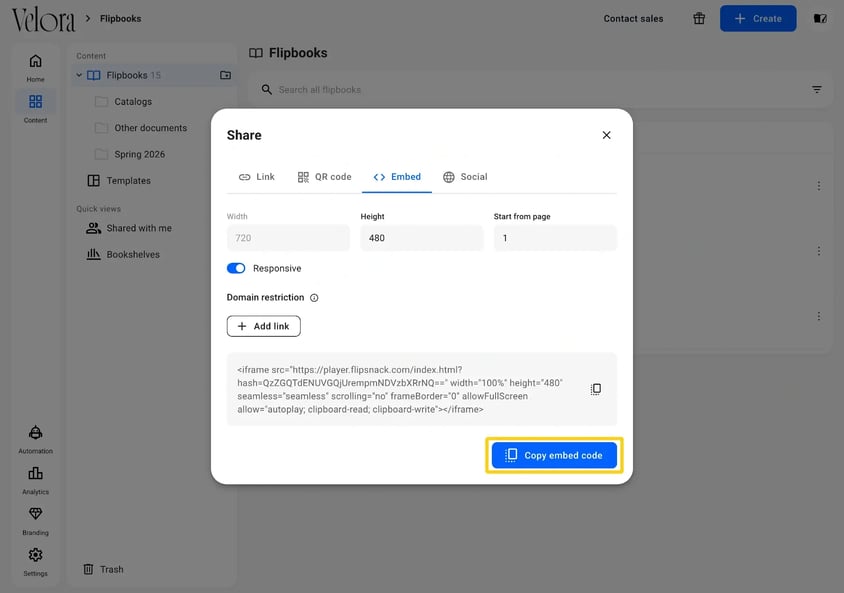
To embed a flipbook on your website, open its Share window, go to the Embed tab and click Copy embed code, then paste the code into your page's HTML or an embed block. The code is an iframe, so it works in any website builder that accepts HTML. You can embed a flipbook on any plan.
💡 Benefits of embedding a flipbook on your website
- Readers stay on your site: they flip through the publication inside your page, with no new tab.
- One code that stays current: edit the flipbook and your website shows the new version.
- Fits desktop and mobile: a responsive embed fills the width of its container.
- Opens where you want: start the flipbook on the page you choose.
- Stays on your domains: domain restriction stops other sites from showing it.
Any website builder that accepts an iframe takes the same code, so one flipbook can sit on several sites at once.
👥 Where an embedded flipbook is helpful
- E-commerce: a catalog or lookbook on a product or collection page.
- Investor relations: quarterly and annual reports on the investors page.
- Real estate: a property brochure on its listing page.
- Internal communications: newsletters and handbooks on an intranet such as SharePoint or Confluence.
The Share window, and with it the embed code, appears only once you publish the flipbook.
Requirements
- Plan: Starter or above: check your plan or compare plans
- Flipbook: published as Public or Unlisted. On the Enterprise plan, you can embed a private flipbook on approved domains: see How to embed private flipbooks on approved domains: compare plans
How to get the embed code
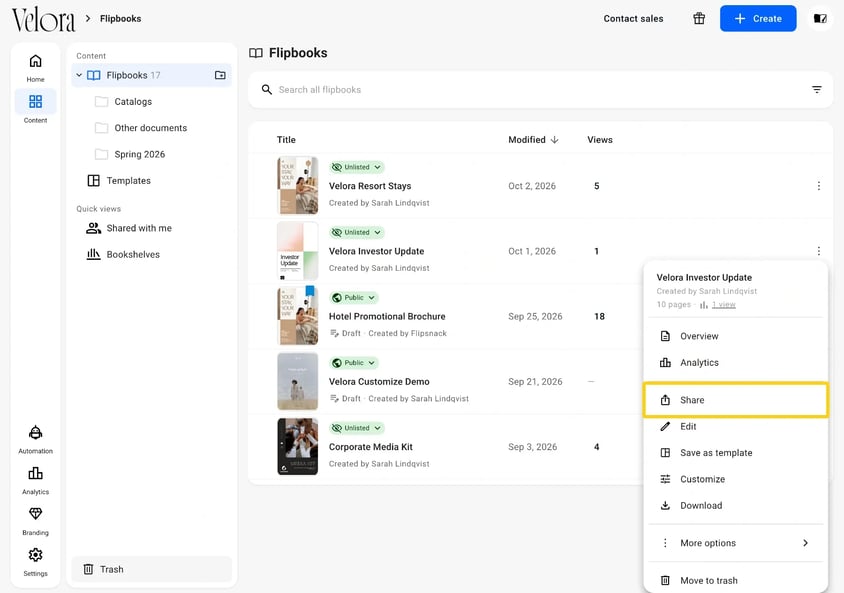
- In Content, click the three dots on the flipbook, or right-click it, and select Share.
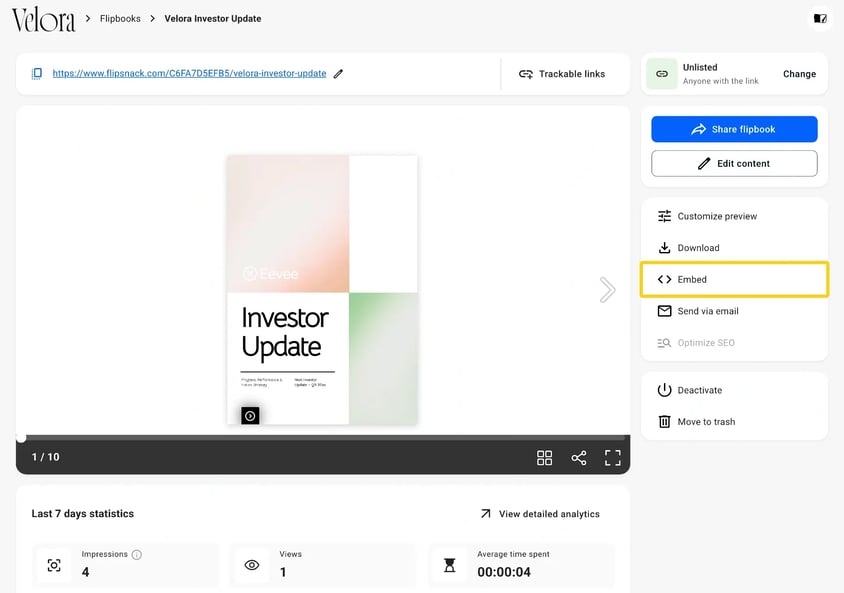
You can also click Embed on the flipbook's Overview page. It opens the Share window on the Embed tab, so skip the next step.
- Click the Embed tab.
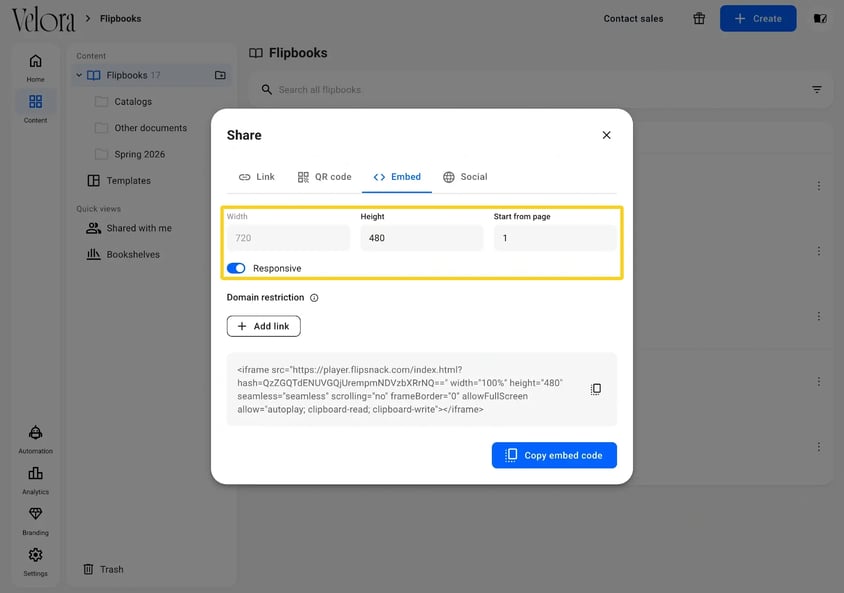
- Set the Height in pixels. The default is 480. Responsive is on by default, so the flipbook fills the width of its container and you cannot edit Width. To set a fixed Width, turn Responsive off.
- In Start from page, enter the page the flipbook opens on. Page 1 is the cover.
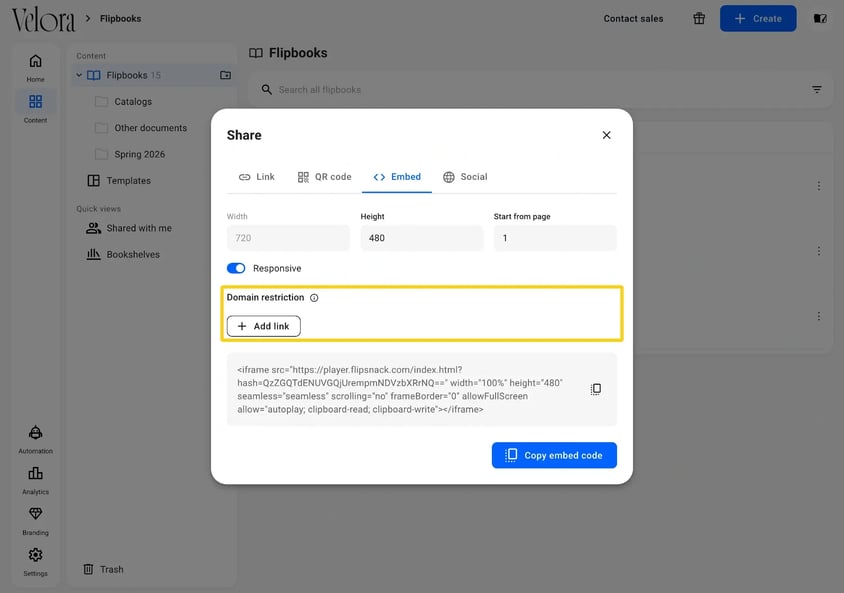
- To allow only your own websites to show the flipbook, click Add link under Domain restriction and enter each website address that may show the flipbook. See Improving content security with domain restriction.
- Click Copy embed code.
How to add the embed code to your website
Paste the code wherever your site accepts HTML: an HTML or embed block in a website builder, or the page's source code. Save and publish the page. If it works, the flipbook loads inside your page and readers turn its pages there:
For step-by-step help on a specific platform:
- How to embed a Flipsnack flipbook on your Wix website?
- How to embed a flipbook on your Weebly website page
- How to embed a Flipsnack flipbook on a Shopify blog post?
- How to embed a flipbook on your Shopify storefront
- How to embed a flipbook on a WordPress blog or page
- Embedding a Flipsnack flipbook in WordPress sites and blogs
- How to embed a Flipsnack flipbook on your Squarespace site
- How to embed a Flipsnack flipbook on a Sharepoint site
- Embedding flipbooks in the HubSpot landing page builder
- How to embed flipbooks and bookshelves in Google Sites
- How to embed Flipsnack flipbooks and bookshelves in Notion
- How to embed flipbooks and bookshelves in Confluence
- How to embed flipbooks and bookshelves in Connecteam
- How to embed a flipbook in your Lovable website today
How to track your embedded flipbook
- In Content, open the flipbook's menu and select Analytics.
- In the Channels table, the Embed row counts the views that came from your website.
To see the same views in your own analytics tool, follow Add Google Tag Manager (GTM) to your flipbook player.
Troubleshooting
- The flipbook does not appear on my page: Check that you published it as Public or Unlisted (or as private with your domain approved, on Enterprise), that you listed your site under Domain restriction if you set one, and that your builder accepts iframes. More causes in Why is my embedded flipbook not appearing on my website?
- The embed shows Flipsnack branding: Free and Starter embeds carry it. Pro, Business and Enterprise remove it.
- The flipbook opens on the wrong page: Change Start from page, copy the code again and replace the old code on your site.
- The flipbook is too narrow or cut off on mobile: Turn Responsive on, copy the code again and replace the old code.
Additional tips / FAQs
- If I edit the flipbook, does the embed update? Yes. Your website shows each edit to the flipbook without a new code. Changes to the embed settings, such as Height, Start from page or Responsive, need a new code.
- Can I embed a bookshelf? Yes. Open the bookshelf's menu in Content and select More options > Embed.
- Can I embed a flipbook with a transparent background? The Embed tab has no transparent background option. Other users share workarounds on the Flipsnack community page.
Next steps
- Create and manage bookshelves to group your flipbooks
- How to integrate Flipsnack with your LMS via embed or Zapier
- How to share a flipbook: link, QR code, embed, email
Need expert support?
Our team is here to help. Connect with our team experts or message us via the live chat for personalized assistance.