
A Flipsnack flipbook embeds on Squarespace by copying its embed code from Content and pasting it into a Code block on the target page. Adjusting the code's width and height controls how the flipbook displays before you save the page.
In order to embed a flipbook from your Flipsnack library on your Squarespace website, you need to follow these steps:
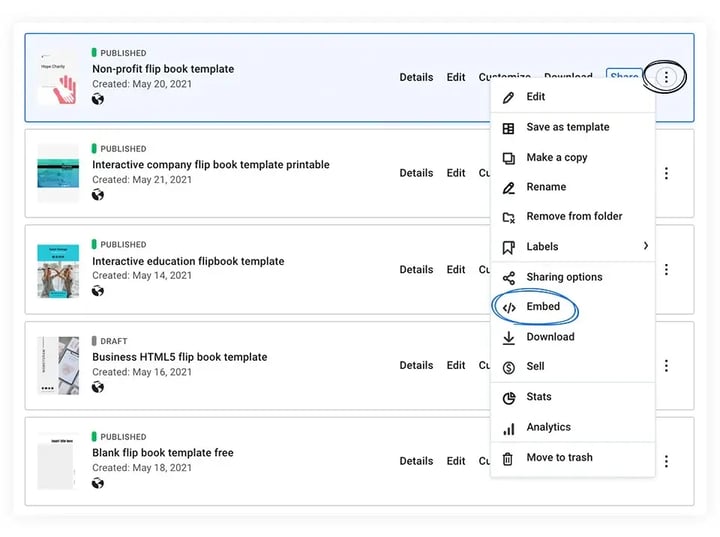
1. Log in to your Flipsnack account and go to Content. Select the flipbook you want to embed and click the three vertical dots out to the right.
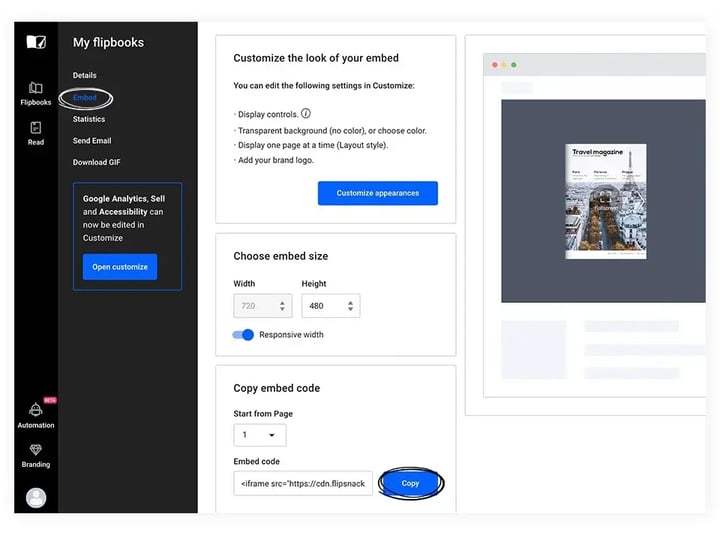
2. From the newly opened tab, click the blue Copy button.
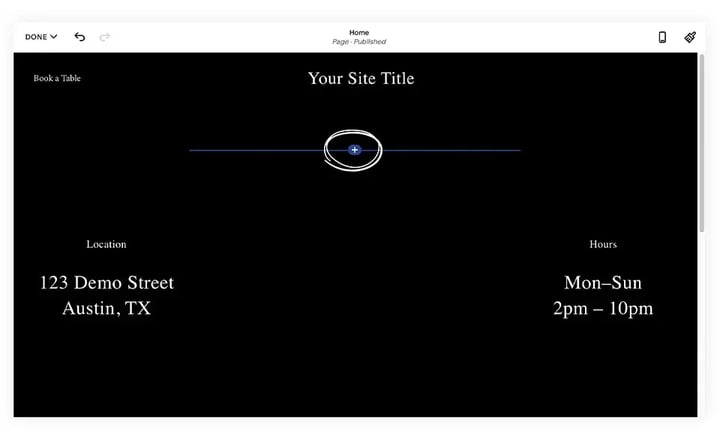
3. Then, log into Squarespace and choose a template. Select the page where you want to embed the flipbook, and then add a new container in the selected section by clicking on the plus sign.
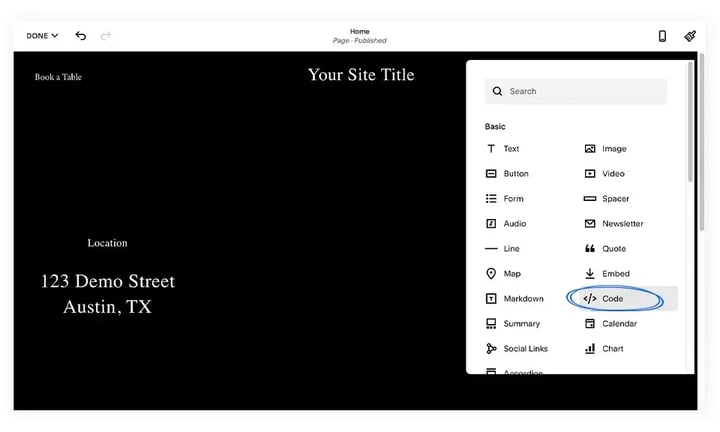
4. From the newly opened window select the Code button.
5. Paste your embed code.
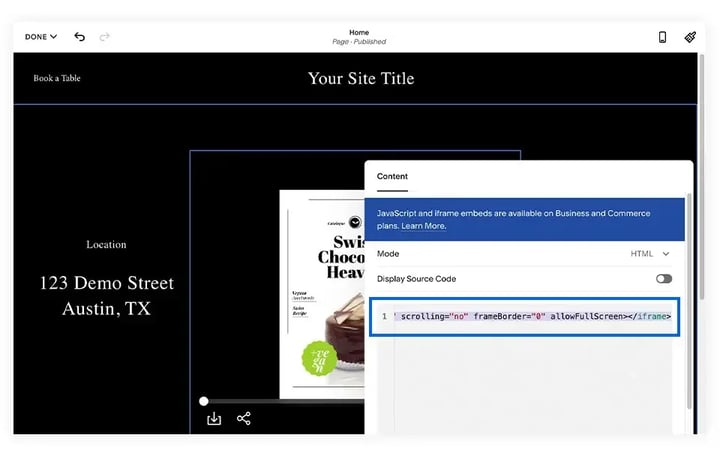
6. Play with the width and height of the flipbook directly from the embedded code. When you're happy with your size and placement, hit Save.
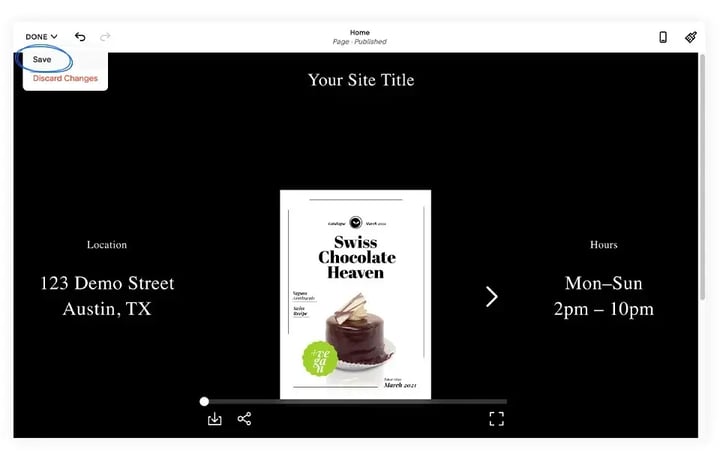
That's all it takes! With just a few clicks, you can easily embed your flipbook on Squarespace. If you have any questions, please don't hesitate to reach out to us.
Next steps
Need expert support?
Our team is here to help. Connect with our team experts or message us via the live chat for personalized assistance.