
Overview
For enterprise teams, keeping internal communications, employee handbooks, and training materials centralized is crucial for productivity. By embedding your interactive Flipsnack publications directly into Atlassian Confluence, your team can access essential resources without ever leaving their primary workspace.
Note: The embed process and the structure of the iframe code are exactly the same whether you are embedding a single flipbook or an entire bookshelf.
Confluence Embed Breakdown
Unlike standard websites that accept a full HTML iframe block, the Confluence iframe macro requires you to separate the code into specific fields.
Requirements
- Role: Edit permissions for the target Confluence space/page
- A Flipsnack account with a published flipbook or bookshelf (available on all plans, including the free plan).
- Edit permissions for the target Confluence space/page.
How to get your embed code
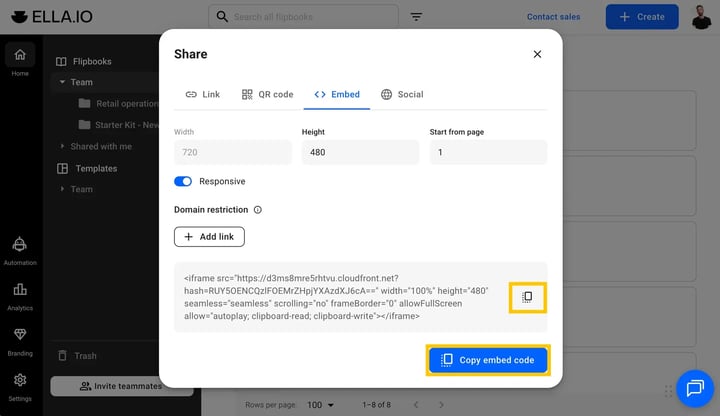
Before moving to Confluence, you need to grab the embed code from your Flipsnack workspace. You can access this code from the Overview screen or by clicking the three dots (More options) on your flipbook/bookshelf card and selecting Embed.
For a detailed walkthrough on generating your initial iframe code, please visit our guide on how to embed flipbooks into your website.
How to embed the publication in Confluence
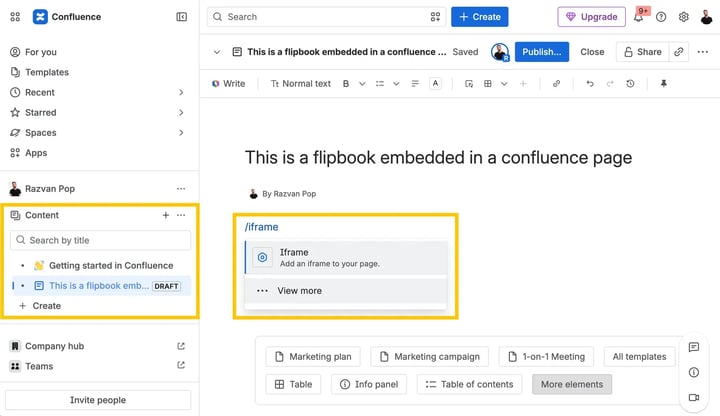
- Open the Confluence page you want to edit or create a new one. In the editor, either type /iframe or click the + button in the toolbar and select the iframe element.
- Go to your Flipsnack workspace and copy the full iframe embed code for your flipbook or bookshelf.
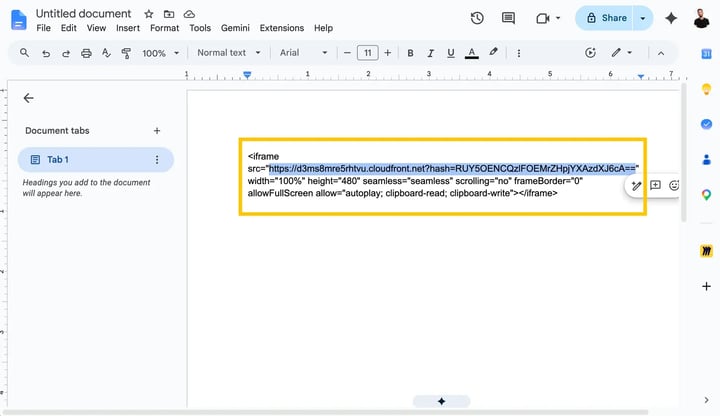
- Paste the full code into a basic text editor (like Notepad or TextEdit). Locate the src="..." part of the code and copy only the URL inside the quotation marks.
- Return to Confluence and paste that extracted URL into the mandatory URL field of the iframe macro panel.
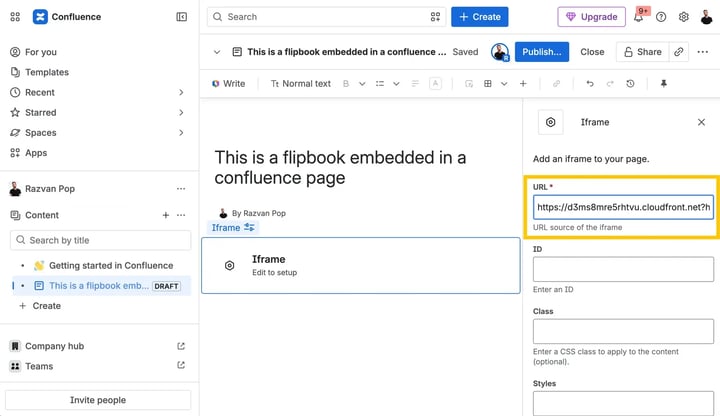
- Scroll down the iframe macro panel to edit the other optional settings. We highly recommend inputting the Width (e.g., 100%) and Height (e.g., 480 or 600) to ensure the publication displays beautifully on your page.
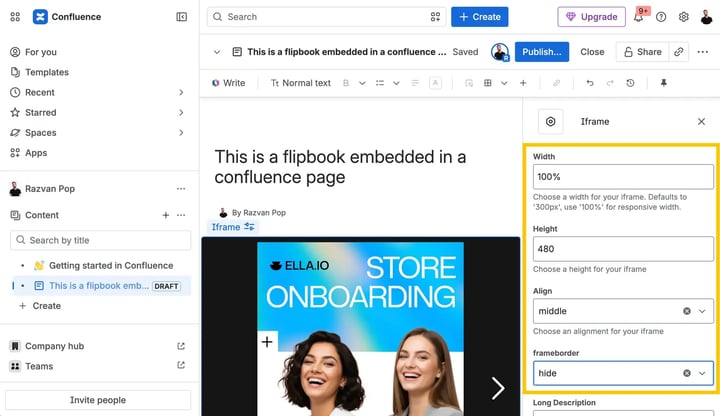
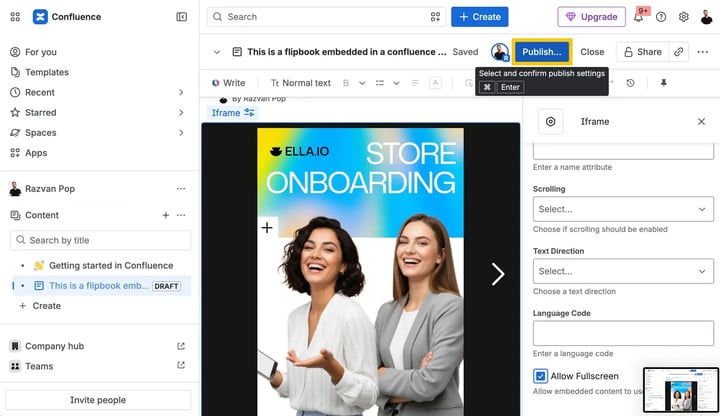
- Once you complete the fields, the flipbook will appear on your page preview. Click Publish to save your work and share the resource with your team.
Troubleshooting
- Flipbook fails to load: If your Confluence page displays a broken frame or error message instead of your training materials, double-check the URL field in the iframe macro. Confluence cannot process standard HTML tags. Ensure you have not pasted the entire snippet into the field. You must only paste the direct URL link extracted from the
srcattribute.
Next steps
Request a native integration or get help
Need expert support?
Our team is here to help. Connect with our team experts or message us via the live chat for personalized assistance.