
Overview
Domain restriction lets you choose which websites can show your flipbook. When you embed a flipbook, you display it directly on another website instead of sharing a link. With domain restriction on, only the websites you approve can show it, so unauthorized sites cannot reuse your content. It suits private or sensitive publications.
Requirements
- Plan: Enterprise: contact sales
Step-by-step guide
1. Open the embed settings
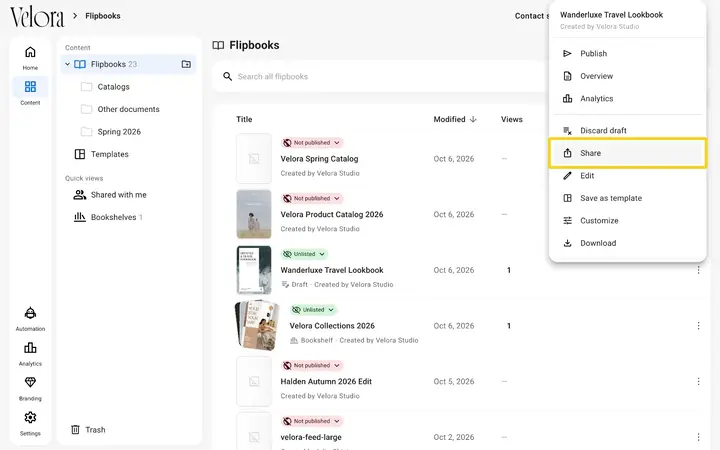
- Log in to your Flipsnack account and go to Content.
- Click the three dots next to the flipbook title and select Share.
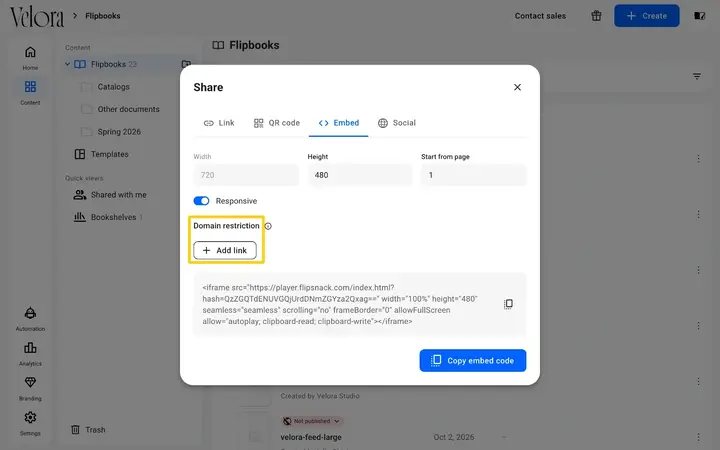
- In the Share window, open the Embed tab.
2. Add approved domains
- Under Domain restriction, click Add link.
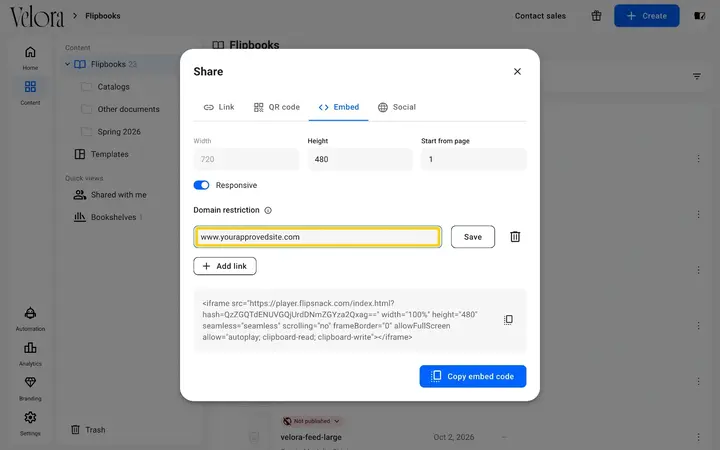
- Enter the domain name, for example www.yourapprovedsite.com, and click Save.
- Repeat to add more domains.
3. Manage your domain list
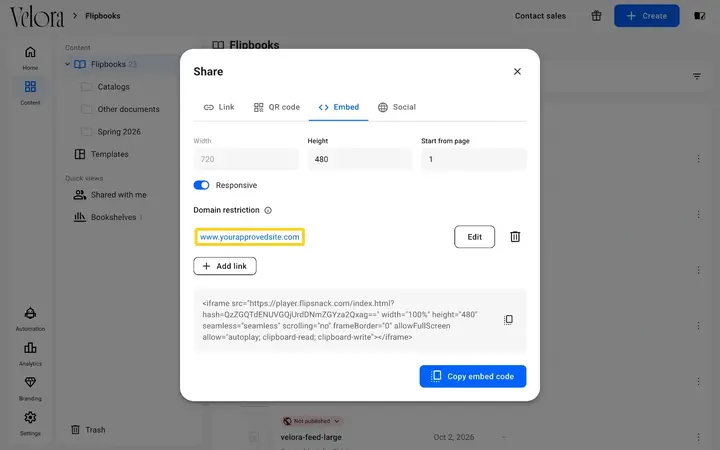
- To change a domain, click Edit next to it, change the name and save.
- To remove a domain, click the trash icon next to it.
- To lift all restrictions, remove every domain from the list.
💡 Benefits of restricting which domains can embed your flipbook
- Controlled embedding: your flipbook appears only on websites you approved.
- Content security: sites you did not approve cannot show or redistribute your publication.
- Brand protection: you decide where and how your content is presented online.
Important considerations
- Activation time: changes to domain restrictions can take up to 120 seconds to take effect. Wait before you test the new settings.
- Default settings: without domain restrictions, your flipbook can be embedded on any website. Someone technical may still copy the embed code from the page source of a site that shows it.
Next steps
Need expert support?
Our team is here to help. Connect with our team experts or message us via the live chat for personalized assistance.