
Overview
Integrating HubSpot with your Flipsnack account allows you to track the performance of your digital catalogs, improve lead capture, and track page views and user interaction. This guide shows you how to connect HubSpot, turn on HubSpot tracking for a flipbook, and track your profile with the HubSpot tracking code.
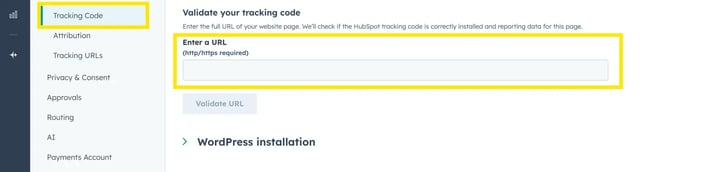
Warning: After installing the HubSpot tracking code, there may be a short delay before it becomes visible and active on your profile and flipbooks. To verify the installation enter the flipbook URL under the Validate your tracking code section.
💡 Benefits of integrating HubSpot with your account
- Track user interactions and engagement in Flipsnack using HubSpot Analytics.
- Enable HubSpot chat widgets for real-time customer engagement.
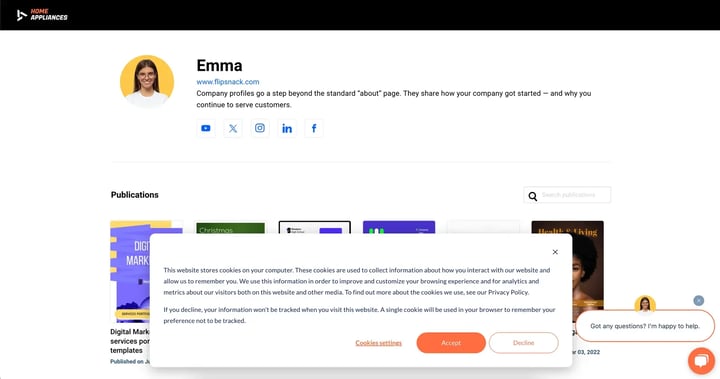
- Add a HubSpot-powered cookie banner to meet compliance requirements.
- Automate lead tracking and marketing workflows.
Key HubSpot Analytics metrics
Once integrated, HubSpot Analytics allows you to track and analyze various metrics to understand user behavior and improve engagement. Some key metrics include:
- Sessions: Measure the number of visits to your Flipsnack catalogs.
- Page Views: Track how many times a catalog page has been viewed.
- New vs. Returning Visitors: Identify how many users are first-time viewers vs. repeat visitors.
- Bounce Rate: See the percentage of visitors who leave without interacting further.
- Traffic Sources: Understand where your visitors are coming from (organic search, social media, direct, etc.).
- Time on Page: Measure how long users spend on each catalog.
- Engagement Rate: Analyze how users interact with different elements of your flipbooks.
- Conversion Tracking: Monitor form submissions and lead captures linked to your catalogs.
These insights help optimize your content, improve user engagement, and enhance marketing strategies.
With this integration, you can:
- Track the performance of your catalogs through HubSpot Analytics.
- Add chat widgets to your Flipsnack catalogs.
- Add a HubSpot cookie banner inside your Flipsnack catalog links.
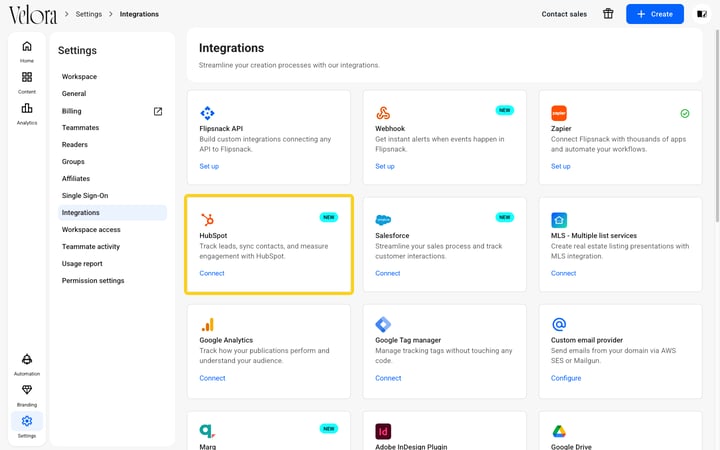
To track your Flipsnack profile or custom domain, add the tracking code provided by HubSpot with Google Tag Manager (GTM). To use the HubSpot app, connect your HubSpot account in Settings > Integrations > HubSpot > Connect.
Note: The Google Tag Manager container on your Flipsnack profile covers the profile (Flipsnack / custom domain). To add HubSpot to your flipbooks, add Google Tag Manager in Customize > Add-ons > Google Tag Manager.
Requirements
- Plan: Enterprise and up: contact sales
- HubSpot: Sync works from HubSpot Free. Custom events need HubSpot Professional and up: go to HubSpot
- Access to Google Tag Manager (GTM): set up Google Tag Manager
Connect HubSpot to Flipsnack
- In Flipsnack, go to Settings > Integrations.
- Find HubSpot and click Connect.
- Choose your HubSpot account and approve the permissions in HubSpot. All steps: How to connect HubSpot to Flipsnack.
Turn on HubSpot tracking for one flipbook
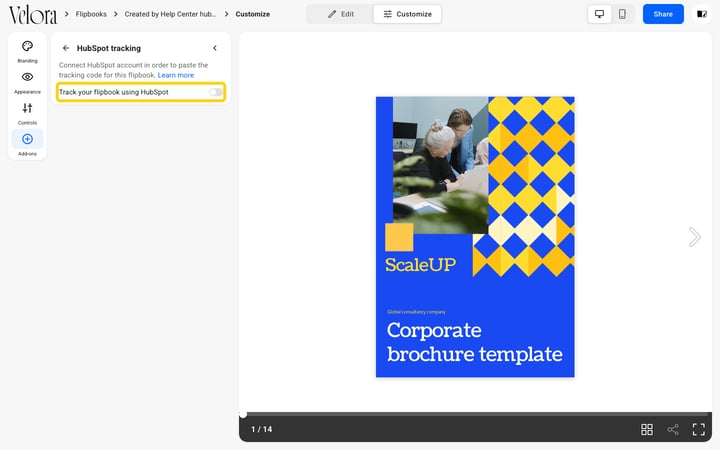
- Open the flipbook and go to Customize > Add-ons > HubSpot tracking.
- Turn on Track your flipbook using HubSpot. Until HubSpot is connected, the panel shows Connect HubSpot account in order to paste the tracking code for this flipbook: connect your HubSpot account.
Get your HubSpot tracking code
In HubSpot, open Tracking & Analytics settings and click Copy in the Embed code section. All steps: How to install the HubSpot tracking code with Google Tag Manager.
Add the tracking code in Google Tag Manager
In Google Tag Manager, create a Custom HTML tag with the tracking code, set the trigger to All Pages, then click Save and Publish.
Final configuration in HubSpot
In HubSpot, go to Tracking & Analytics > Advanced Tracking and add your Flipsnack custom domain under Additional site domains. Without a custom domain, add flipsnack.com and player.flipsnack.com. Once configured, HubSpot begins collecting visitor data from your Flipsnack profile.
Additional tips / FAQs
- Chat widgets and cookie banners: Deploying HubSpot through GTM also adds HubSpot chat widgets and cookie banners to your Flipsnack profile.
- Keep the container published: Keep the GTM container published. An unpublished workspace change means the tag never fires in production.
Troubleshooting
What to do if tracking doesn’t appear right away: after installing the tracking code there may be a short delay before it becomes active on your profile and flipbooks. To verify, enter the URL under HubSpot’s Validate your tracking code section.
What to do if data never arrives: confirm the GTM container is installed on the domain you’re testing, that the tag’s trigger is set to All Pages, and that the workspace was published, not just saved.
What to do if traffic shows under the wrong domain: revisit Advanced Tracking in HubSpot and check the Additional site domains entries and the cross-domain linking settings.
Frequently asked questions
- Which domains should I add in HubSpot? Your Flipsnack custom domain. Without a custom domain, add flipsnack.com and player.flipsnack.com.
Related articles
- How to install the HubSpot tracking code with Google Tag Manager
- Using HubSpot with Flipsnack: integration features
Next steps
- Track flipbook reading progress with HubSpot custom events
- How to integrate Google Tag Manager (GTM) with Flipsnack
- Embedding Flipsnack flipbooks in HubSpot landing pages.
- Adding a HubSpot chat widget to engage visitors directly on your catalogs.
- Creating a HubSpot cookie banner to enhance compliance.
Need expert support?
Our team is here to help. Connect with our team experts or message us via the live chat for personalized assistance.