
Overview
The HubSpot connection links your Flipsnack workspace to one HubSpot account. Flipsnack lead forms use it to create contacts in HubSpot, and the HubSpot tracking add-on uses it to track a flipbook in HubSpot.
You can start the connection from Settings > Integrations, from the Lead form add-on, or from the HubSpot tracking add-on.
Requirements
- Plan: Enterprise and up: contact sales
- HubSpot account: Sync works from HubSpot Free. Custom events need HubSpot Professional and up: go to HubSpot
Connect HubSpot from Settings
- Click Settings in the lower left corner.
- Click Integrations.
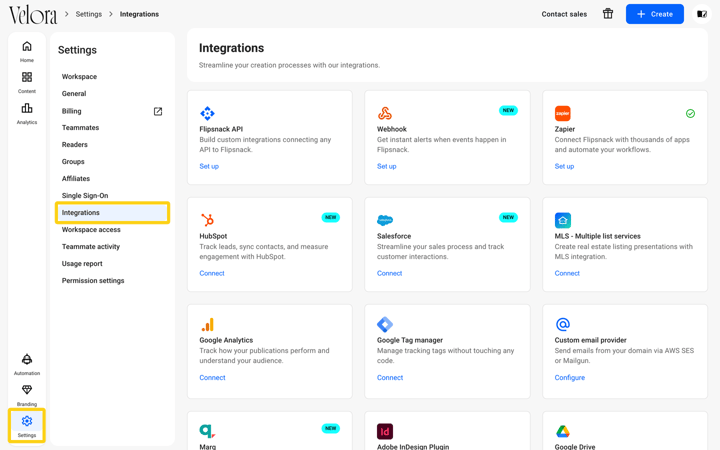
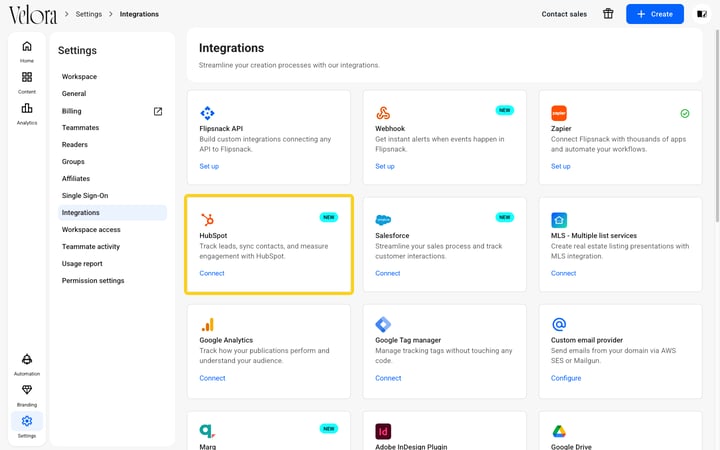
- Find HubSpot and click Connect.
Choose your HubSpot account and approve the permissions
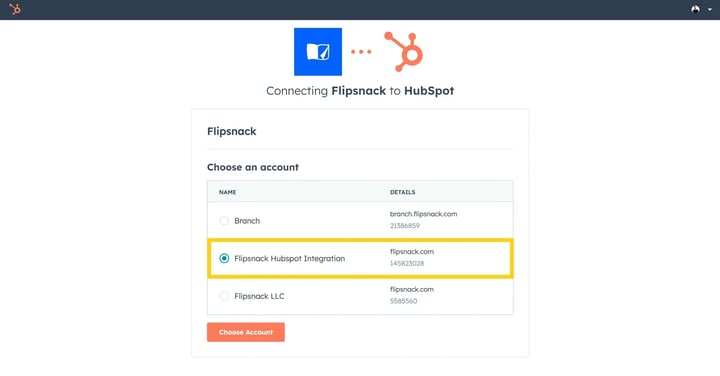
HubSpot opens and shows Connecting Flipsnack to HubSpot.
- Select your HubSpot account and click Choose Account.
- Read the permissions that Flipsnack asks for: view and change contacts, view contact properties and property settings, and basic HubSpot account information.
- Select the I understand the risks of connecting an unverified app checkbox and click Connect app.
.png?width=720&name=Screenshot%202025-11-17%20at%2011-55-12-mh%20(1).png)
Connect HubSpot from a flipbook
You can also start the connection from the Customize page of a flipbook.
From the Lead form add-on
- Open the flipbook and go to Customize > Add-ons > Lead form.
- Turn on Use lead form, then turn on the HubSpot switch.
.png?width=720&name=Screenshot%202025-11-17%20at%2011.05.32-mh%20(1).png)
From the HubSpot tracking add-on
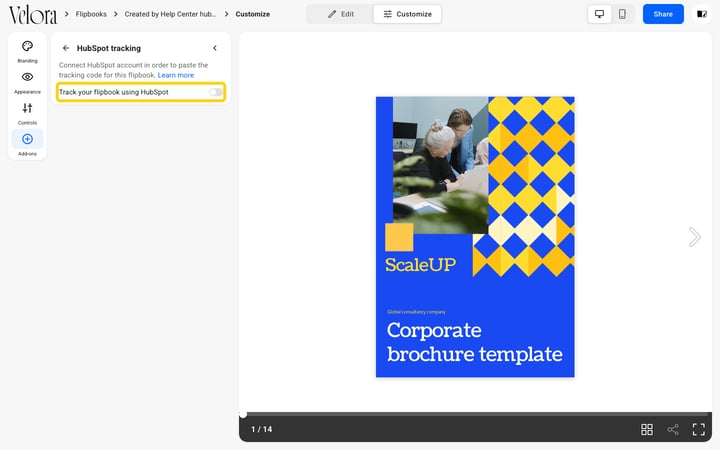
- Go to Customize > Add-ons > HubSpot tracking.
- The panel shows Connect HubSpot account in order to paste the tracking code for this flipbook until HubSpot is connected.
Frequently asked questions
- Do I need the connection to track my Flipsnack profile? No. For your profile or custom domain, add the HubSpot tracking code with Google Tag Manager: How to track flipbook activity in HubSpot.
- Do I need the connection for HubSpot form embeds? No. The HubSpot form embed and HubSpot form pop-up interactions use the code you copy from your HubSpot form.
Next steps
Useful resources:
- How to send lead form submissions to HubSpot
- How to track flipbook activity in HubSpot
- Track flipbook reading progress with HubSpot custom events
- HubSpot and Flipsnack: what the integration does
- HubSpot integration troubleshooting
Need expert support?
Our team is here to help. Connect with our team experts or message us via the live chat for personalized assistance.