
Overview
Capture high-intent leads right where they engage most, inside your flipbooks. By integrating HubSpot with Flipsnack lead forms, you can collect contact info and send it directly to your CRM without extra tools or landing pages.
💡 Benefits of sending lead form data to HubSpot
- Lead capture in context: Collect leads while they engage with your content
- Automatic sync: Every form submission becomes a new HubSpot contact
- Property mapping: Align form fields with your CRM structure
Perfect for marketing, sales, and operations teams using HubSpot, this integration helps you shorten the path from interest to action.
Common use-cases
- Gated product content: Lock brochures or spec sheets behind a lead form
- Event follow-ups: Use flipbooks as interactive takeaways from trade shows
- Lead magnets: Offer valuable content in exchange for contact info
- Outbound campaign tracking: Measure engagement from sales content
Requirements
- Plan: Enterprise and up
Integration: HubSpot account. Sync works from HubSpot Free. Custom events need HubSpot Professional and up: go to HubSpot
Step-by-step guide
Add a lead form to your flipbook
1. Open your flipbook and go to the Customize page
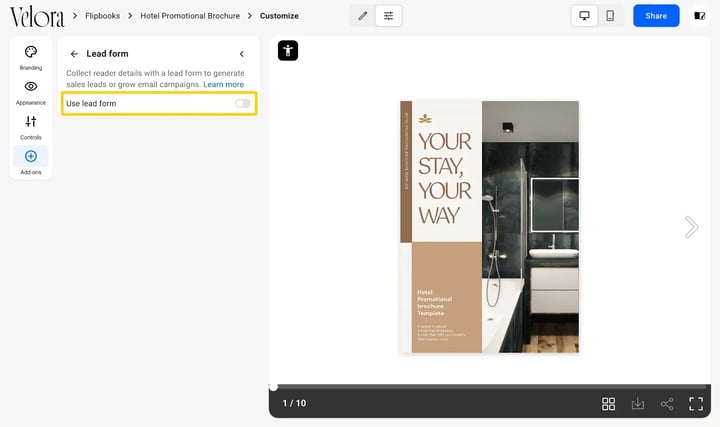
2. Click Add-ons, then Lead form, in the left panel
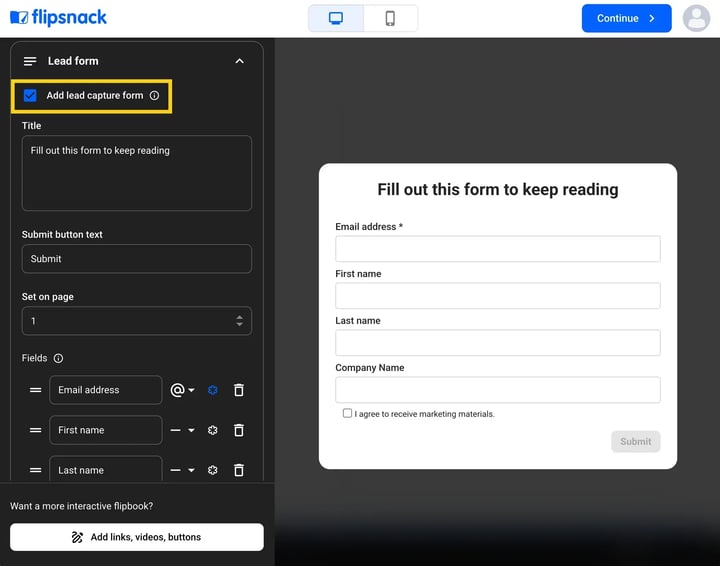
3. Turn on Use lead form and configure the title, fields, and button text. Add a privacy policy link and enable GDPR consent if you need to.
4. Choose the exact page where the form should show up and add your fields.
Connect your HubSpot account
1. In the same Lead form panel, turn on the HubSpot switch.
.png?width=720&height=592&name=Screenshot%202025-11-17%20at%2011.05.32-mh%20(1).png)
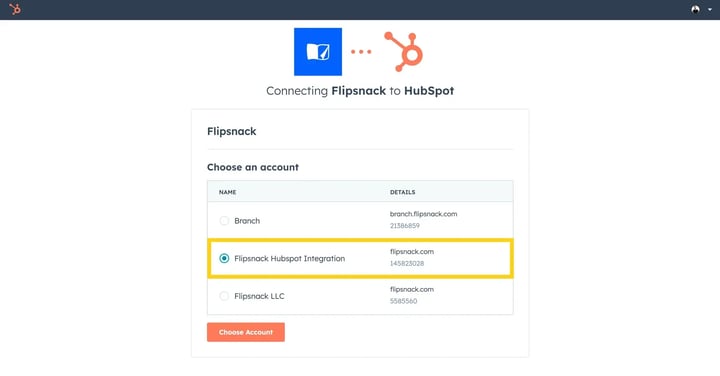
2. HubSpot opens. Select your HubSpot account and click Choose Account.
3. Select the I understand the risks of connecting an unverified app checkbox and click Connect app.
.png?width=720&height=386&name=Screenshot%202025-11-17%20at%2011-55-12-mh%20(1).png)
4. After confirming, you'll be redirected back to Flipsnack.
Note: You can also connect HubSpot via Settings > Integrations > HubSpot
Map form fields to HubSpot properties
.png?width=720&height=592&name=Screenshot%202025-11-17%20at%2011.05.32-mh%20(2).png)
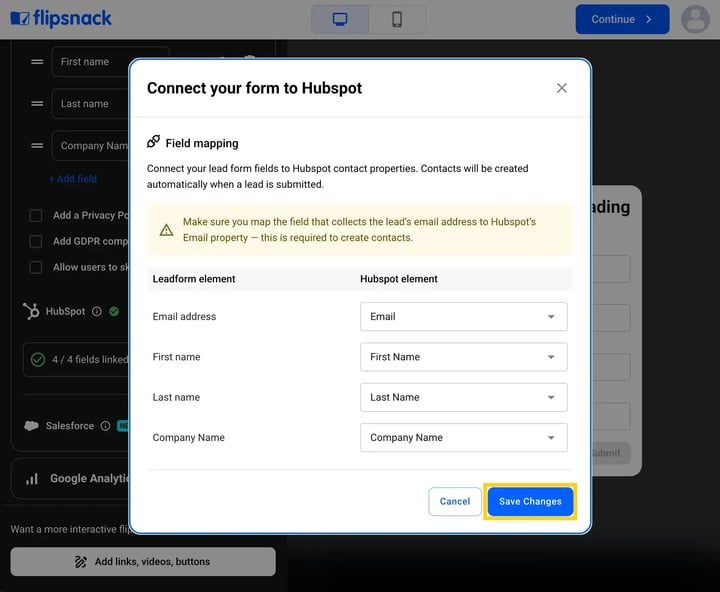
Note: Only Contact properties are supported.
Test your integration
1. Preview your flipbook, and fill out the form with a test email.
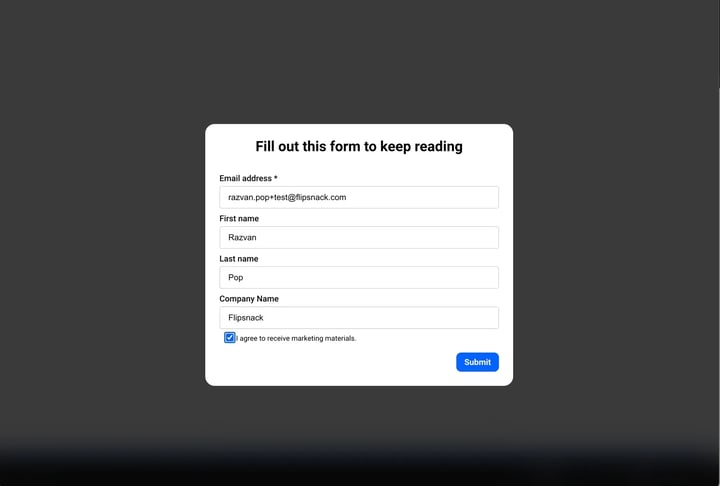
2. Submit the form and check HubSpot > Contacts.
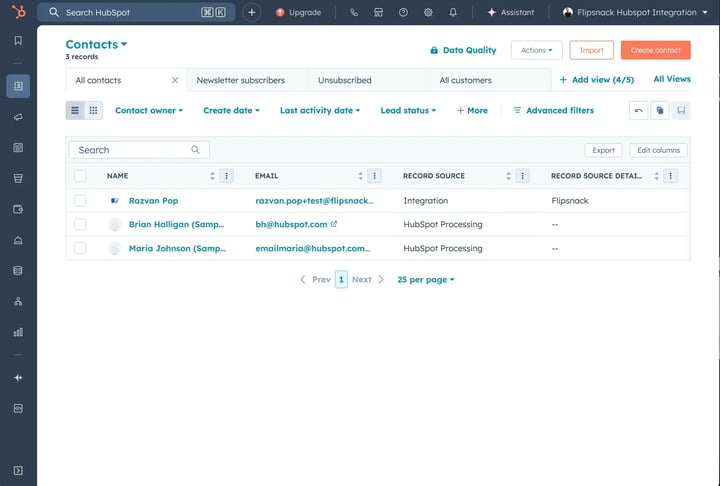
3. New entries show Integration as the Record Source and Flipsnack as the Record source detail.
Additional tips / FAQs
- Form placement: Place the form a few pages in to filter for higher intent
- Field labels: Use descriptive field labels for better CRM filtering later
Next steps
- Using a lead form
- How to track flipbook activity in HubSpot
- How to connect RD Station Marketing to Flipsnack
Need expert support?
Our team is here to help. Connect with our team experts or message us via the live chat for personalized assistance.