
Overview
Account options and settings live under the profile picture button in the upper right corner of the app, accessible from any page including Content, Customize, or Design Studio. From there you can view your name and plan, switch workspaces, update account details and email preferences, reach the Help center, or log out.
Once you are logged in to your Flipsnack account, you can easily access your Account options and other settings.
To do so, click on the profile picture button in the upper right corner of the app, and a small menu with different options, information, and links will open. Here is also where you can log out of your account by clicking on the Log out button.
You can access the button from any page of the app, whether you are in Content, Customize, or in the Design Studio.
.png?width=720&height=546&name=image-mh%20(69).png)
Starting from the top, you can find your name and subscription plan, and if you click on it on you will see your workspaces. Bellow that, there is the My profile link, which will take you to your public profile.
Following, there are different links, each with different options:
My account
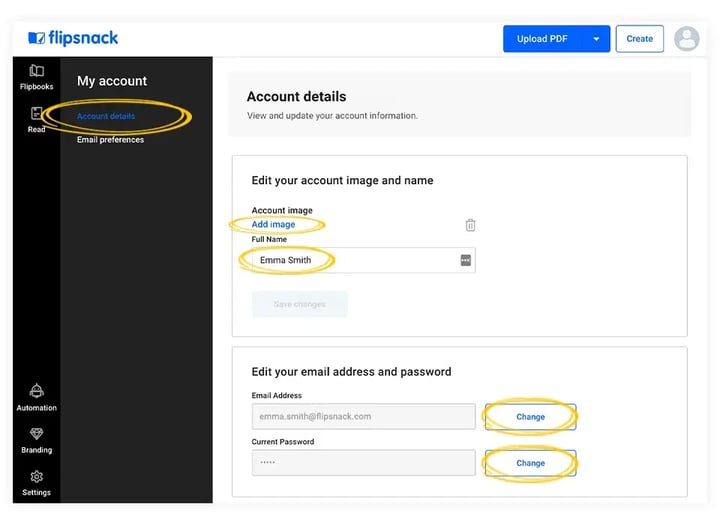
- Account details - Here, you can edit or update your account image and name, edit your email address and password, configure two-factor authentication, or delete your account.
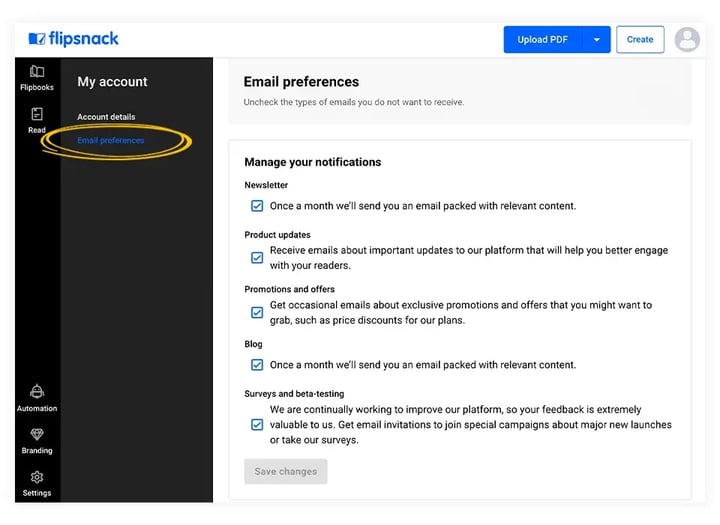
- Email preferences - Here, you can manage your notifications; check or uncheck the types of emails you want to receive.
Help and support
- Help center - this links to Flipsnack’s official knowledge base. You can find step-by-step guides and answers to common questions.
- Flipsnack Academy - where you can learn how to use the platform more effectively, and includes interactive lessons and video tutorials for different skill levels.
- Status page - redirects to a real-time system health dashboard.
- Terms of service - opens Flipsnack’s official legal terms and conditions.
.png?width=720&height=457&name=image-mh%20(70).png)
Settings
- Workspace - rename, brand, or delete your workspace.
- General - set the default visibility for your flipbooks (Public, Unlisted, Password protected, Private, PDF conversion quality, Bookshelf visibility), and hide the other visibility options
- Billing - you can see your current subscription, upgrade your plan, request a trial, or see the features of our plans.
- Teammates - add or remove teammates to your workspace, assign roles, and enable or disable two-factor authentication for teammates
- Readers - add or remove account readers
- Groups - create different groups of readers for different departments and categories
- Single Sign-on - enable and manage your SSO
- Integrations - you can disable integrations for your flipbooks, such as: API, Zapier, InDesign, Google Drive, Custom email provider, MLS\
- MLS - multiple listing services - this will allow you to use your database on our platform
- Workspace access - offer temporary access to your Flipsnack workspace
- Teammate activity - see all your teammates’ activity in your workspace
- Permission settings - enable or disable certain features from being used by teammates in your workspace
- Email provider - set up a custom email provider (Amazon, Mailgun)
Tip: On the Business Plan, you can remove Flipsnack branding from your shared links and the address bar by setting up a custom domain. Go to Branding > Brand Profile > Settings > Custom Domain to configure it. You can also personalize the way your workspace looks by uploading your logo and customizing your colors, profile, and publishing preferences — learn more in How to add your brand kit (fonts, colors, logo, typography) in Flipsnack.
Switch workspace
If you are part of multiple workspaces, hover over Switch workspace in the account menu to see all the workspaces available to you and switch between them.
When you are added to an organization or a workspace, you will receive an email invitation that you must accept in order to activate your access. Invitation links are valid for 24 hours. If your invitation expires, ask your admin or account manager to resend a new one.
Note: Owners of an Organization plan can add members, assign roles, and manage workspaces from the My organization page.
If a workspace does not appear in the list after you accept an invitation, ask an admin to verify in the Organization dashboard that your account is listed as a member of that workspace with the correct role and permissions. For more details about activation issues, see Ensuring a simplified account activation. If you still cannot access your workspace, contact us via live chat.
Log out
You can easily log out from your Flipsnack account by clicking on the Log out button.
.png?width=720&height=400&name=image-mh%20(68).png)
The menu has four other links: Help and support, Status page, and Terms of service.
If you have any questions or suggestions, please contact us via live chat.
Next steps
- How to find out your current Flipsnack pricing plan
- How to change the email address on your Flipsnack account
- Multiple workspaces for teams, brands, or clients you manage
Need expert support?
Our team is here to help. Connect with our team experts or message us via the live chat for personalized assistance.