
Overview
For real estate professionals, the speed and quality of marketing materials are critical to capturing buyer interest. Traditionally, creating high-quality property brochures required significant time or design expertise.
💡 Benefits of turning a property link into a brochure
- AI-powered design: Generate a brochure from a property link automatically, in seconds.
- No design skills required: Our AI handles the design for you.
- Interactive flipbook format: Share a page-flipping digital brochure instead of a static PDF.
- Fully customizable: Adjust content and branding directly in Design Studio.
- Easy sharing: Publish and distribute via link, email, QR code, or embed.
The Link to brochure feature automates this process. One of the ways to create your brochure is by simply pasting the property listing link: flipsnack reads the listing details from the URL and turns them into a professionally designed, page-flipping flipbook. Within 60 seconds, you can transform a listing link into an interactive, branded brochure ready for distribution.
You can also generate brochures by connecting your MLS or by pasting your property data directly.
See a demo generated brochure example.
Brochure generation is currently in Beta and still under development. Your feedback helps us improve it and shape future updates.
To activate the Beta feature, contact us via live chat. After activation, log out and log back in if the feature does not appear immediately.
Requirements
- Plan: Enterprise: contact sales
- Access: Feature must be activated by our team upon request: compare plans
Generate your brochure from a property link
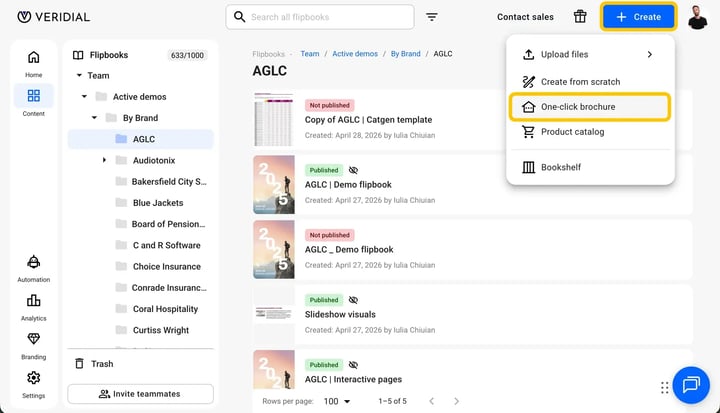
Step 1: Start the creation process
- From the Homepage, click the Create button in the App header.
- Select One-click brochure.
Step 2: Paste your property link
- Paste the link to your property listing from your desired real estate listing site.
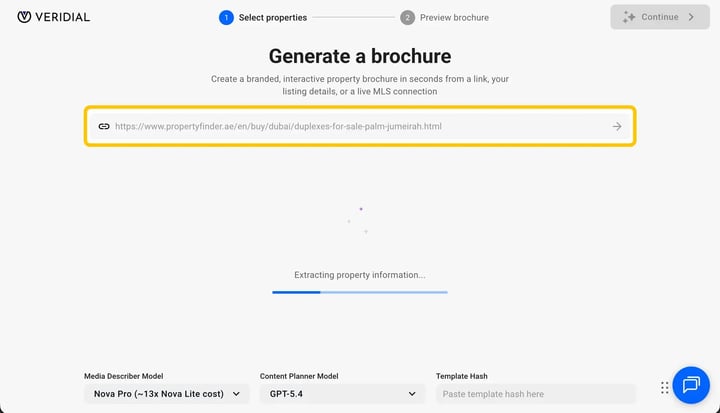
- Click the arrow icon next to the link you just pasted. Our tool will automatically scan the page and extract the property details for you.
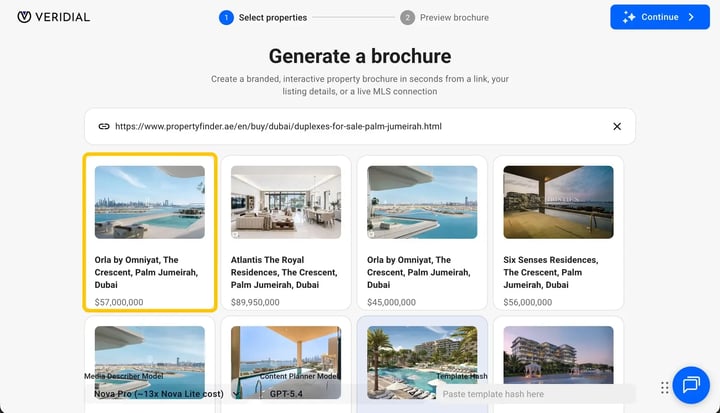
- Once the property appears in the list, select it and click Continue in the upper-right corner. The AI will start building your brochure.
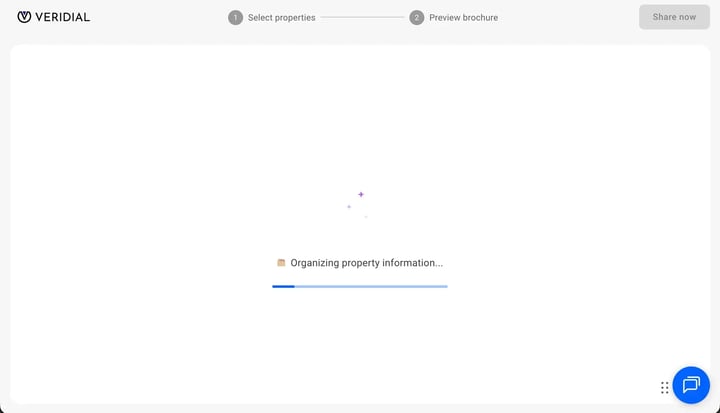
Brochure generation takes 1–2 minutes.
Note: The AI extracts the property description, key details, and images available on the listing page. If some information is missing from the page, you can add it manually later in Design Studio.
Edit and brand your brochure
After the brochure is generated, you can review the design and take a few actions from there:
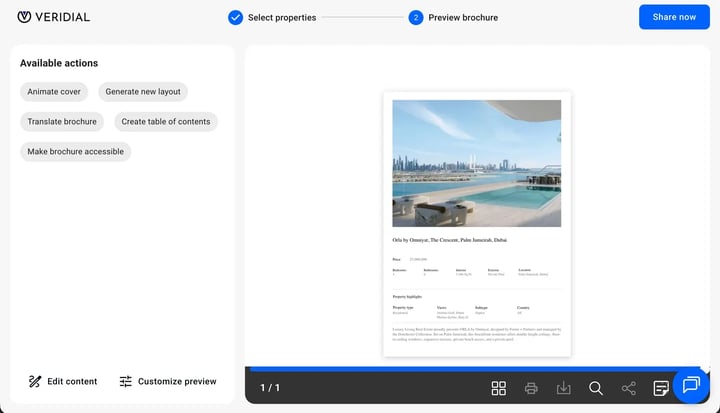
- Animate cover: add motion to your brochure cover
- Generate a new layout: shuffle to a different design
- Translate brochure: convert the content to another language
- Make the brochure accessible: add accessibility features for wider reach
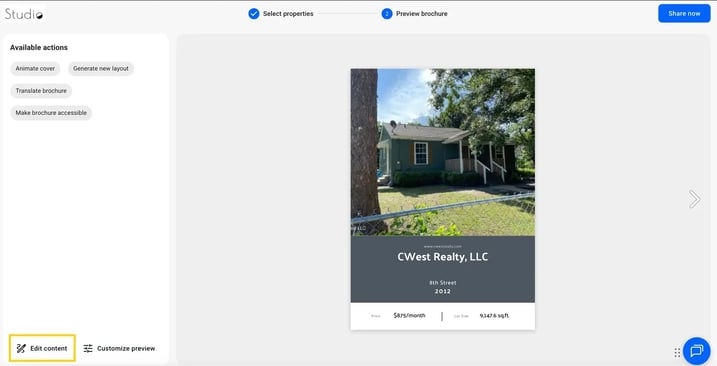
- Edit content: manually adjust text or property details
- Customize preview: tweak the visual appearance
1. Animate cover
AI Animate adds smooth motion to your cover image, making it more eye-catching for potential buyers.
This action takes 1–2 minutes to process. Once complete, your brochure is ready to publish.
Note: Animating a cover uses 50 AI credits. Check how many AI credits are included in your plan. Credits reset on the first of each month.
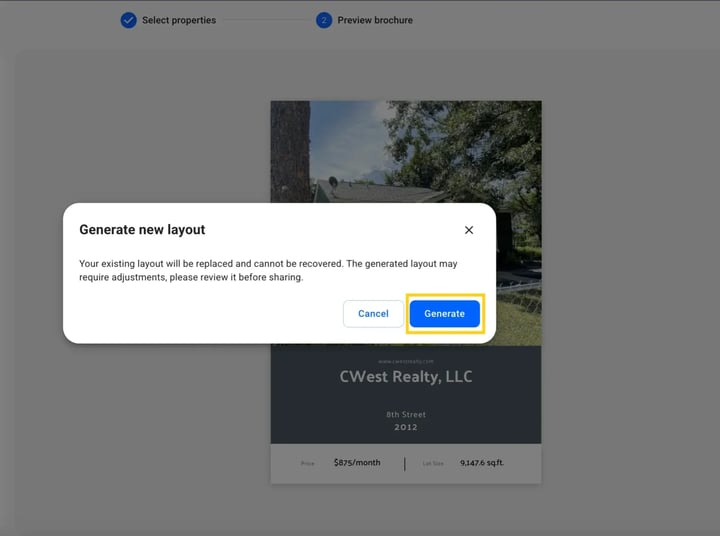
2. Generate a new layout
Use this to regenerate your brochure with a completely new layout. Your property data stays the same, only the design changes.
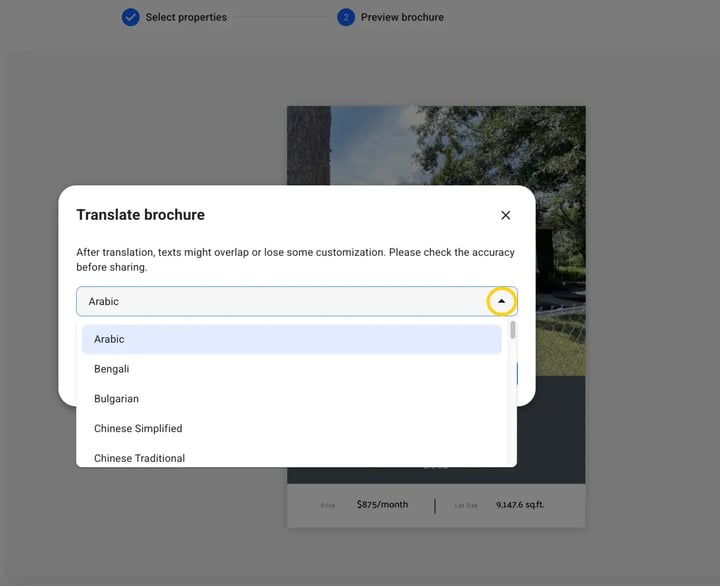
3. Translate brochure
Translate your brochure into any supported language with one click. Useful when sharing listings with non-English-speaking buyers.
Note: Translation uses 5 AI credits. After translating, review the design before publishing, longer text may shift within the layout.
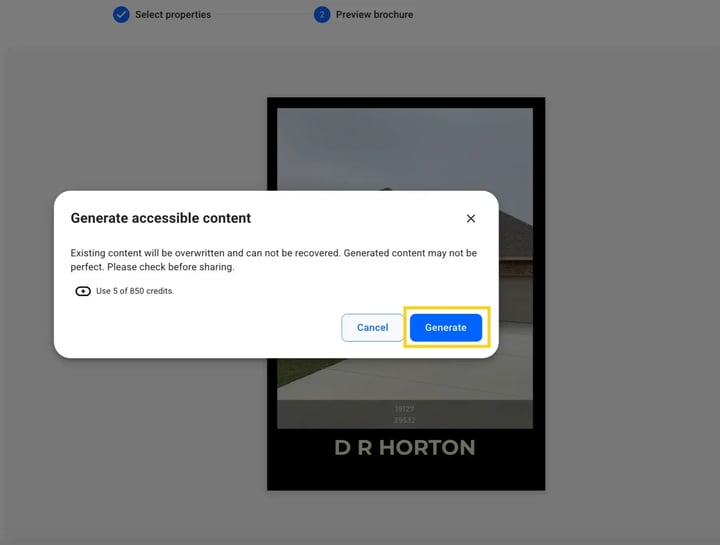
4. Make brochure accessible
This action populates the accessibility tab for each page, making your brochure compatible with screen readers for visually impaired readers.
Note: This action uses 5 AI credits.
5. Edit content in Design Studio
Click Edit content to open the brochure in Design Studio.
6. Customize the flipbook player
Click Customize preview to open the Customize page.
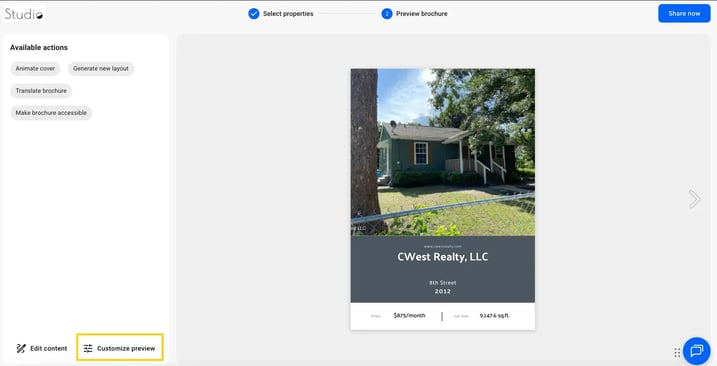
Here you can:
- Change the background color
- Add your logo
- Adjust player appearance
- Enable a Lead form to collect contact details
Share your brochure
When you're ready to share:
- Click Share.
- Add a Title and Description.
- Choose the visibility option (Public, Unlisted, Password-locked, or Private).
- Click Publish.
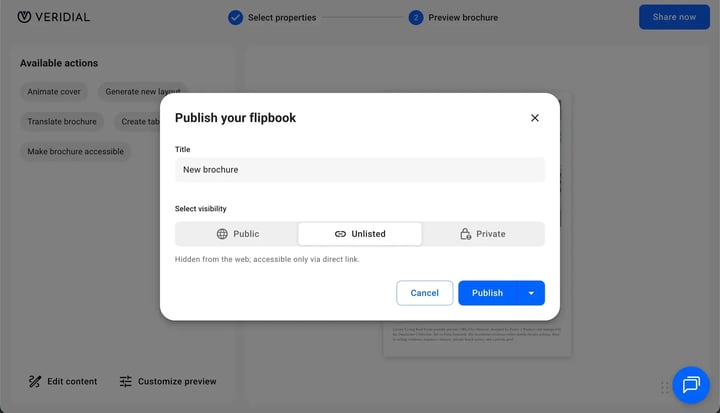
After publishing, copy the link and share it via:
- Direct link
- QR code
- Embed on your website
You can also download the brochure for printing if needed.
Use cases
- Listing presentations: Send interactive brochures to potential buyers after viewings.
- Email marketing: Include a digital brochure in property campaigns.
- Luxury real estate: Present high-end properties with a polished, premium look.
- Open house promotions: Share a QR code linking to the digital brochure.
- Agency branding: Quickly generate consistent brochures across multiple agents.
Troubleshooting
- The property doesn't appear after pasting the link: Check that the link points directly to the listing page (not a search results page) and that the page is publicly accessible without login.
- The generated brochure is missing details: The AI uses the information available on the listing page. If details or images are missing, you can add them manually in Design Studio.
Additional tips / FAQs
- Why don't I see the One-click brochure option? Make sure the Beta feature is activated for your account. Log out and log back in after activation.
- Can I edit the AI-generated layout? Yes. Once generated, the brochure is fully editable in Design Studio.
- Which listing links work? You can paste a link from your desired real estate listing site. The link method currently supports US property listings, and the listing page must be publicly accessible for the AI to read it. For listings outside the US, use the property data method instead.
- How long will the feature stay in Beta? The Beta phase is expected to last approximately 3–6 months.
Next steps
- Create an MLS brochure in Flipsnack
- Property data to brochure
- Using Design Studio to edit your flipbooks
- Customize the flipbook player
- Adding a Lead form to your flipbook
Need expert support?
Our team is here to help. Connect with our team experts or message us via the live chat for personalized assistance.