
Overview
For real estate professionals, the speed and quality of marketing materials are critical to capturing buyer interest. Traditionally, creating high-quality property brochures required significant time or design expertise.
💡 Benefits of creating an MLS AI brochure
- AI-powered design: Automatically generate a brochure from MLS data in seconds.
- No design skills required: Our AI handles the design for you.
- Interactive flipbook format: Share a page-flipping digital brochure instead of a static PDF.
- Fully customizable: Edit content and branding in Design Studio.
- Easy sharing: Publish and distribute via link, email, QR code, or embed.
The MLS to brochure feature automates this process by pulling listing data directly from your MLS and populating it into professionally designed templates. Within 60 seconds, you can transform a standard listing into an interactive, branded flipbook ready for distribution.
See a demo-generated brochure example.
Requirements
- Plan: One-click brochure is now in open beta for all Flipsnack users, with no AI credits limit.
- MLS access: A connection established through Flipsnack, or if you have your own Endpoint/URL and Server Token (Bearer Access Token) provided by your MLS
To activate the Beta feature, contact us via live chat. After activation, log out and log back in if the feature does not appear immediately.
Connect your MLS to Flipsnack
Before generating a brochure, you need to connect your MLS data to Flipsnack. There are two ways to do this:
- Provide your MLS credentials
If you have your MLS Endpoint/URL and Server Token, share them with our team. We'll set up the connection directly in your account.
2. Flipsnack acts as your MLS vendor
If you don't have credentials, Flipsnack can connect to your MLS as a vendor. This requires a 3-way agreement between you, Flipsnack, and your MLS provider.
Note: This process can take between 2 business days and two weeks. Flipsnack is currently integrated with various providers, including NABOR, MLS United, and the Central Hill Country Board of REALTORS®.
Generate your MLS brochure
Once your MLS is connected, you can generate your brochure.
Step 1: Start the creation process
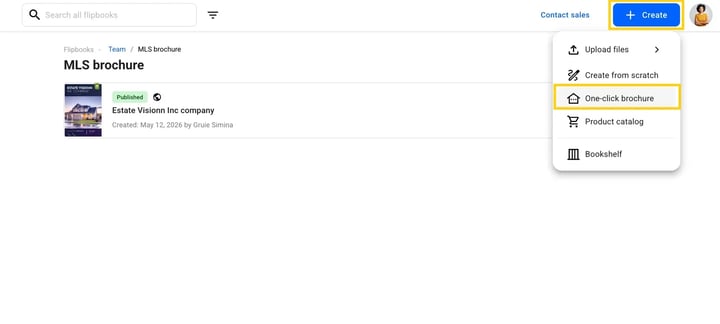
1. From the Homepage, click the Create button in the app header.
2. Select One-click brochure.
Step 2: Search for a property
- Use the search bar to type a keyword related to the property (for example, the address and number).
- Use the left dropdown to select a specific MLS field if needed. By default, it is set to Unparsed Address.
- Use the right dropdown to choose the MLS connection you want to search in.
- Press Enter and select the desired property from the results.
Click Continue in the upper right corner.
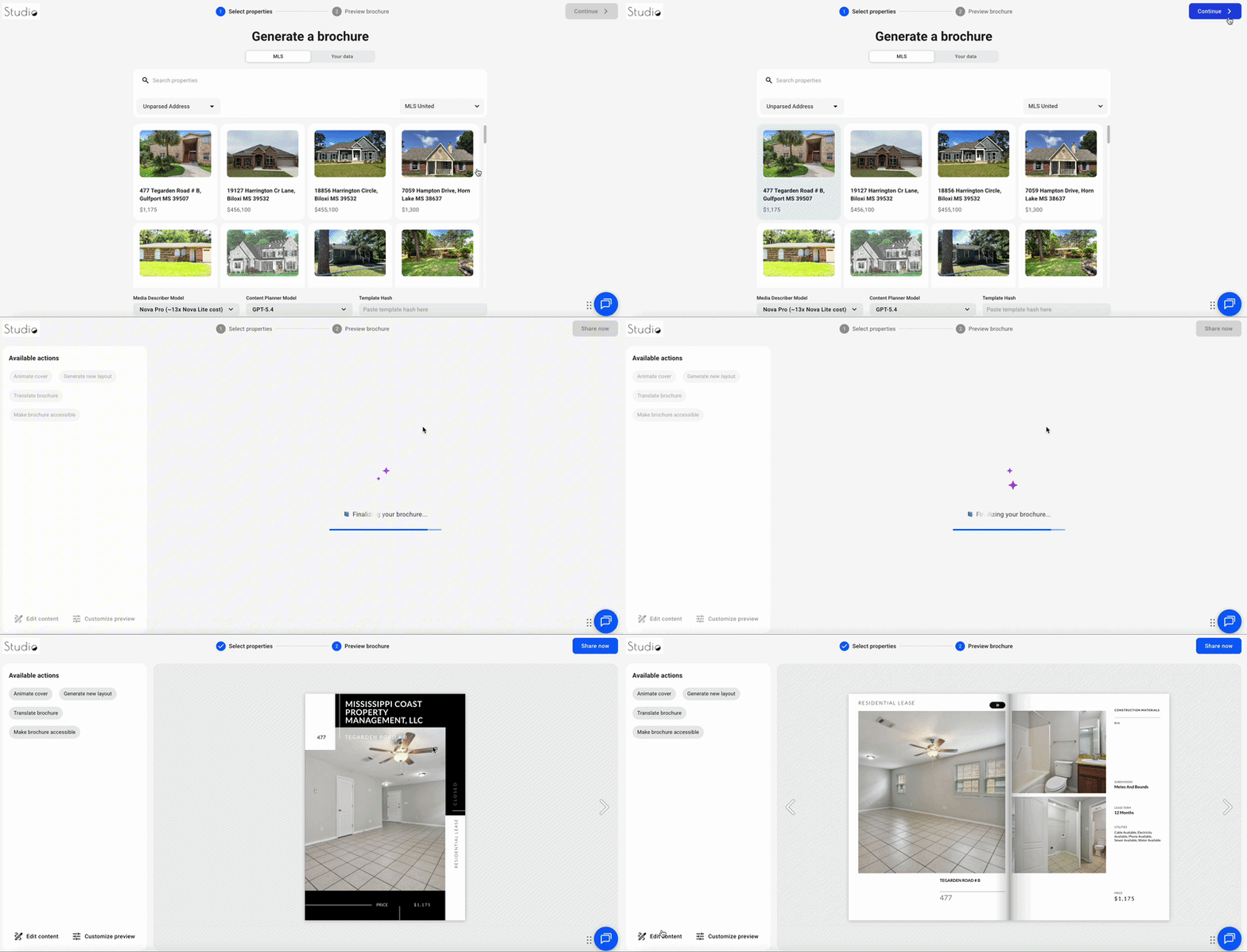
After clicking Continue, the AI generates your brochure automatically in about 60 seconds.
In the background, the system selects a template based on the number of details included in the property description. In about a minute, your interactive page-flipping brochure is ready.
Note: Once your brochure is generated, you can edit the content in Design Studio, customize the flipbook player’s appearance, preview how it looks for readers, and share it using the available publishing options.
Edit and brand your brochure
After the brochure is generated, you can review the design and take a few actions from there:
- Animate cover — add motion to your brochure cover
- Generate new layout — shuffle to a different design
- Translate brochure — convert the content to another language
- Make brochure accessible — add accessibility features for wider reach
- Edit content — manually adjust text or property details
- Customize preview — tweak the visual appearance
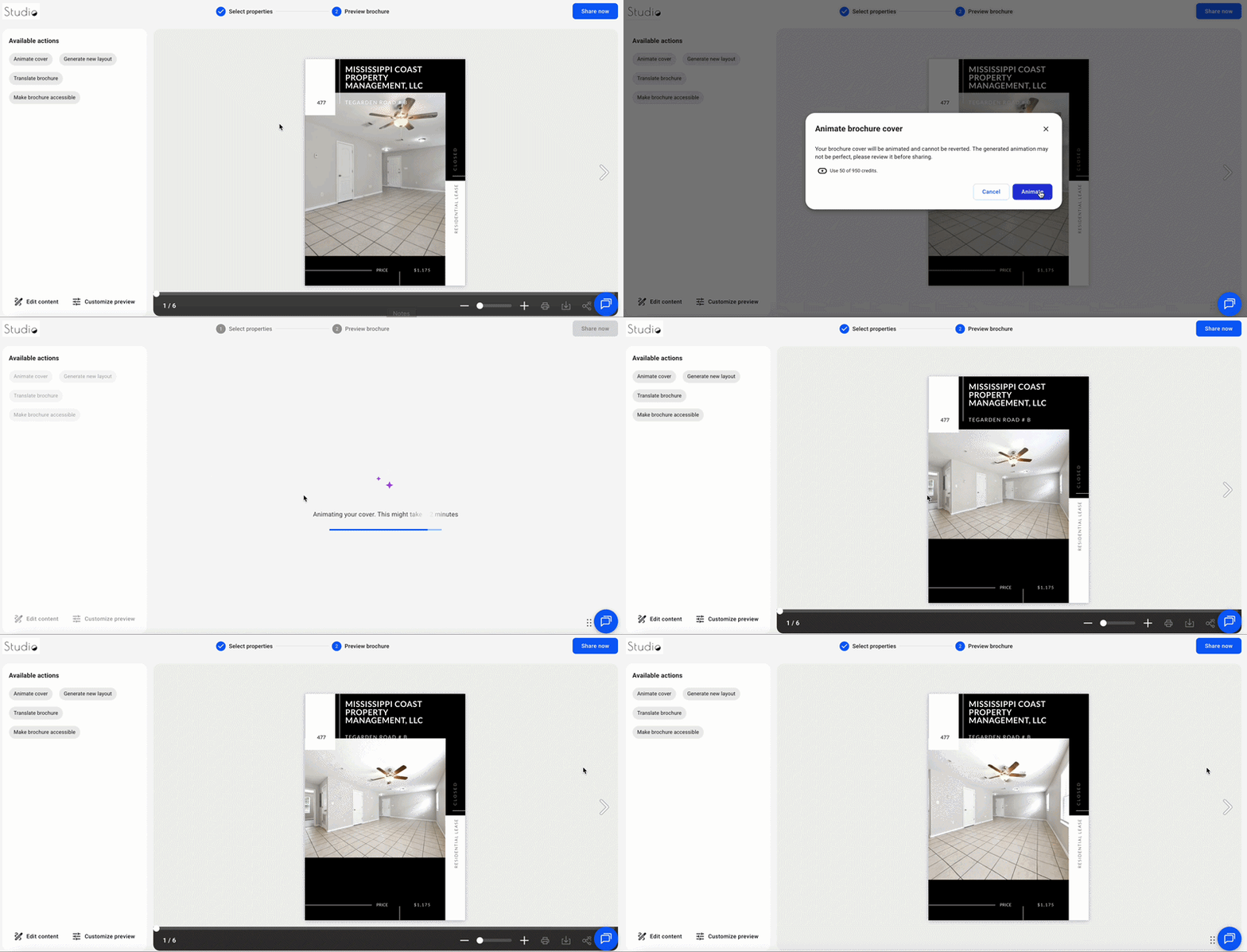
1. Animate cover
AI Animate adds smooth motion to your cover image, making it more eye-catching for potential buyers.
This action takes 1–2 minutes to process. Once complete, your brochure is ready to publish.
Note: Animating a cover uses 50 AI credits. Check how many AI credits are included in your plan. Credits reset on the first of each month.
2. Generate a new layout
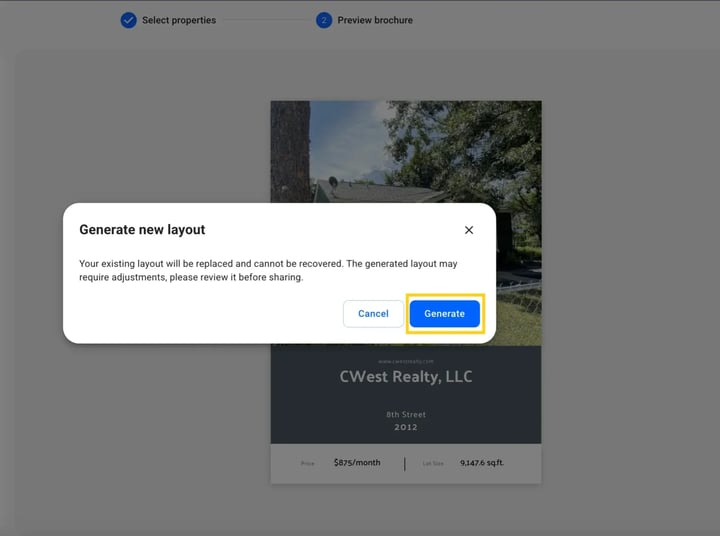
Use this to regenerate your brochure with a completely new layout. Your property data stays the same, only the design changes.
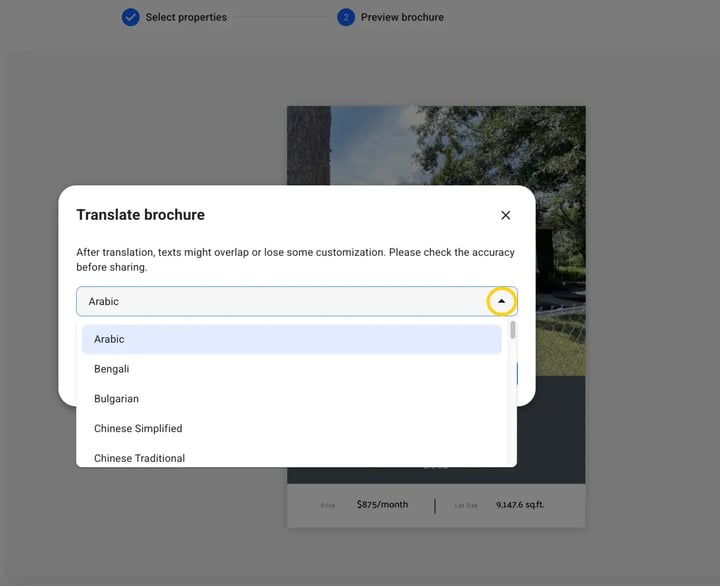
3. Translate brochure
Translate your brochure into any supported language with one click. Useful when sharing listings with non-English-speaking buyers.
Note: Translation uses 5 AI credits. After translating, review the design before publishing, longer text may shift within the layout.
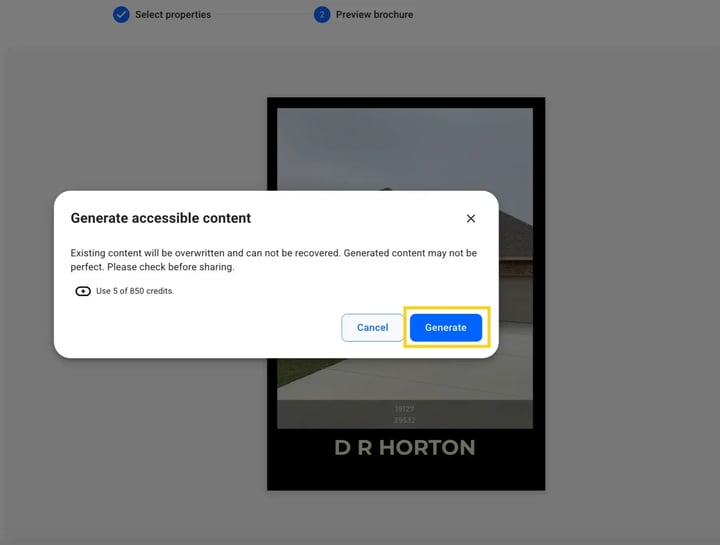
4. Make brochure accessible
This action populates the accessibility tab for each page, making your brochure compatible with screen readers for visually impaired readers.
Note: This action uses 5 AI credits.
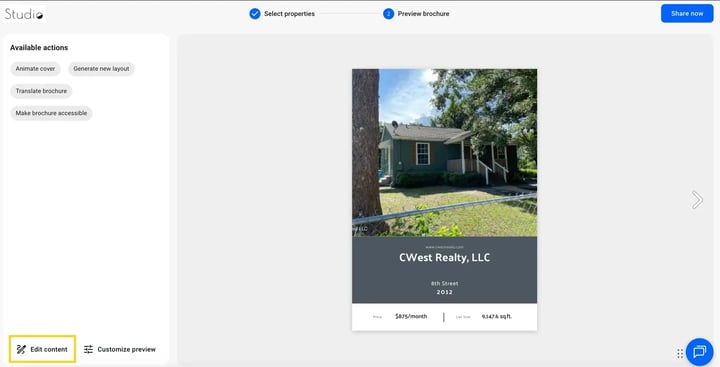
5. Edit content in Design Studio
Click Edit content to open the brochure in Design Studio.
6. Customize the flipbook player
Click Customize preview to open the Customize page.
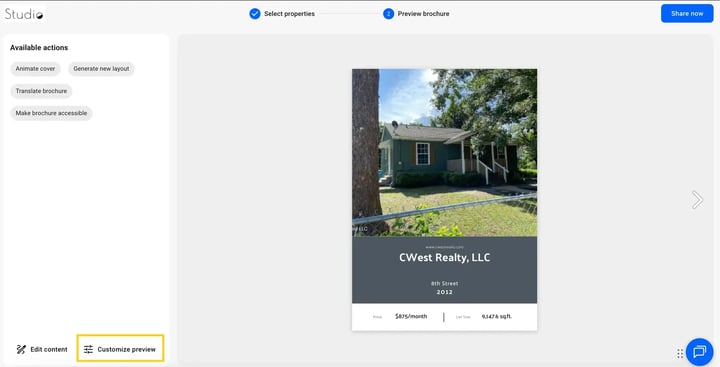
Here you can:
- Change the background color
- Add your logo
- Adjust player appearance
- Enable a Lead form to collect contact details
Share your brochure
When you’re ready to share:
- Click Share now.
- Add a Title and Description.
- Choose the visibility option (Public, Unlisted, Password-locked, or Private).
- Click Publish.
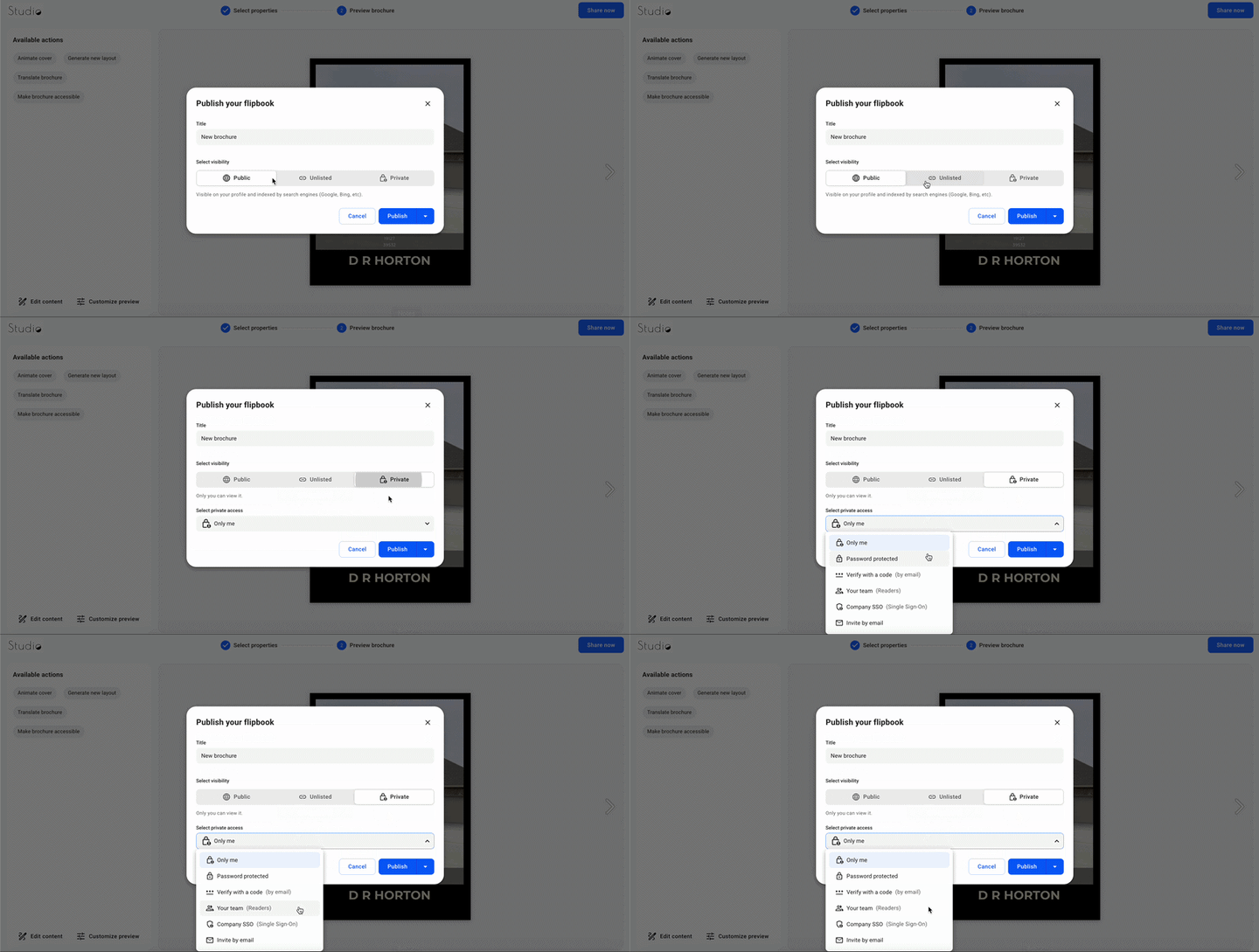
After publishing, copy the link and share it via:
- Direct link
- QR code
- Embed on your website
You can also download the brochure for printing if needed.
Use cases
- Listing presentations: Send interactive brochures to potential buyers after viewings.
- Email marketing: Include a digital brochure in property campaigns.
- Luxury real estate: Present high-end properties with a polished, premium look.
- Open house promotions: Share a QR code linking to the digital brochure.
- Agency branding: Quickly generate consistent brochures across multiple agents.
Troubleshooting
- No properties appear in search results: Verify that you selected the correct MLS connection and search field.
- The generated brochure is missing details: The AI uses available MLS data. If information is missing in the listing, you can manually add it in Design Studio.
- The MLS connection does not save: Ensure all required fields are completed correctly and that your MLS credentials are valid.
- No properties appear in search results: Verify that you selected the correct MLS connection and search field.
- The generated brochure is missing details: The AI uses available MLS data. If information is missing in the listing, you can manually add it in Design Studio.
Additional tips / FAQs
- Why don’t I see the One-click brochure option? Make sure the Beta feature is activated for your account. Log out and log back in after activation.
- Can I edit the AI-generated layout? Yes. Once generated, the brochure is fully editable in Design Studio.
- How long will the feature stay in Beta? The Beta phase is expected to last approximately 3–6 months.
Next steps
- Property data to brochure
- Using Design Studio to edit your flipbooks
- Customize the flipbook player
- Publishing and visibility options
- Adding a Lead form to your flipbook
Need expert support?
Our team is here to help. Connect with our team experts or message us via the live chat for personalized assistance.