
Overview
Sometimes your product list already lives online. It might be a spreadsheet published from your online store, a file someone on your team keeps on a public web page, or a shared link that anyone can open without signing in.
👥 Where importing products from a URL is helpful
- Your online store or supplier gives you a link to a product spreadsheet, and you would rather use the link than download the file each time.
- Your product file sits on a public page of your website, and someone updates it there whenever prices or stock change.
- Several people on your team build catalogs from the same file, and passing around one link is easier than emailing copies.
- Your file is stored somewhere online with sharing set to anyone with the link.
When that is the case, the Catalog Generator can pull the products straight from that link. You copy the link, paste it in, and Flipsnack reads the file for you. No juggling files, no keeping track of which copy is the latest one.
The one thing that matters is that the link is public. If you can open it in a browser window where you are not logged in, and the file starts downloading or opening, Flipsnack can read it too.
Requirements
- Plan: Enterprise: contact sales
- A link to your product file that anyone can open without signing in
- The file needs to be a spreadsheet saved as
.csvor.xlsx
How to import products from a URL
- In your workspace, click Create and choose Product catalog.
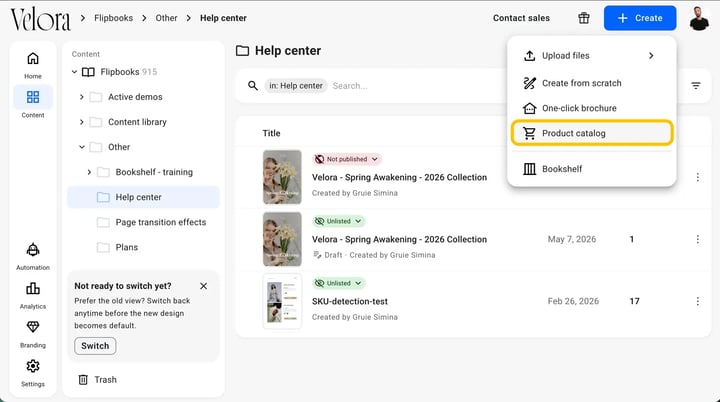
- In the Select a feed step, under Add a feed, click Import URL.
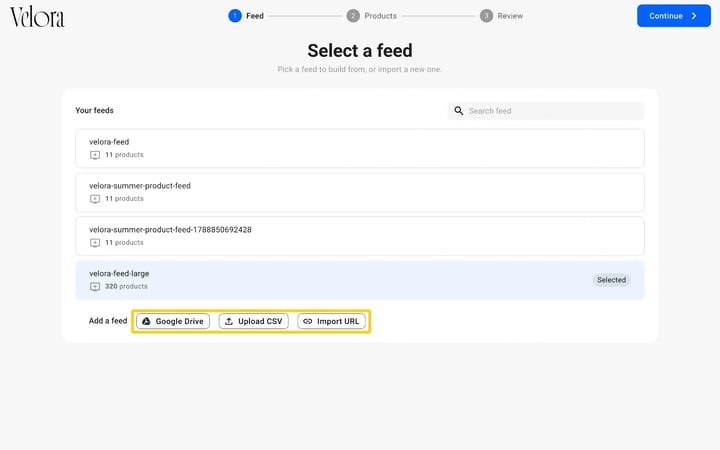
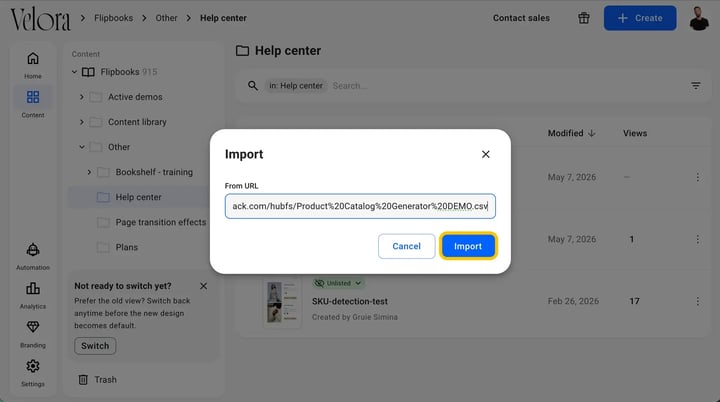
- Paste the link to your product file in the From URL field, then click Import.
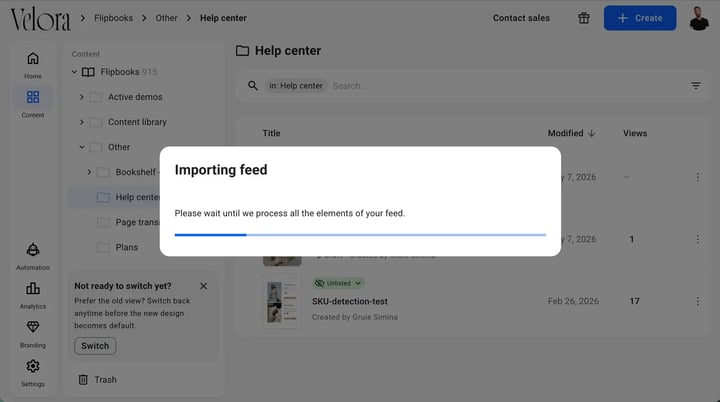
- Wait while Flipsnack reads the file and pulls in every product.
- In Map feed content, choose the column that holds each item's unique code under Select unique ID, then click Save changes.
- Select the new feed under Your feeds, click Continue, choose the products and click Generate: how to create a product catalog from a feed.
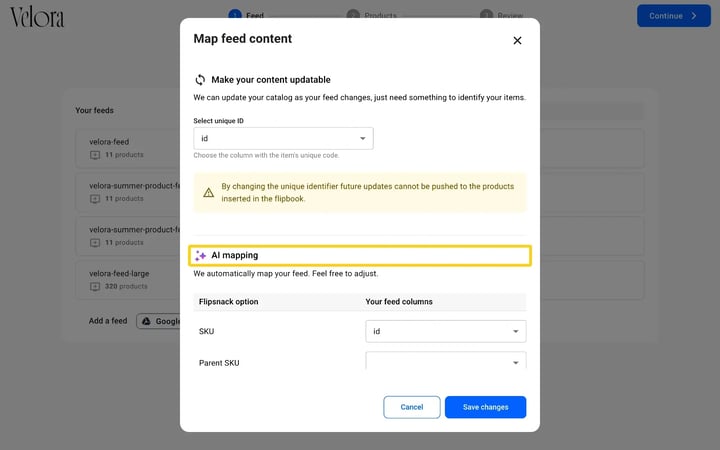
Caution: Changing the unique identifier means future updates cannot be pushed to the products already inserted in the flipbook.
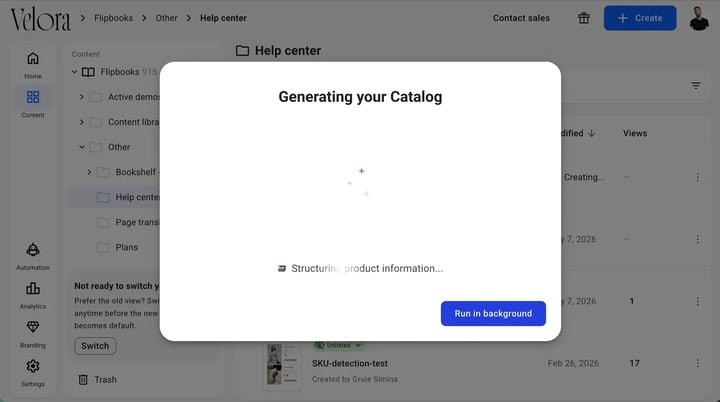
- Flipsnack generates your catalog on a full page. It shows Reading your CSV file, then Structuring product information. Keep the page open, or click Run in background and continue your work.
Note: The link has to open the file directly, without asking anyone to sign in. A quick way to check: open it in a private browsing window. If it asks you to log in, or shows a preview page instead of the file, Flipsnack will not be able to read it either.
Additional tips / FAQs
- Feed structure: Not sure how to structure your feed? How to prepare your product feed for automation covers the columns and formatting the Catalog Generator expects.
- Reusing an imported feed: Once a link has been imported, the file stays listed under Your feeds, so you can build another catalog from it without pasting the link again.
Troubleshooting
What to do if the URL is rejected right away
- Link requires login: Make sure the link is publicly accessible. If opening it in a private browser window asks for a login, Flipsnack cannot reach it either.
- Link opens a preview page: Use a link that opens the file itself, not a page about the file. Sharing links often lead to a preview page instead, so set sharing to anyone with the link and copy the link that downloads the file.
- Malformed link: Check that the link starts with https:// and has no extra spaces at the beginning or the end.
What to do if the import finishes but no products show up
- Missing header row: Open the file behind the URL and confirm it has a header row with column names, and at least one product row underneath.
- Feed does not match structure: Check that the file follows the structure described in How to prepare your product feed for automation.
What to do if some fields import empty
- Empty values after import: Empty values usually mean a column name did not match. Go back to Map feed content and pair each Flipsnack field with the right column from your feed.
- Product images not showing: Image columns need links that open the picture itself, ending in something like
.jpgor.png. A link to a product page will not show up as a product image.
What to do if your updated feed is not reflected in the catalog
- Updated file not reflected: Check that whoever updated the file saved over the same one, rather than creating a new file with a new link.
- Link changed: If the link changed, import the new URL and generate the catalog again.
- What kind of file does the link need to point to? A spreadsheet saved as
.csvor.xlsx. If the link asks for a login, or opens a preview page instead of the file, the import will not work. - Do I need to paste the link again next time? No. Once a file has been imported, it stays listed under Your feeds in the Select a feed step, ready to pick again.
After you update a feed, you can update every catalog that uses it in one action. See Update every catalog that uses a feed.
Next steps
- Create a catalog in Flipsnack with Catalog Generator
- How to prepare your product feed for automation
- How to sync your product feed in Flipsnack
- How to create product catalogs from scratch using a product feed
- How to use the Catalog Generator with your custom template
- How to build a catalog from a master feed with selected products
Need expert support?
Our team is here to help. Connect with our team experts or message us via the live chat for personalized assistance.