
Overview
To create a product catalog in Flipsnack, click Create, then Product catalog. Pick a product feed, choose which products go in, check the details and click Generate. Flipsnack lays every product out on your catalog template, with its name, image, price and buttons, and updates it when you sync the feed.
💡 Benefits of generating catalogs from a feed
- Minutes, not weeks: one run turns a feed of hundreds of products into a catalog.
- Prices stay right: sync the feed and the catalog takes the new prices, descriptions and images.
- One look for every catalog: each catalog is built on your own branded template.
- Ready to sell: products can carry shopping buttons, links and videos.
Retailers use it for large product ranges, B2B sales teams and wholesalers for catalogs with current prices, and franchises for a catalog per region from one feed.
Requirements
- Plan: Enterprise: contact sales
- Add-on: Product catalog, activated by the Flipsnack sales team: contact sales
- Catalog template: Flipsnack builds a template and adds it to your account. Your feed needs a column named
FS_template_nameholding the template's exact name on every product, with the same spaces and capitals: contact sales for the name - Product feed: your product list as a CSV file or a Google Sheet, with a unique SKU on every product: prepare the spreadsheet
Activated by our sales team
Product catalog is turned on for your account by Flipsnack. Our sales team sets it up with you and adds the catalog template your feed points to.
Choose a feed
- Click Create, then Product catalog.
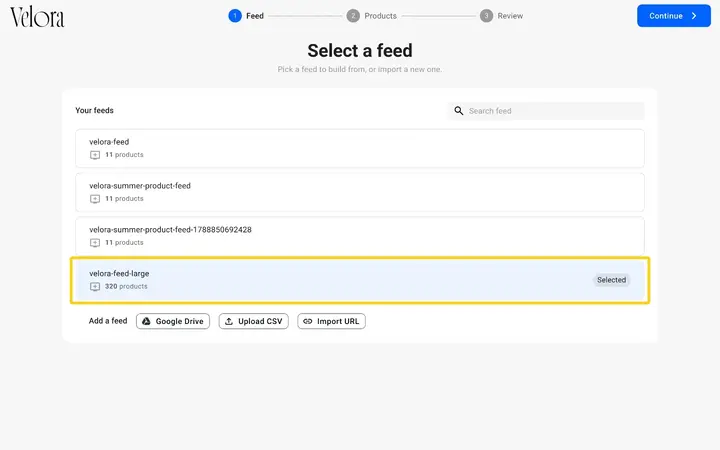
- Under Your feeds, select the feed to build from. Use Search feed to find it in a long list.
- Click Continue.
If your feed is not listed yet
For products that change often, use a Google Sheet: edit it, then sync.
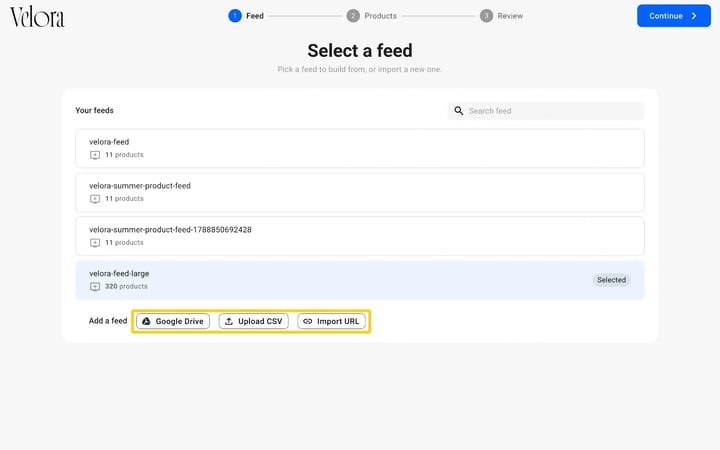
- Under Add a feed, click Google Drive to connect a Google Sheet, Upload CSV to upload a file from your computer, or Import URL to import a CSV file from a public link.
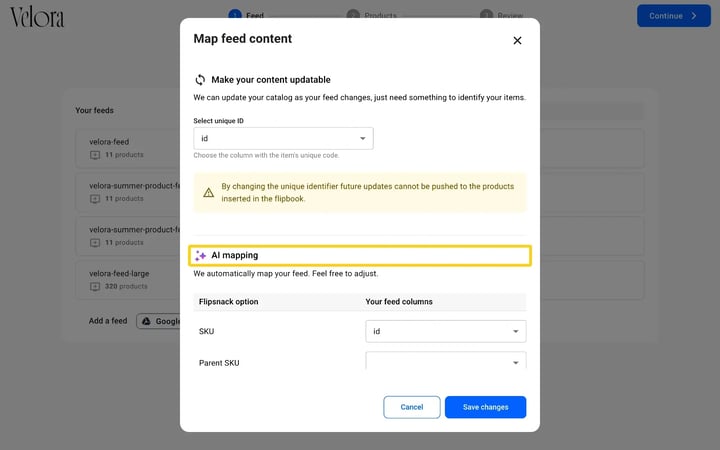
- In Map feed content, under Select unique ID, choose the column that holds each product's unique code.
- Under AI mapping, correct any column Flipsnack matched wrongly, such as SKU.
- Click Save changes, then select the new feed under Your feeds and click Continue.
Caution: pick the unique ID column once and keep it. If you switch to another column later, updates from the feed can no longer reach the products already in your catalog.
Choose the products
- Click All products to build the catalog from the whole feed. Your selection lists every product it will include.
- Click Continue.
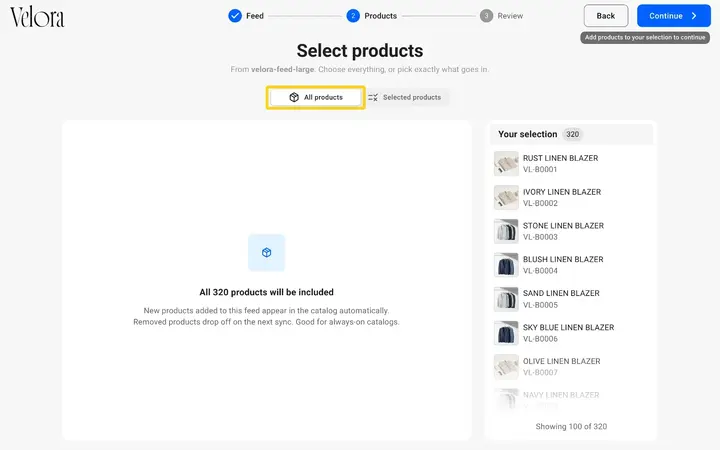
With All products, the catalog follows the feed: when you sync, new products in the feed are added to the catalog and products removed from the feed leave it. A catalog holds up to 2,000 products; for a larger feed, build several catalogs with Selected products.
To build a catalog from only some of the products, such as one brand or one category, choose Selected products instead: how to build a catalog from selected products.
Review and generate
The Review & generate step sums up the feed, the catalog name and how many products are selected.
- The catalog takes your feed's name. To rename it, click Edit next to Catalog name.
- To change the products, click Edit next to Products.
- Click Generate.
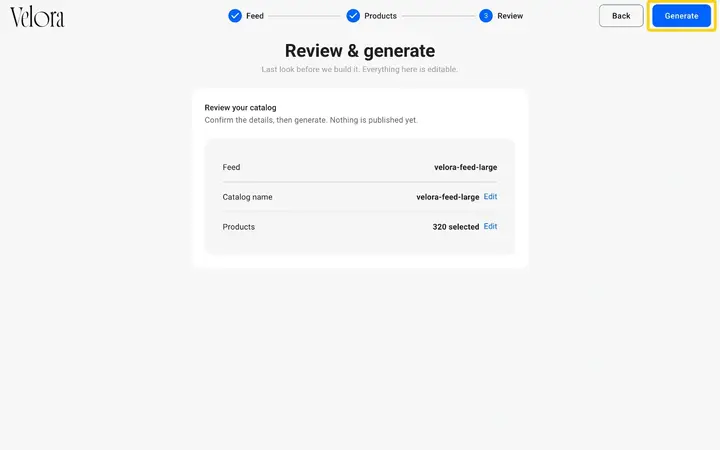
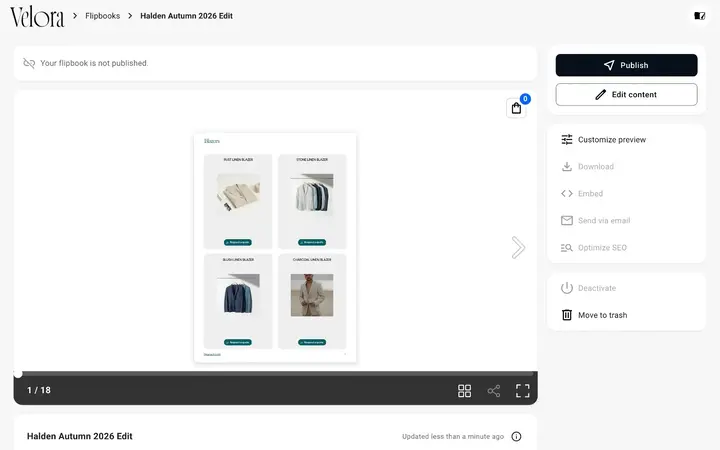
To keep working while the catalog builds, click Run in background. When it is ready, the catalog opens on its overview page, unpublished, so you can check it before you publish it.
Keep the catalog up to date
Your feeds live on the Automation page. After you change your feed, sync it: how to sync a feed with your catalog.
Customize your catalog
A generated catalog is an ordinary flipbook. Open it in the Design Studio to add a front and back cover, extra pages, videos or links, then publish it when it is ready.
Troubleshooting
- Continue stays greyed out on the first step: select a feed under Your feeds, or add one.
- Continue stays greyed out on the second step: with Selected products, add at least one product to Your selection.
- Selected products is locked: Selected products is a separate extra on the Product catalog add-on and is not active on your account. Click Contact us, or contact sales to turn it on.
- The catalog does not generate: check the
FS_template_namecolumn. Every product must hold the template's name exactly as Flipsnack gave it; if one space or capital letter is different, Flipsnack cannot find the template. - One product in the catalog no longer updates: that product's ID value changed in the feed, so Flipsnack treats it as a new product. Keep each product's ID the same.
Additional tips / FAQs
- Can I create several catalogs at once? No. Run the wizard once per catalog.
- Can I choose a different layout? The layout comes from your catalog template. To change it, contact sales; the Flipsnack design team updates the template.
Next steps
- How to build a catalog from selected master feed products
- Prepare your feed for Flipsnack automation
- How to use synchronization for Automation in Flipsnack
- Automation for product variants
- How to use the Shopping list feature
- How to automate multimedia elements in your digital publications
Need expert support?
Our team is here to help. Connect with our team experts or message us via the live chat for personalized assistance.