
Overview
Flipsnack builds a custom catalog template for your brand and adds it to your account. You add your products to a product feed, and the Catalog Generator puts each product on the right page of your design. When your product data changes, you update the feed and sync the catalog. You do not rebuild it.
Requirements
- Custom template: Flipsnack has added your catalog template to your account.
- Product feed: your product data in a Google Sheet, a CSV file or a public CSV link. See Prepare your product feed.
Prepare your product feed
Your feed tells the Catalog Generator which products to place and which template page to use for each one. Check these points before you start:
- Keep the column names. The template is mapped to them. A renamed column stops its data from reaching the page.
- Give each product a unique ID, for example its SKU, and do not change it later. Flipsnack uses it to update the right product when you sync.
- Use direct image links that open the image itself, not a web page. See How to host images.
- Name the template for each product in the FS_template_name column, exactly as Flipsnack gave it to you.
Generate your catalog
- Click Create, then Product catalog.
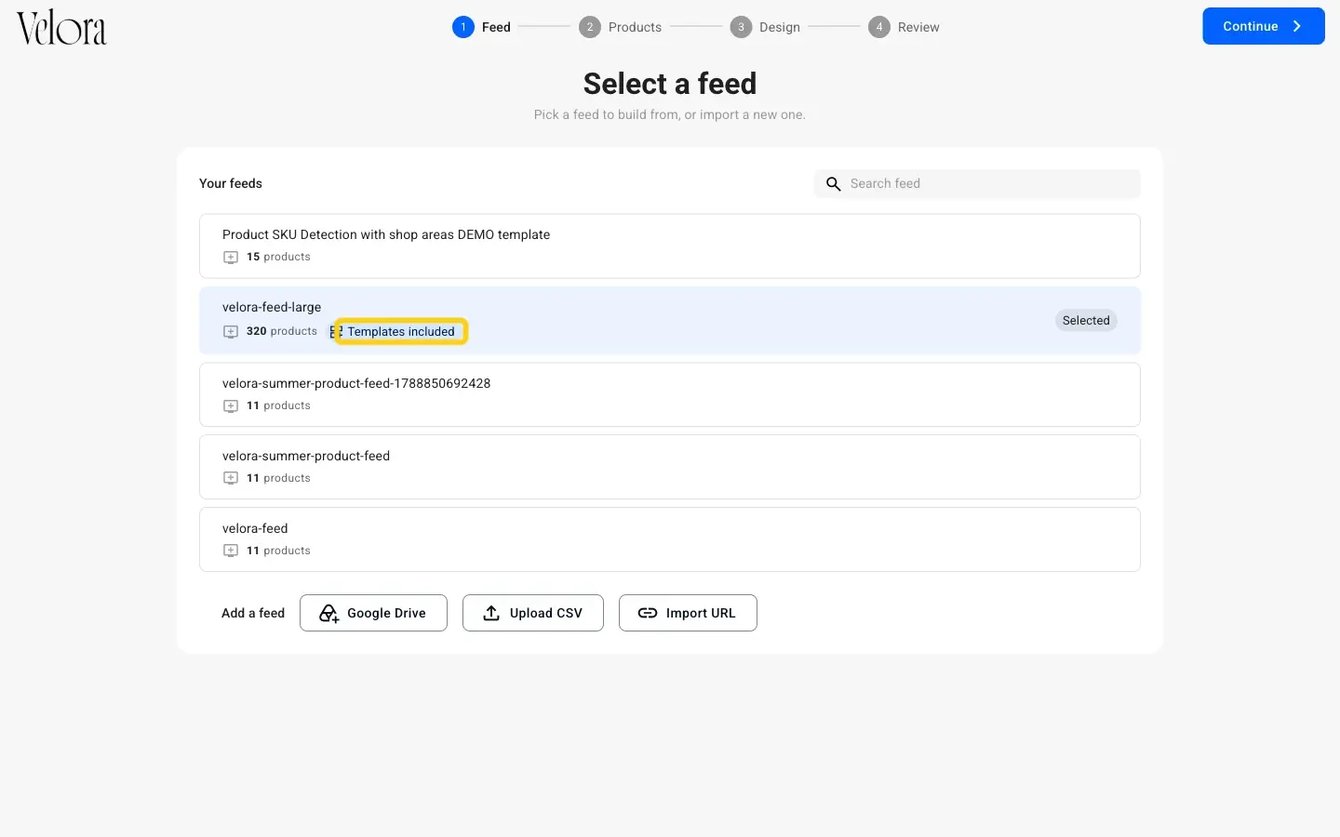
- On Select a feed, select your feed under Your feeds. A feed with your template shows Templates included. Click Continue.
If your feed is not in the list, add it from Google Drive, Upload CSV or Import URL.
- On Select products, select All products and click Continue. To put only some products in the catalog, see Build a catalog with selected products.
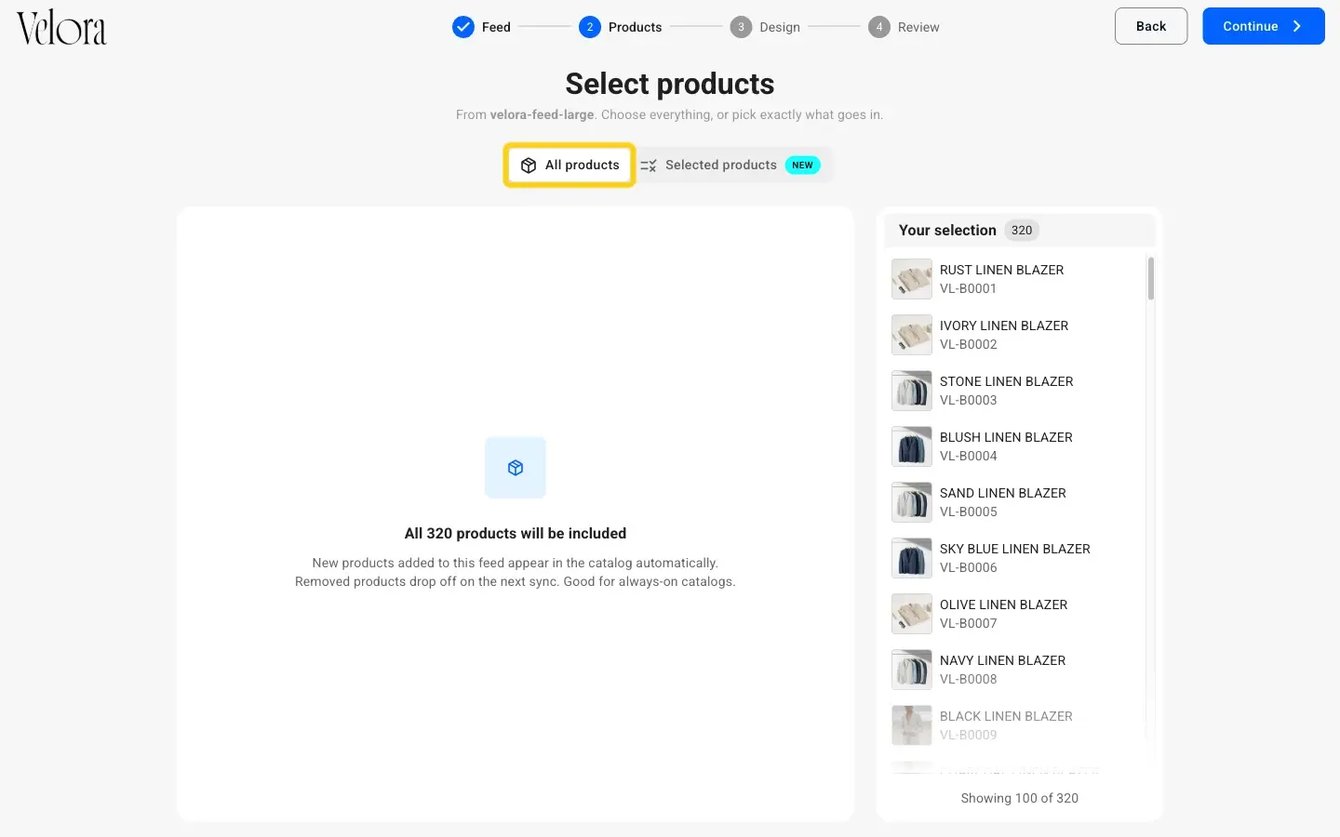
Note: the progress bar shows a Design step, but you do not see it. Your feed already includes the template, so the wizard goes from Products to Review.
- On Review & generate, check the feed, the number of products, the catalog name and Templates: From your feed. Then click Generate.
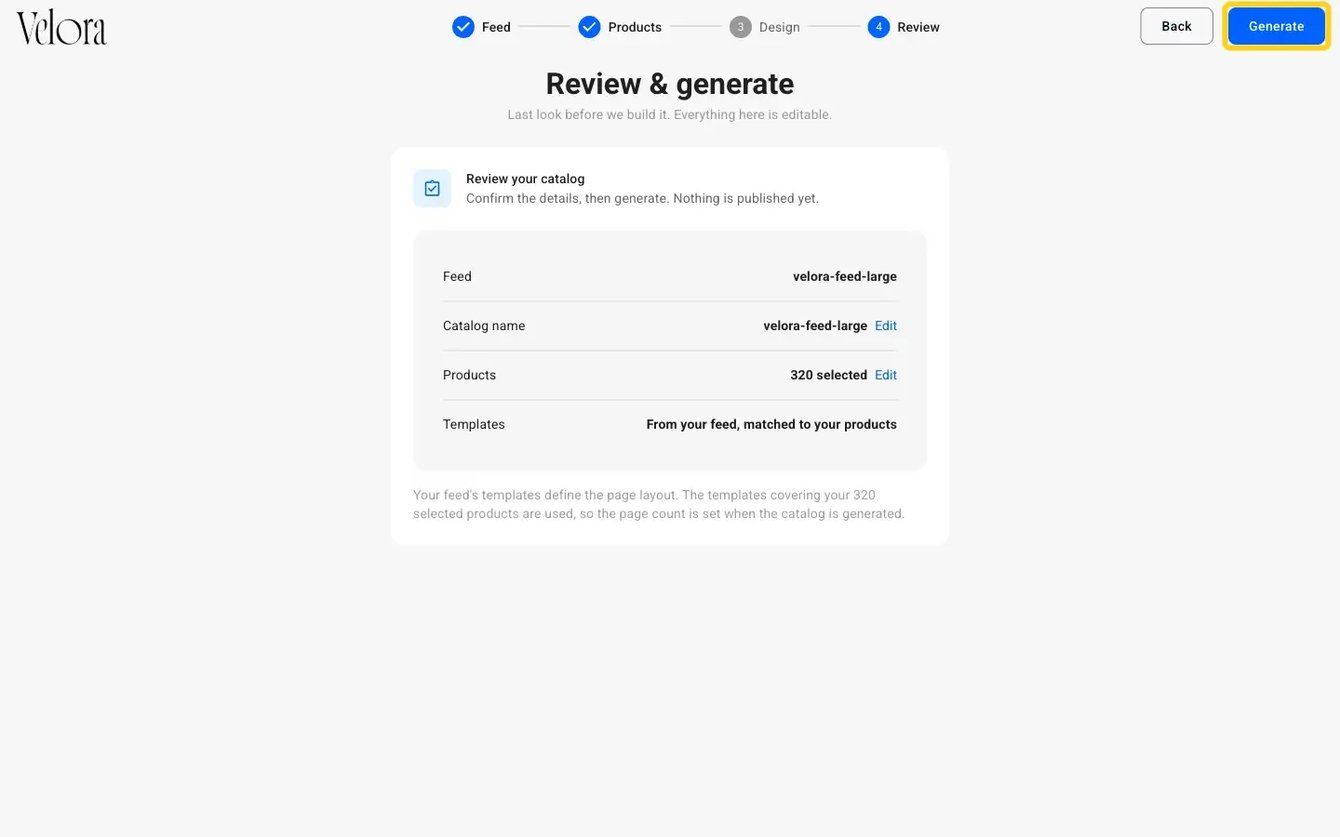
- When the catalog is ready, open it. Check a few pages: the product names, prices, images and any shopping buttons. Then publish and share it.
Keep your catalog up to date
When prices, stock or products change, update the feed, not the catalog:
- Google Sheet: edit the sheet, then sync the catalog.
- CSV file: replace the file with the new version, then sync the catalog.
If several catalogs use the same feed, you can update all of them in one action. Republish a published catalog so readers see the new data. See Synchronization for automation.
If your template has a shop
Some custom templates include shopping buttons that open a product list, where readers pick variants and place an order. If yours does, read these before you share the catalog:
- How to use the Shopping list: how readers order.
- Automation for product variants: sizes and colors from the feed.
- Order and email options: what you and the buyer receive.
Troubleshooting
- My feed does not show Templates included: check that the FS_template_name column holds the exact template name. If it does, contact Flipsnack to confirm that the template is on your account.
- A field is empty in the catalog: the column was renamed or is empty in the feed. Restore the original column name.
- An image does not show: the link does not open the image file directly. Use a direct image link.
- A sync changed the wrong product: the unique ID changed in the feed. Keep each product's ID the same between updates.