
Overview
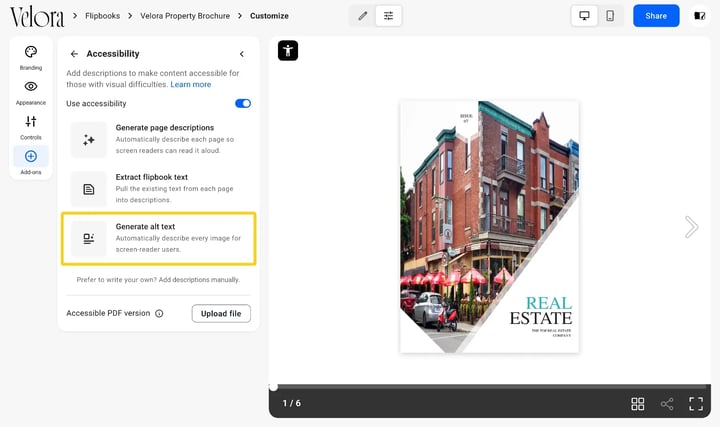
Flipsnack can write alt text for every image in your flipbook automatically. Open Customize, turn on Use accessibility and click Generate alt text: the AI describes each picture so a screen reader can read it aloud. One run covers the whole flipbook and costs 5 AI credits.
💡 Benefits of generating alt text with AI
- Meets the text-alternative rule: WCAG success criterion 1.1.1 asks for a text description of every meaningful image, and one generate run satisfies that criterion for the whole flipbook.
- No writing per image: a 40-page catalog can hold hundreds of product photos. You review descriptions instead of writing them.
- Text in images is captured: a headline or a badge laid over a photo is read into the description, in quotes.
- Same flipbook, same link: nothing changes for sighted readers and the link stays the same.
Alt text matters most where a flipbook is read under an accessibility requirement or is built mostly from photographs. It also gives search engines something to read: a described image is one more way a public flipbook can be found.
👥 Where AI alt text is helpful
- Public sector and education: prospectuses, course catalogs and public reports that have to meet WCAG, ADA or the European Accessibility Act.
- Product catalogs: pages that are mostly photos, where the text alone tells a screen reader nothing about the products.
- Real estate brochures: listings where the photos are the content.
- HR and internal communications: handbooks and policies every employee must be able to read, including staff who use assistive technology.
Requirements
- Plan: Pro or above: check your plan or compare plans
- AI credits: 5 credits per run, deducted from your monthly balance
- Role: anyone who can edit the flipbook: about roles
How to generate alt text
- Open the flipbook and click Customize.
- In the left panel, open Add-ons and select Accessibility.
- Switch Use accessibility on. The AI options appear below it.
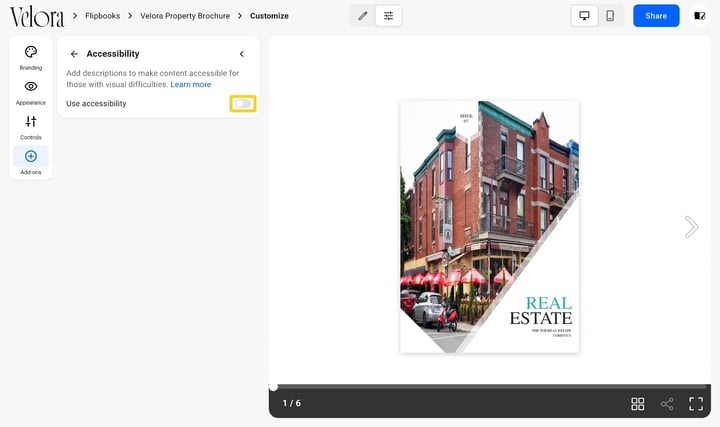
- Click Generate alt text.
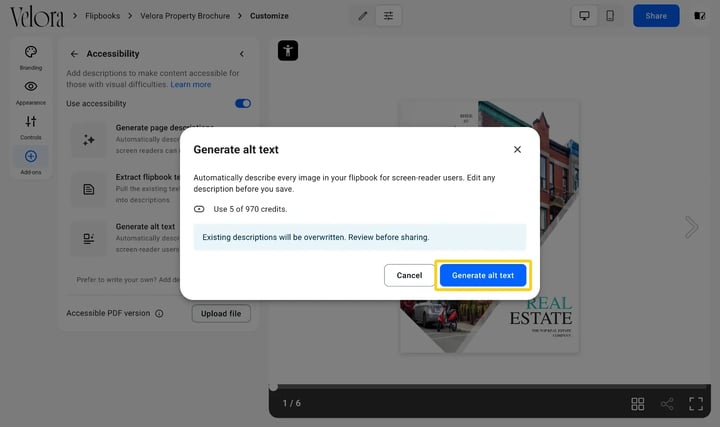
- A dialog shows the credit cost and warns that existing descriptions will be overwritten. Click Generate alt text to confirm.
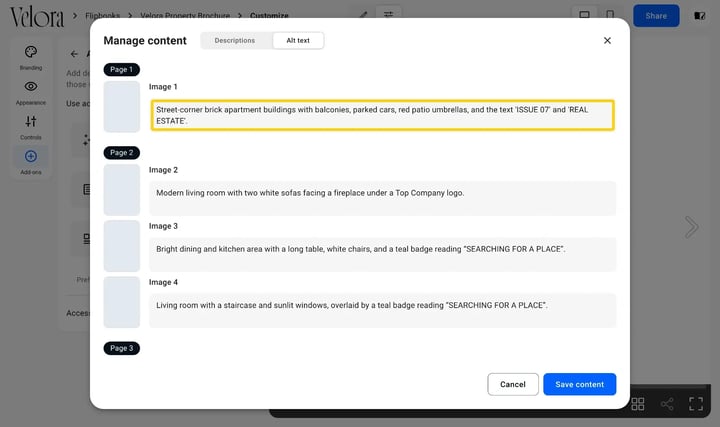
- When it finishes, the Manage content dialog opens on its Alt text tab: every image is listed under its page, with the generated description next to it.
Caution: running Generate alt text again replaces every image description, including any you edited by hand. Edit after the last run, not before.
How to edit the alt text
The generated text is a draft. Read it against the images before you share the flipbook, and shorten anything that reads like a caption rather than a description.
- Under Accessibility, click Add descriptions manually and open the Alt text tab.
- Edit the text next to any image.
- Click Save content.
Troubleshooting
- Generate alt text is not there: the Use accessibility switch is off. Turn it on and the three AI options appear.
- The run does not start: the workspace is out of AI credits. Check the balance under Settings and see how AI credits work.
- A description names the layout, not the subject: "a page with a photo and text" tells a screen reader user nothing. Rewrite that field in the Alt text tab to say what the photo shows. Regenerating rewrites every field, not that one.
- Readers do not hear the descriptions: they are read by the screen reader inside the flipbook player, not by the accessibility widget. Ask the reader to navigate the pages with the keyboard.
Additional tips / FAQs
- Does alt text replace page descriptions? No. Page descriptions summarise the text on a page; alt text describes the images on it. Run both for a fully described flipbook. See how to use AI for accessibility.
- Does it cost credits? Yes, 5 credits for one run over the whole flipbook, whatever its page count. Each plan has a monthly balance.
- Does the alt text go into the accessible PDF? No. The accessible PDF is a file you upload yourself; see accessible PDF download.
- What about images added after the run? They have no alt text until you write it in the Alt text tab or run the generator again, which rewrites every image.
- Can I write alt text in Design Studio instead? No. Image descriptions live only in the Accessibility add-on, under Add descriptions manually; the Design Studio image panel has no alt text field.
Next steps
- How to use AI for accessibility in your Flipsnack flipbooks
- How to make your flipbooks accessible in Flipsnack
- How to enable a fully accessible PDF download for readers
- Flipsnack AI credits explained: costs and monthly balance
Need expert support?
Our team is here to help. Connect with our team experts or message us via the live chat for personalized assistance.