
Overview
Flipsnack's AI can describe your flipbook for screen readers in three ways, all from the Accessibility add-on on the Customize page. Generate page descriptions writes a summary of each page. Extract flipbook text copies the page text into the descriptions. Generate alt text describes every image. Each run covers the whole flipbook and costs 5 AI credits; the confirm dialog shows the cost before you spend it.
💡 Benefits of describing a flipbook with AI
- Whole flipbook in one action: one click describes every page, or every image, instead of a form per page.
- Text and images both covered: page descriptions carry what a page says, alt text what its pictures show. A screen reader user gets the full page.
- Editable afterwards: Add descriptions manually opens every page description and every alt text for review, so the AI draft is a starting point, not the final word.
- Compliance evidence: described pages and images are what WCAG 1.1.1 and ADA reviews look for first.
Which option to run depends on what the page holds:
- Generate page descriptions: a short AI summary per page. Best for designed pages where the layout, not the text, carries the meaning.
- Extract flipbook text: the page's own text, verbatim. Best for text-heavy documents where a summary would lose detail. See AI-powered text extraction.
- Generate alt text: a description of each image. Run it alongside either of the two above. See AI alt text for images.
Requirements
- Plan: Pro or above, check your plan or compare plans
- AI credits: 5 credits per run, whichever of the three options you run. Deducted from your monthly balance
- Role: anyone who can edit the flipbook
How to generate page descriptions
- Open the flipbook and click Customize.
- In the left panel, open Add-ons and select Accessibility.
- Switch Use accessibility on.
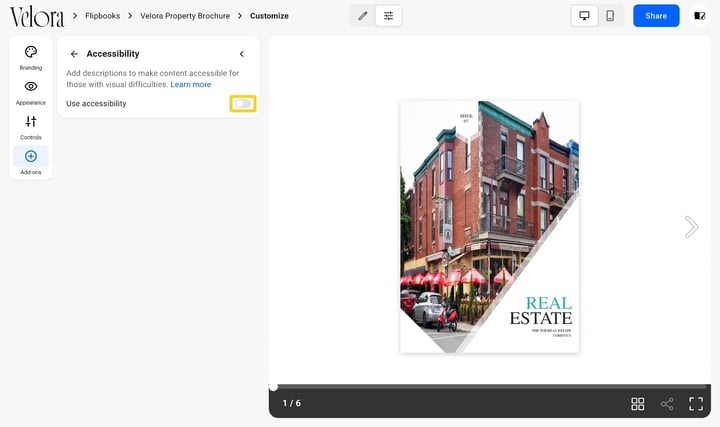
- Click Generate page descriptions. The confirm dialog shows the credit cost and warns that existing descriptions are replaced; confirm it.
How to extract the flipbook text
Use this instead of a summary when the text is the content, such as a report or a policy.
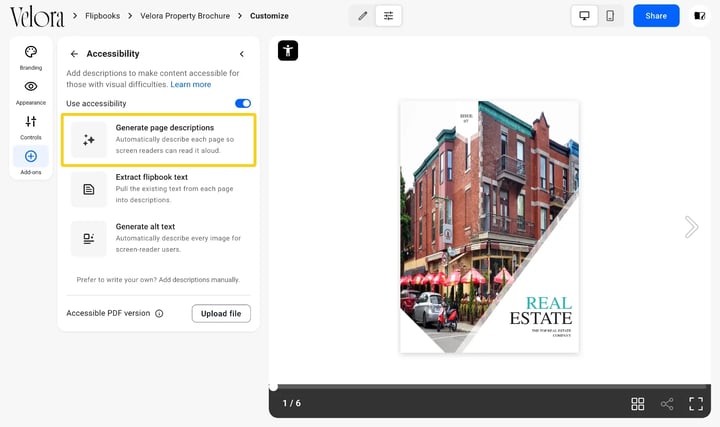
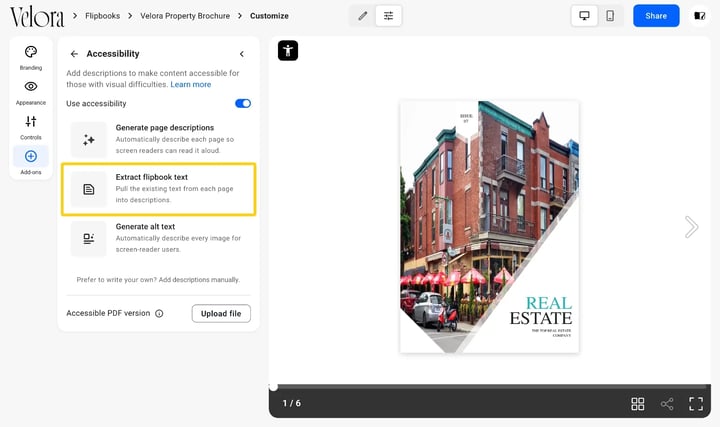
- Under Accessibility, with Use accessibility on, click Extract flipbook text, then Extract text in the dialog. Extracting replaces existing page descriptions and leaves image alt text alone.
How to review and edit the descriptions
- Click Add descriptions manually. The Manage content dialog opens with two tabs: Descriptions lists every page with a title field and a description field. Alt text lists every image.
- Edit what the AI wrote, or type your own, then click Save content.
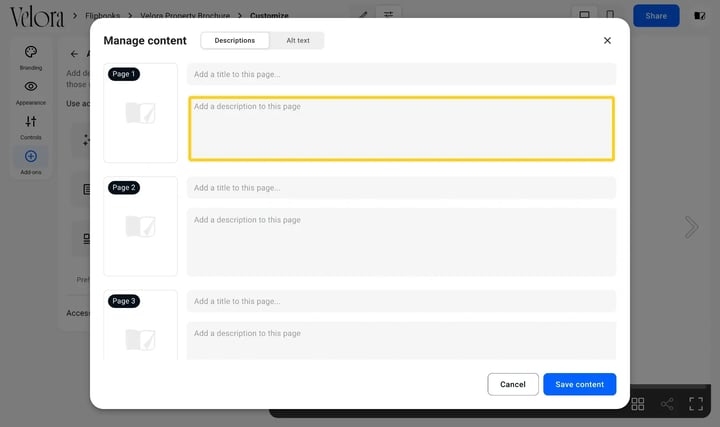
Caution: each generate option overwrites its own tab of this dialog: page descriptions and extracted text replace the Descriptions tab. Alt text replaces the Alt text tab. Edit after the last run, not before.
Troubleshooting
- The AI options are missing: the Use accessibility switch is off. Turn it on and they appear under it.
- The run does not start: the workspace is out of AI credits. See how AI credits work.
- Summaries are thin or empty: the flipbook has too little text to summarise. Use Extract flipbook text for the text you have, and Generate alt text for the images.
- Extracted text reads out of order: the PDF's reading order is what the extractor follows. Fix it in Add descriptions manually.
Additional tips / FAQs
- How does the flipbook look for readers once accessibility is on? The same. A screen reader reads the descriptions aloud as the person moves through the pages. Sighted readers see nothing new.
- Do the descriptions go into the downloadable PDF? No. An accessible PDF is a separate file you upload; see accessible PDF download.
Next steps
- How to generate AI alt text for images in a flipbook
- How to use AI-powered text extraction for accessibility
- How to make your flipbooks accessible in Flipsnack
- Flipsnack AI credits explained: costs and monthly balance
Need expert support?
Our team is here to help. Connect with our team experts or message us via the live chat for personalized assistance.