
Overview
Including a table of contents in your flipbook can provide advantages, such as giving readers a clear overview of the publication's content and structure and easy navigation. In this article, we will provide you with all the necessary information on how to import, add and edit a table of contents.
💡 Benefits of adding a table of contents to your flipbook
- Better navigation and user experience: A TOC allows readers to quickly jump to specific sections or chapters, making it easier to browse through your flipbook, especially when dealing with lengthy or complex documents.
- Pro and organized presentation: Including a TOC adds structure to your flipbook, giving it a polished and professional look that can enhance the credibility of your content.
- Time-saving for readers: With a TOC, readers can easily find the information they need without scrolling through the entire flipbook, improving their overall experience.
- Automatic import from PDFs: If your uploaded PDF includes a well-formatted TOC, Flipsnack can automatically detect and import it, saving you time and ensuring consistency between your original document and the flipbook.
- Customizable and editable: You to create or edit the TOC manually, giving you the flexibility to tailor it to your specific content and audience needs.
- Easy to update when content changes: When you rearrange or edit pages in your flipbook, the TOC can be updated accordingly, making sure it always reflects the current structure of your content.
Requirements
- Plan: Starter or above: check your plan or compare plans
Importing TOC from PDFs
Step 1: Upload a PDF that contains a table of contents
Important:
- It's important for the TOC to be well-formated. Here’s how to properly make a table of contents in Adobe InDesign and Adobe Acrobat Pro. If your PDF file does not contain a table of contents or if the table of contents is not formatted properly, the Table of contents option will be disabled.
- To avoid any inconsistencies, do not export your PDF as a spread before uploading it in Flipsnack, as the TOC might not be detected.
Step 2: Go to the Customize page
Once your PDF is uploaded, you’ll be redirected to the Customize page. Click on the Add-ons tab.
If the PDF includes a valid TOC, the Activate table of contents option will be checked by default, and you’ll see the button in the flipbook's navigation bar.
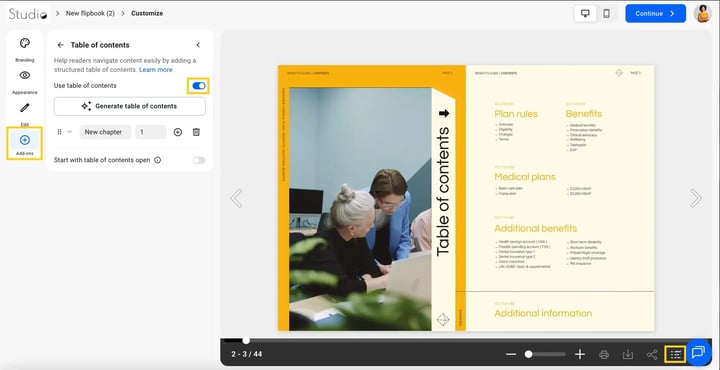
Note: If you upload a PDF without a well-formatted TOC or you create a flipbook from scratch, the Activate Table of contents will be disabled by default.
Step 3: Modify the table of contents
Here you can edit, remove, add new chapters or subchapters, or the table of contents to open by default..png?width=720&height=748&name=Modify%20the%20table%20of%20contents-mh%20(2).png)
If you want the table of contents open by default, here's how to do that.
Creating a TOC from scratch
- In the Customize section, click on Add-ons > Table of contents from the left-hand menu.
- Toggle on Use table of contents.
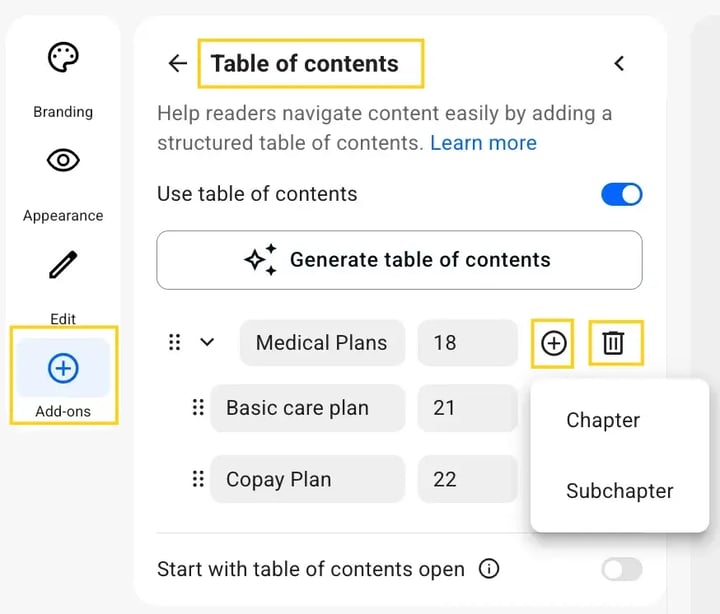
- Click on the "+" to add a chapter or subchapter.
- Enter a name and choose the page number where it should appear.
- You can edit, reorder, or delete chapters and subchapters anytime.
Generate a TOC automatically
To get started, go to Customize > Add-ons > Table of contents and enable the "Use table of contents" toggle.
Click on the Generate table of contents, and a confirmation modal will appear informing you that:
- The table of contents will be generated based on your content.
- Any existing entries will be overwritten.
Note: Generating a table of contents costs 10 AI credits. If you don't have AI credits, check here on how they work.
Editing a TOC
Whether you've uploaded a PDF or created your publication from scratch, you can edit the table of contents from the Customize page. Below are some ways to access it:
Option 1: From the Main Dashboard
- In the Main Dashboard, select your flipbook.
- Click the Customize button.
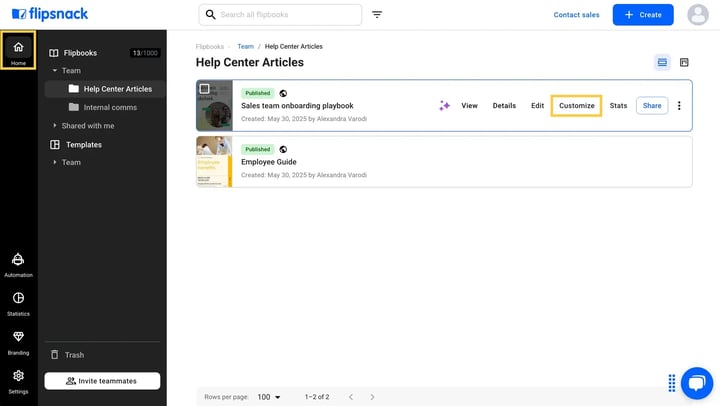
Once you're in the Customize page, click Add-ons >Table of contents in the left-hand menu.
Here you can:
- Add new chapters or subchapters
- Edit names
- Assign specific page numbers
- Delete or reorder entries
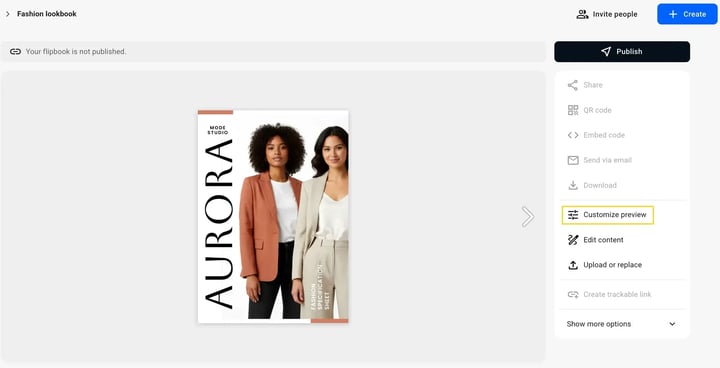
Option 2: From the Overview page
- In the Main Dashboard, click on a flipbook and select the Overview button.

- Click the Customize preview button located in the right panel.
Start with the TOC open
If your flipbook has many pages, the table of contents helps readers jump to the section they want. But some readers might not know it exists, or how to open it.
To make things easier, Flipsnack gives you the option to have the table of contents open by default when someone views your flipbook.
This setting is turned off by default, but you can turn it on and save this option for future flipbooks by following these steps:
- Go to the Customize page.
- Select the tab Add-ons
- Click on Table of contents, add or generate your table of contents.
- Check the box labeled "Start with table of contents open."
Note:
- The Save options for future flipbooks setting applies only to new flipbooks you create from scratch or upload as PDFs after enabling this option.
- For flipbooks published before, you’ll need to manually check the Start with Table of Contents open box to enable it.
Saving and publishing TOC changes
After editing the table of contents in Customize > Add-ons > Table of contents, save your changes:
- Press the Continue button in the upper-right corner.
- Then click Update to save your changes.
If your flipbook is already published, republish it so the updated table of contents and navigation appear in the live version. For more details, see How to edit a published flipbook and then republish it.
Troubleshooting
The table of contents shows unexpected or incorrect entries
- Verify that your PDF contains a well-formatted table of contents, so entries are detected accurately.
- Open Customize > Add-ons > Table of contents and remove or update the unwanted entries.
TOC changes don't appear in the live flipbook
- Make sure you saved your changes by pressing Continue and then Update.
- Republish the flipbook after saving.
The table of contents has display or interaction problems
- Clear your browser cache.
- Try a different browser.
- Check your internet connection.
If an unwanted TOC entry cannot be removed through the editor, message us via live chat for further assistance.
Additional tips / FAQs
- What happens if I rearrange pages in the flipbook? If you’ve added a chapter on page 5 and later rearrange the pages (so page 5 becomes page 3), the chapter will automatically move to page 3.
Chapters and subchapters are linked to the page itself, not the page number.
- What happens if I delete a page that contains a chapter/subchapter? The chapter or subchapter will still appear in the Table of Contents, but it won’t be linked to any page. Clicking on it won’t work.
To fix this, you can either delete the chapter/subchapter or reassign it to another page.
Next steps
- The Customize page and its options
- How you can share your flipbooks to get more exposure.
- How to edit a published flipbook and then republish it
- How do I activate the table of contents, lead form, tracking, and accessibility for my flipbooks?
Need expert support?
Our team is here to help. Connect with our team experts or message us via the live chat for personalized assistance.