
Overview
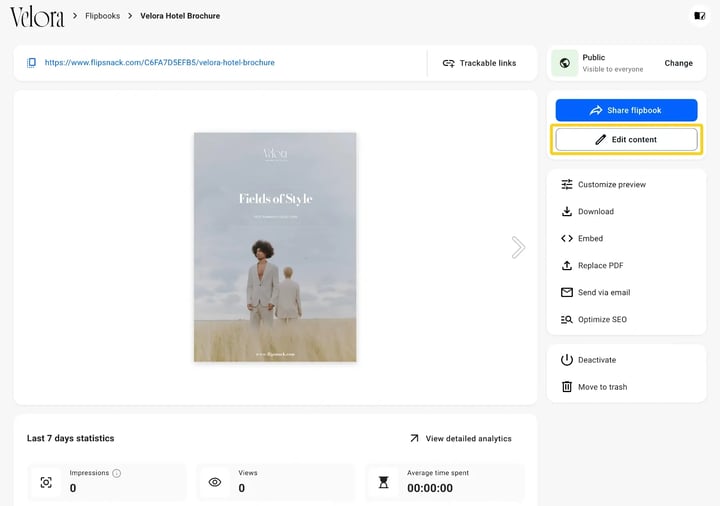
Editing a published flipbook does not change what readers see. Your edits are held as a draft until you republish, and republishing is what pushes them live. Open the flipbook, click Edit content, make the changes, then click Share in the top right of the Design Studio and Update. The link never changes, so nobody needs a new address.
Requirements
- Plan: every plan.
- A published flipbook in your workspace.
How do I edit and republish a flipbook?
- Open Content and click the flipbook to open its Overview page.
- Click Edit content. The flipbook opens in the Design Studio.
- Make your changes.
- Click Share in the top right.
- In Publish your flipbook, click Update.
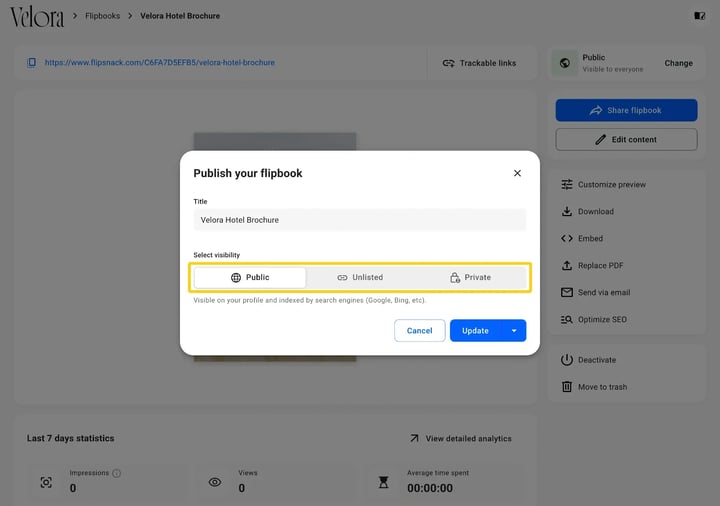
Readers see the new pages straight away. Anyone who already has the flipbook open in a browser tab has to refresh it.
An edit you do not republish stays invisible. It is saved as a draft on your workspace, and the published flipbook keeps the pages it had.
Spotting a flipbook with unpublished edits
Once a published flipbook has edits waiting, its Overview page changes: the blue button reads Share rather than Share flipbook, and two more appear, Publish changes and Discard draft.
- Publish changes does the same job as Share, then Update.
- Discard draft throws the edits away and leaves the published flipbook as it is.
Additional tips / FAQs
- Do I need to share the link again? No. The address does not change when you republish.
- Do my statistics reset? No. Impressions, views and time spent carry on from where they were.
- Can I republish on a date? Yes. Click the arrow beside Update and schedule the update.
- I only changed a player setting, not a page. That lives on the Customize page, and it goes live the same way: Share, then Update.
- Can I replace the whole file instead? On a flipbook made from a PDF, yes. Use Replace PDF on the Overview page.
Next steps
- Why don't my flipbook changes show up after editing?
- Saving the catalog as a draft without publishing it
- How to schedule a flipbook to publish or deactivate
- How to replace a PDF file and keep its interactions
- How to publish a flipbook in Flipsnack and get its link
Need expert support?
Our team is here to help. Connect with our team experts or message us via the live chat for personalized assistance.