
Overview
Flipsnack’s customization options let you go beyond basic appearance and branding settings. By adding features like lead capture forms, integrating analytics tools, and enhancing accessibility, you can optimize reader engagement, data collection, and usability across your flipbooks.
Once you’ve uploaded or designed your flipbook, head to the Customize page to access these features. Below, we break down the most common advanced customizations and how they can benefit you.
👥 Where advanced customization is helpful
- Target audience: Freelancers, Small and Medium Businesses, Enterprises
Requirements
- Plan: Business or above: check your plan or compare plans
Other customization options
Table of contents
On the Customize page, you can:
- Enable or disable the table of contents
- Modify, delete, or add new chapters and subchapters manually
- Automatically generate a table of contents
- Reorder chapters by dragging them using the grid icon
- Set the table of contents to open automatically when readers open the publication
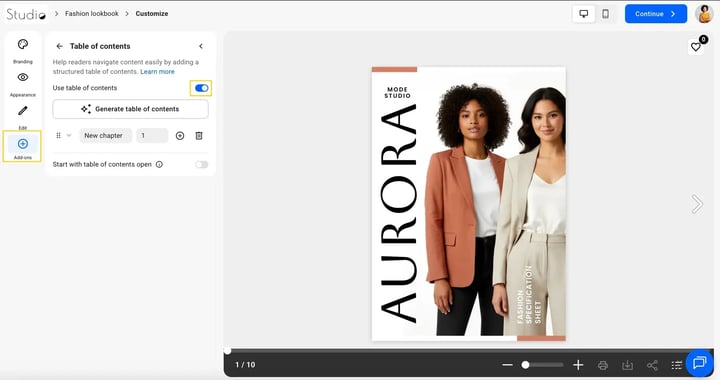
If you want to know more about the Table of content we have a dedicated article for it.
Lead capture form
A lead capture form is a handy tool for generating contact information from readers:
- Placement: insert the form between selected pages so readers must fill it out before proceeding.
- Customization: add custom fields (e.g., name, email) to tailor data collection to your marketing or sales goals.
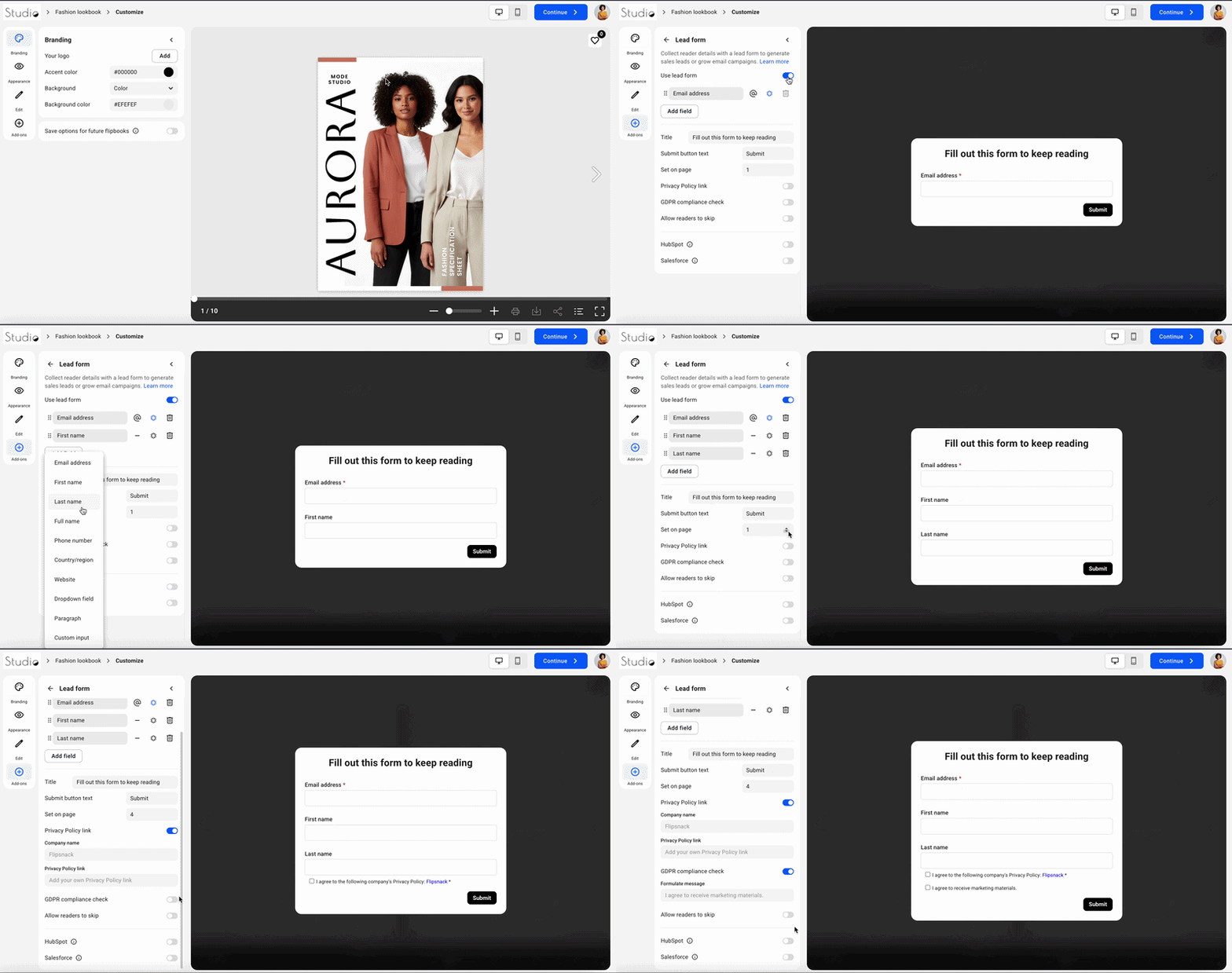
You can find out more about the Lead capture form form and how to use it here.
Tip: You can easily export collected leads or add them to your CRM platform for immediate follow-up. If you have a Business or Enterprise plan you can use Zapier to automate lead capture and follow-up.
Google Analytics tracking
Track how your audience interacts with your flipbooks by integrating Google Analytics or Google Tag Manager:
- Traffic & behavior insights: identify which pages receive the most engagement and how long users spend on each section.
- Conversion tracking: set up goals and events to measure key interactions, such as link clicks or form completions.
- Marketing optimization: use data to refine your content strategy, making flipbooks more appealing and effective.
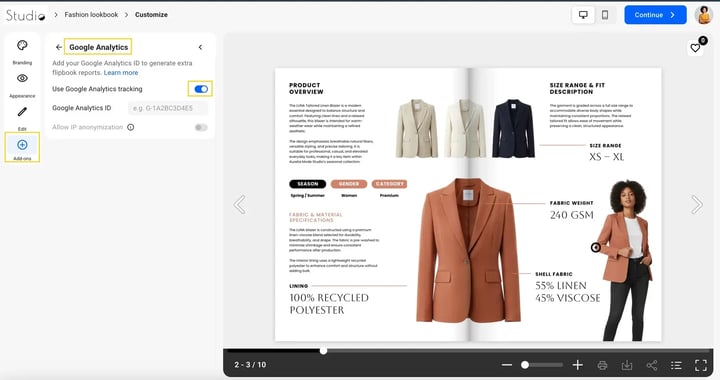
For more information about Google Analytics and how to use it visit this article.
Google Tag Manager integration
Enhance tracking and marketing capabilities by integrating Google Tag Manager (GTM) with your flipbooks:
- Custom script implementation: add custom tracking scripts, chat widgets, or other third-party tools.
- Advanced tracking: set up advertising tags for Google Ads, Facebook Pixel, and LinkedIn Insights.
- Simplified tag management: manage all tracking codes in GTM without modifying flipbook settings.
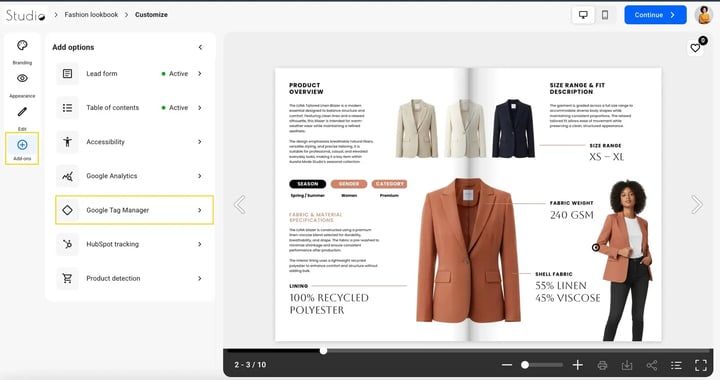
For more details on setting up Google Tag Manager in Flipsnack, visit this article.
Accessibility settings
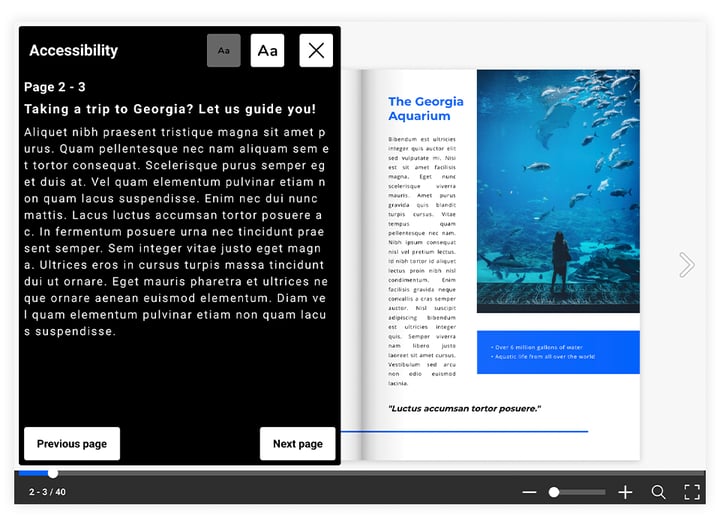
Ensure your flipbooks are inclusive and accessible by enabling Accessibility in the Customize section.
- Flipbook player accessibility: Fully navigable with a keyboard and screen readers.
- Content accessibility: Add titles and descriptions for each page to be read by screen readers.
- Extract flipbook text: Automatically pull page text into the Accessibility panel for a direct reading experience.
- AI-generated summaries: Use AI to create page descriptions, reducing manual input time.
- Upload accessible PDF version: Let your readers download a more accessible PDF file with support for screen
.png?width=720&height=381&name=Accessibility%20settings-mh%20(1).png)
To enable Accessibility:
- Go to Customize > Add-ons > Accessibility and check Use accessibility.
- Click Generate descriptions ( Summarize content or Extract text) or Add descriptions manually
- (Optional) Click Upload file if you have an accessible PDF version and that will let your readers to download it.
Note: Each Summarize content or Extract text generation costs 5 AI credits. If you don't have AI credits, contact us to learn how they work and how to get them.
Like other customization options, these too can be saved for future flipbooks. All you have to do is check the Save options for future flipbooks box and save time for your future self.
Next steps
- Branding and customization options
- How do I customize my flipbook?
- How do I customize my flipbook’s appearance?
- How do I customize my flipbook’s branding setting?
- How do I change my flipbook’s menu controls?
Need expert support?
Our team is here to help. Connect with our team experts or message us via the live chat for personalized assistance.