
Table of contents
Overview
When you share a flipbook with your team or audience, you might need different ways to talk and share feedback. Flipsnack gives you three easy commenting tools depending on who needs to see the notes. This guide helps you pick the right one for your team management and review process.
Requirements
- Plan: Enterprise (included until December 20, 2026; after that, it will be a paid add-on) or Business (on request).
- Access: Admin or Editor.
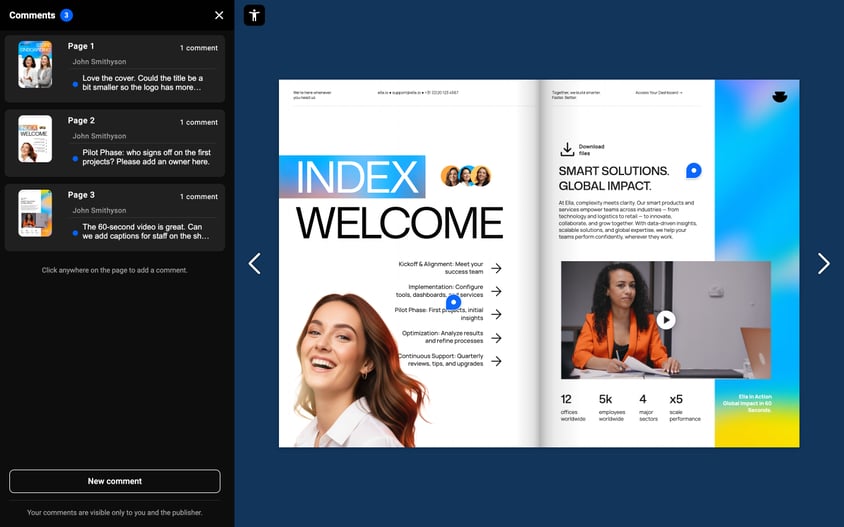
Private feedback (for stakeholder review)
Who it's for: Marketing teams, designers, clients, and external reviewers.
Visibility: Reviewers only see their own comments. You and your team see everyone's comments in Design Studio.
Private feedback keeps all your feedback in one place. You share a single, secure flipbook link with your reviewers. They can pin their thoughts right on the page, and your team can reply and fix things easily without jumping between emails.
Read the complete guide to Private feedback
Internal comments (for your team)
Who it's for: Your internal team working inside Design Studio.
Visibility: Strictly private to your team. Readers and reviewers will never see them.
Internal comments are like hidden sticky notes. They show up as yellow pins on your pages in Design Studio, letting designers leave quick notes for each other behind the scenes.
Learn how to add internal comments
Personal notes (for end-readers)
Who it's for: Your readers and public audience.
Visibility: Completely private to the reader. They are saved locally in the reader's browser. You and your team cannot see them.
Personal notes let your audience highlight text or drop personal reminders while reading your flipbook. Because they are private, they are not a way to send feedback to the creator.
Learn how to enable Personal notes
Next steps
Useful resources
- How to edit a published flipbook and then republish it — make sure your reviewers see the latest version.
- How to add teammates to your Flipsnack workspace — bring your team into Design Studio to collaborate.
- How to enable Readers Notes — let your readers keep personal notes.
- The Controls panel — manage sharing and downloading permissions.
Need help?
Our team is here for you! Connect with us via the in-app chat for personalized help.