
Table of contents
Overview
When designing a flipbook with your team, you often need to leave quick notes for other designers. Internal comments are perfect for this. They are strictly for your team—reviewers and readers will never see them, keeping your behind-the-scenes work completely private.
Requirements
- Plan: Enterprise (included until December 20, 2026; after that, it will be a paid add-on) or Business (on request).
- Access: Admin or Editor.
How to add an internal comment
- Open your flipbook in Design Studio.
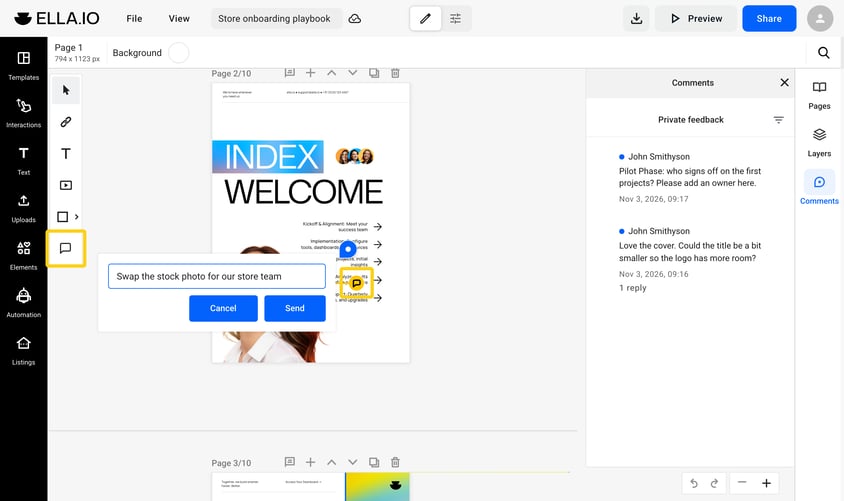
- In the left toolbar, click the comment tool: Add internal comment.
- Click the exact spot on the page where you want to leave the note.
- Type your comment and click Send.
The note will show up as a yellow pin on the page. This makes it easy to tell them apart from the Private feedback left by reviewers. Internal comments act like simple sticky notes—they don't have reply threads and don't show up in the side Comments panel.
Show or hide comment pins
If the yellow pins get in your way while designing, you can easily hide them. In the top menu of Design Studio, click View > Panel > Show comments to turn them off or on again.
Next steps
Useful resources
- How to edit a published flipbook and then republish it — make sure your reviewers see the latest version.
- How to add teammates to your Flipsnack workspace — bring your team into Design Studio to collaborate.
- How to enable Readers Notes — let your readers keep personal notes.
- The Controls panel — manage sharing and downloading permissions.
Need help?
Our team is here for you! Connect with us via the in-app chat for personalized help.