
Table of contents
- Overview
- How to turn on Private feedback
- How reviewers comment
- Manage, reply, and resolve in Design Studio
- Email notifications
- Next steps
Overview
Private feedback saves you from messy email threads and marked-up PDFs. Just share one published flipbook link with your reviewers. They can pin their comments directly on the page, and your team can reply and resolve everything inside Design Studio.
Requirements
- Plan: Enterprise (included until December 20, 2026; after that, it will be a paid add-on) or Business (on request).
- Access: Admin or Editor.
How to turn on Private feedback
Before you can start collecting feedback, you need to turn the feature on in the Controls panel.
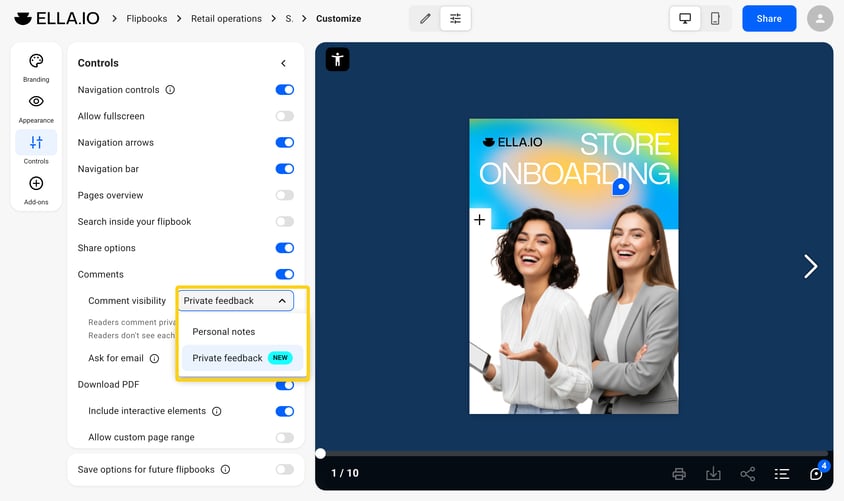
- Open the flipbook's Customize page, select Controls, and turn on Comments.
- Under Comment visibility, select Private feedback.
- Select Share, then Update to save your changes.
How reviewers comment
Reviewers don't need a Flipsnack account, and they cannot change your layout.
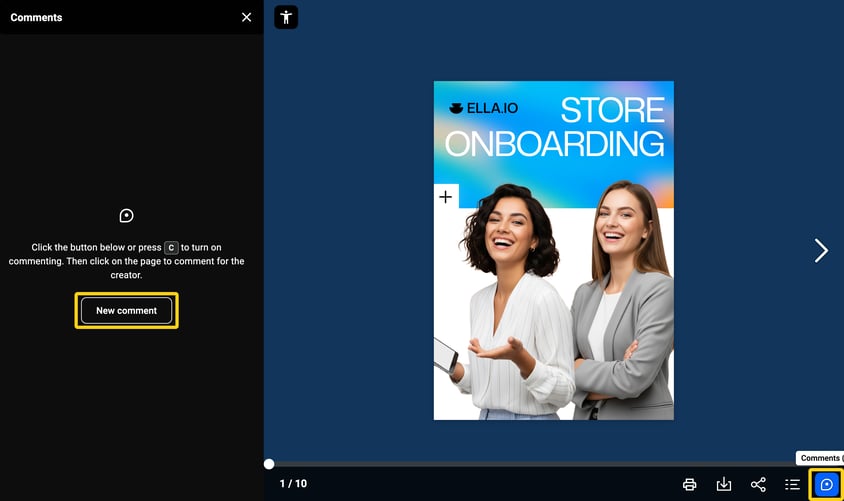
- In the player bar, select Comments, or press C.
- In the Comments panel, select New comment.
- Click the exact spot on the page to leave a comment (they can drop multiple pins on the same page). Type the comment and click send.
Confirming who is commenting: When a reviewer leaves their first comment, a window will pop up asking for their name. They simply type in their display name, pass a quick security check, and click Continue. This helps your team know exactly who is asking for a change.
Manage, reply, and resolve in Design Studio
Your team sees every piece of feedback right in Design Studio, pinned exactly where it belongs. Reviewers will only see their own comments and your replies.
- Open the flipbook in Design Studio and click Comments in the right side panel.
- Click a thread to open it on the page. Type your reply and click send.
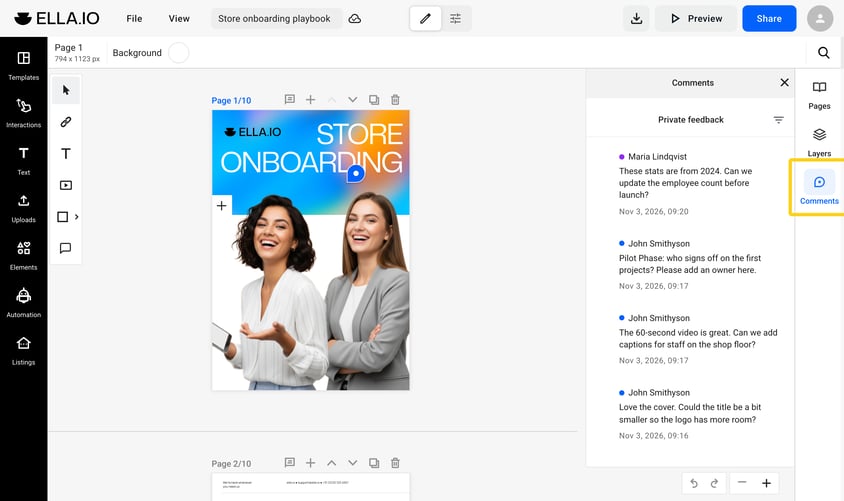
Organizing your list: Use the filter icon to sort your list by Status (Unresolved or Resolved) or by Newest/Oldest. You can easily hide the comment pins on your screen by clicking View > Panel > Show comments in the top menu.
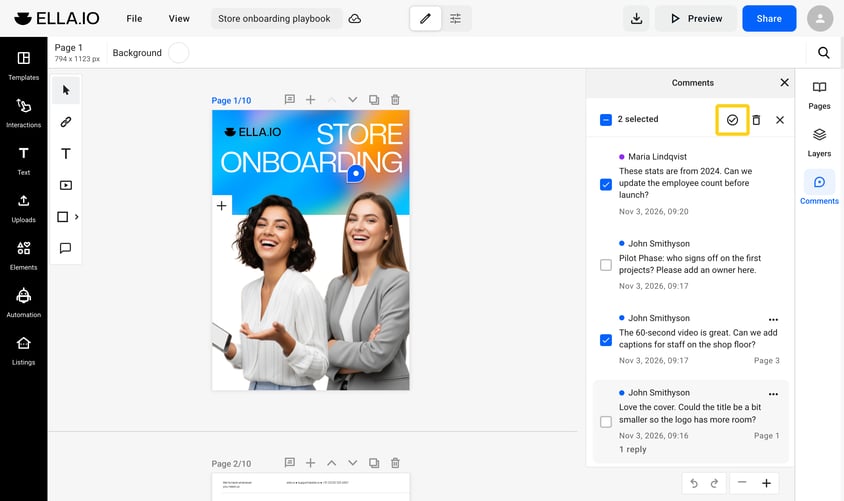
Resolving threads: To close a thread, click the green checkmark inside it. To close several at once, check their boxes in the panel and click the resolve icon at the top.
Email notifications
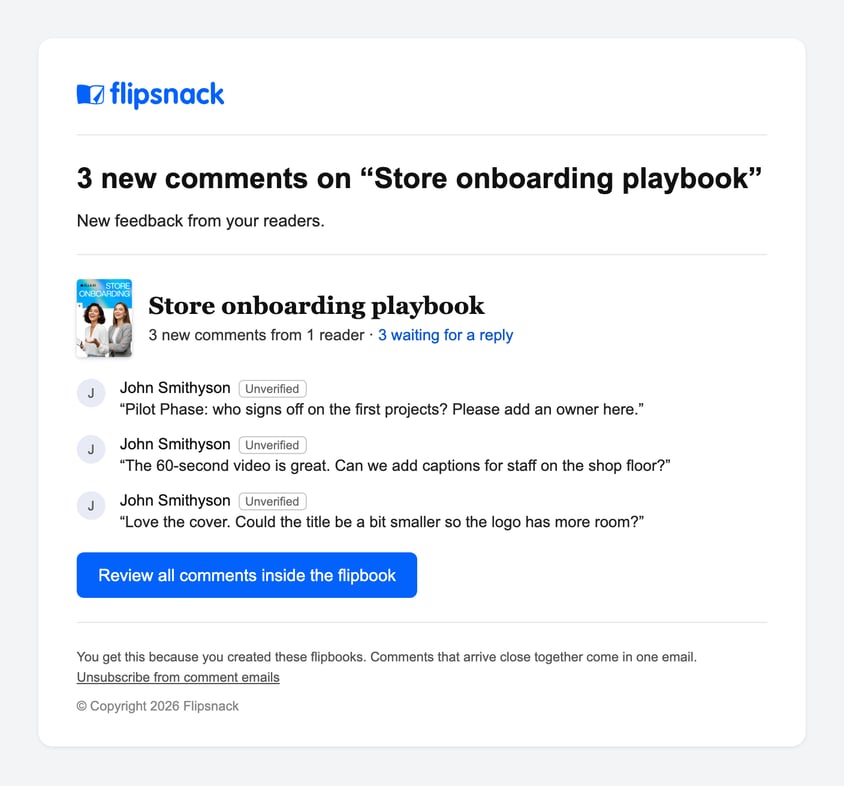
We group updates and send them every 30 minutes to keep your inbox clean. The emails will feature your workspace branding and a handy Review all comments inside the flipbook button.
- Flipbook creator: Gets an email when a new comment is left (up to 20 emails per day).
- Reviewer: Gets an email when you reply or resolve their thread (up to 10 emails per day).
Next steps
Useful resources
- How to edit a published flipbook and then republish it — make sure your reviewers see the latest version.
- How to add teammates to your Flipsnack workspace — bring your team into Design Studio to collaborate.
- How to enable Readers Notes — let your readers keep personal notes.
- The Controls panel — manage sharing and downloading permissions.
Need help?
Our team is here for you! Connect with us via the in-app chat for personalized help.