
Overview
White labeling allows you to transform the Flipsnack workspace into a tool that looks and behaves like it was built in-house.
💡 Benefits of white labeling your Flipsnack workspace
- Full brand ownership: Run the platform entirely under your domain and identity
- No vendor visibility: Remove all references to Flipsnack across the app and emails
- Consistent experience: Align the app, Design Studio, and emails with your brand
- Pro presentation: Deliver a polished, enterprise-grade experience
- Competitive protection: Keep your tools and workflows private
Instead of exposing a third-party platform, you present a fully branded environment across the app, domain, and communication layer. Your users interact with your product, not with Flipsnack.
This feature is designed for Enterprise teams that need full control over branding, perception, and platform ownership.
What white labeling includes
With white labeling enabled, you can control how the platform looks, feels, and is accessed:
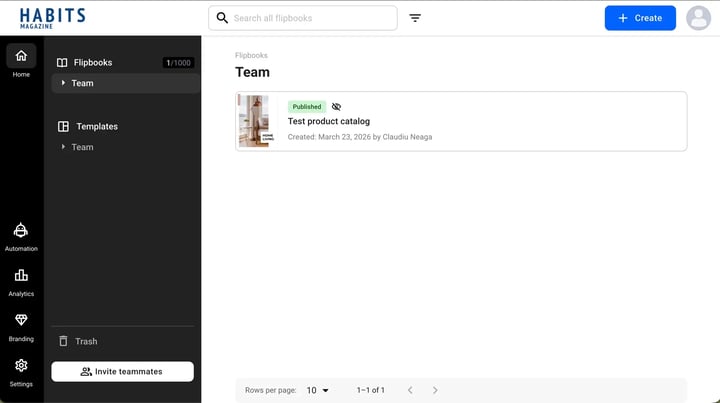
- Custom domain: Run the entire app on your own domain, with no reference to Flipsnack.com
- Editor branding: Display your company logo inside Design Studio and across the workspace
- Interface customization: Adjust primary and accent colors to match your brand identity for the flipbook player
- Platform appearance: Remove Flipsnack branding and align the interface with your internal tools
- Full email customization: Control system emails, including sender details, branding, and styling
This goes beyond visual customization. It reshapes how the platform is perceived and used.
Requirements
- Plan: Enterprise: contact sales
How to request white labeling
White labeling is not enabled by default and must be configured by the Flipsnack team.
Step 1: Confirm your plan
Ensure that you are on an Enterprise plan.
Step 2: Contact Flipsnack
Reach out to your account manager or contact our support team via chat.
Step 3: Provide your assets
Prepare and send the following:
- Your preferred domain
- Logo files (SVG or high-resolution PNG)
- Brand color codes (HEX or RGB) for the flipbook player
- Email sender details and branding guidelines
Step 4: Configure your domain
Set up DNS records on your side if required.
Step 5: Wait for confirmation
The Flipsnack team will complete the setup and notify you once everything is ready.
Additional tips / FAQs
- What white labeling covers: White labeling does not affect your flipbook content, only the platform interface and communication layer
- Email customization scope: Email customization applies to system-generated emails such as invitations and sharing notifications
- Setup time: Setup time may vary depending on your domain configuration
Common use-cases
- Client-facing portals: Deliver branded content without exposing third-party tools
- Internal platforms: Provide employees with a centralized, branded workspace
- Agencies: Offer white-labeled solutions to clients
- Enterprise teams: Maintain strict control over branding and perception
Next steps
- Branding your flipbook player
- Setting up a custom domain
- Managing your workspace settings
- Removing the Flipsnack watermark
- How to import your SSL certificate in Flipsnack
Need expert support?
Our team is here to help. Connect with our team experts or message us via the live chat for personalized assistance.