
Overview
When someone shares a flipbook link with you, you can view it directly in your browser: no account or app download needed. The link usually reaches you by email, chat, a company intranet or a website. Flipsnack is the player between the person who published the flipbook and you: they choose the controls, and you read, search, print or download with the ones they turned on. The flipbook opens in an interactive player that mimics a real-life publication, complete with page-turning effects and multimedia features.
Note: This article is useful for anyone viewing a flipbook link. If you're looking for information about the Reader role, a workspace role in Flipsnack, you'll find relevant links in the Next steps section at the end of this article.
The reading experience may vary depending on how the flipbook creator has customized the player. This guide explains the different settings they might enable or disable, what you’re likely to see, and how to navigate the flipbook.
Requirements
- Plan: All plans: readers need no account. To turn on Text selection, the flipbook owner needs Starter or above: compare plans
- A flipbook link from the person who published it
Navigating a flipbook
Once you open a flipbook link, you’ll see the publication displayed inside an interactive flipbook player.
For the purpose of this article, we activated all key elements you may find:
- Navigation arrows: use the left/right arrows on either side of the flipbook to turn pages manually.
- Sound icon: this button controls any background music or embedded audio.
- Zoom in/out: click the plus and minus icons (or use your mouse/touchpad) to zoom in or out on the page.
- Pages overview: click the Pages or Pages overview icon to see a thumbnail view of all pages and jump to any one.
- Print button: allows you to print the flipbook directly from your browser.
- Download button: provides a downloadable PDF version of the flipbook.
- Search bar: lets you search for specific words or phrases in the flipbook content.
Note: Search results are highlighted directly on the page, so you see where each word appears. This works for flipbooks created from scratch and for uploads made with vector text.
- Share options: allows you to share the flipbook via email or social media platforms like Facebook, Twitter, and Pinterest.
- Table of contents: a clickable list of chapters or sections, typically shown in a left-hand panel.
- Fullscreen mode: expands the flipbook to fill your entire screen for a distraction-free reading experience.
- Accessibility: once activated, the flipbook shows in a simplified format, with the text descriptions added by the creator. A screen reader such as VoiceOver reads this text out loud. You can also move through the controls with the Tab and Enter keys, for example Next Page, Zoom In, View in Fullscreen and Font Size.
- Shopping list: allows you to add products featured in the flipbook to a virtual Shopping list. The flipbook owner needs Pro or above to add it.
- Interactive elements: flipbooks may contain clickable links, buttons, videos, pop-ups, or forms embedded on pages.
Note: If any of these buttons are not available when viewing a flipbook, the creator of the flipbook did not enable them.
Select and copy text
If the flipbook's owner allows it, you can select and copy text directly from the flipbook or from pop-ups.
To copy text from a page:
- Click and drag your mouse over the text you want to copy. The text is highlighted.
- Press Ctrl + C (Windows) or Command + C (Mac). The text is copied to your clipboard.
You can also right-click the selected text and choose Copy.
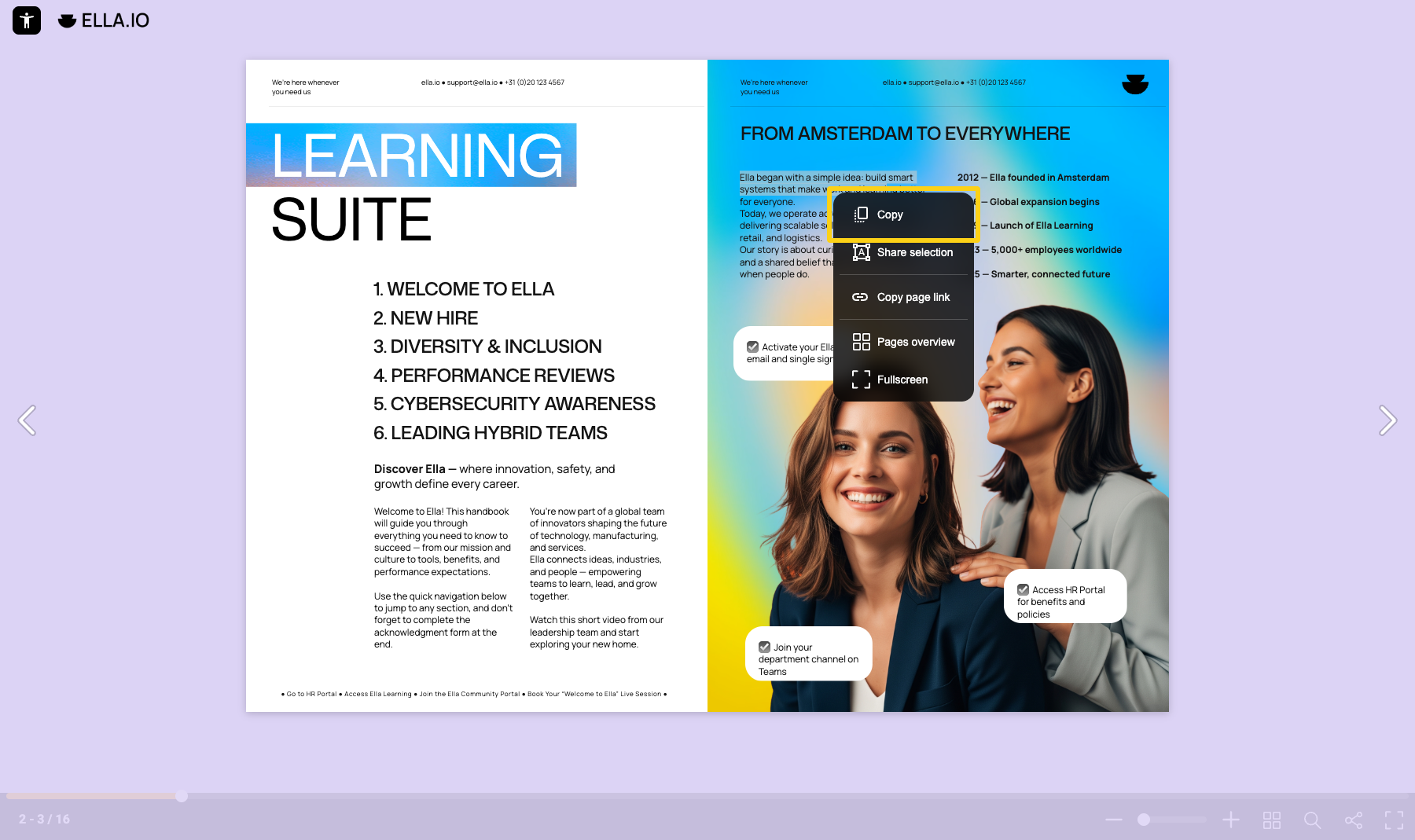
Want readers to quote your flipbook in their own posts or emails? Turn on Text selection on the Customize page, and they can copy text or send a link to it with Share selection.
Using the context menu
If you own the flipbook, turn on the context menu for your readers:
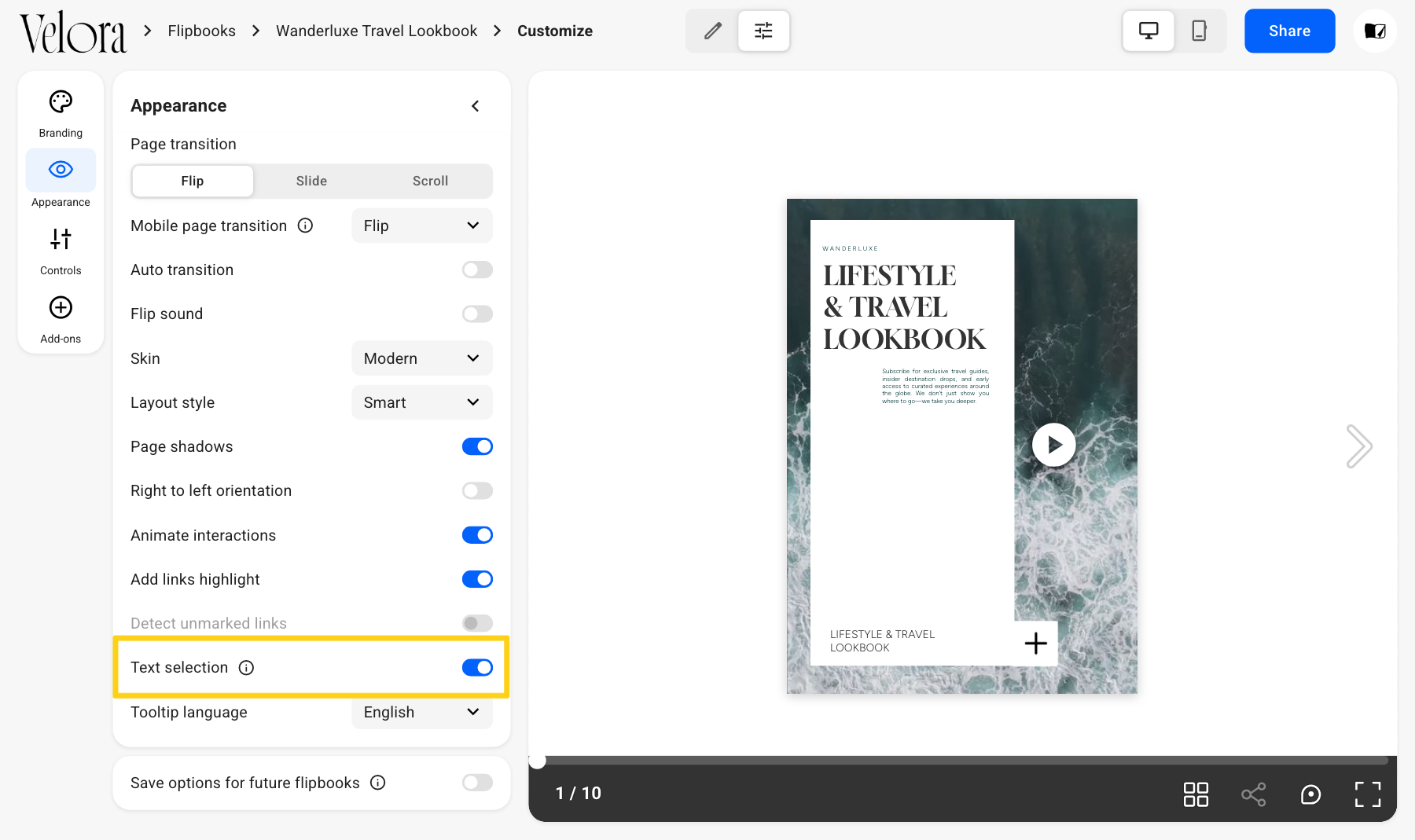
- Open the flipbook's Customize page.
- Click Appearance in the left sidebar.
- Scroll down to Text selection.
- Turn on Text selection. The context menu now appears when readers select text.
- Click Share. The Publish your flipbook modal opens.
- Click Update. Readers see the change in the published flipbook.
The context menu appears when you right-click on any page of the flipbook.
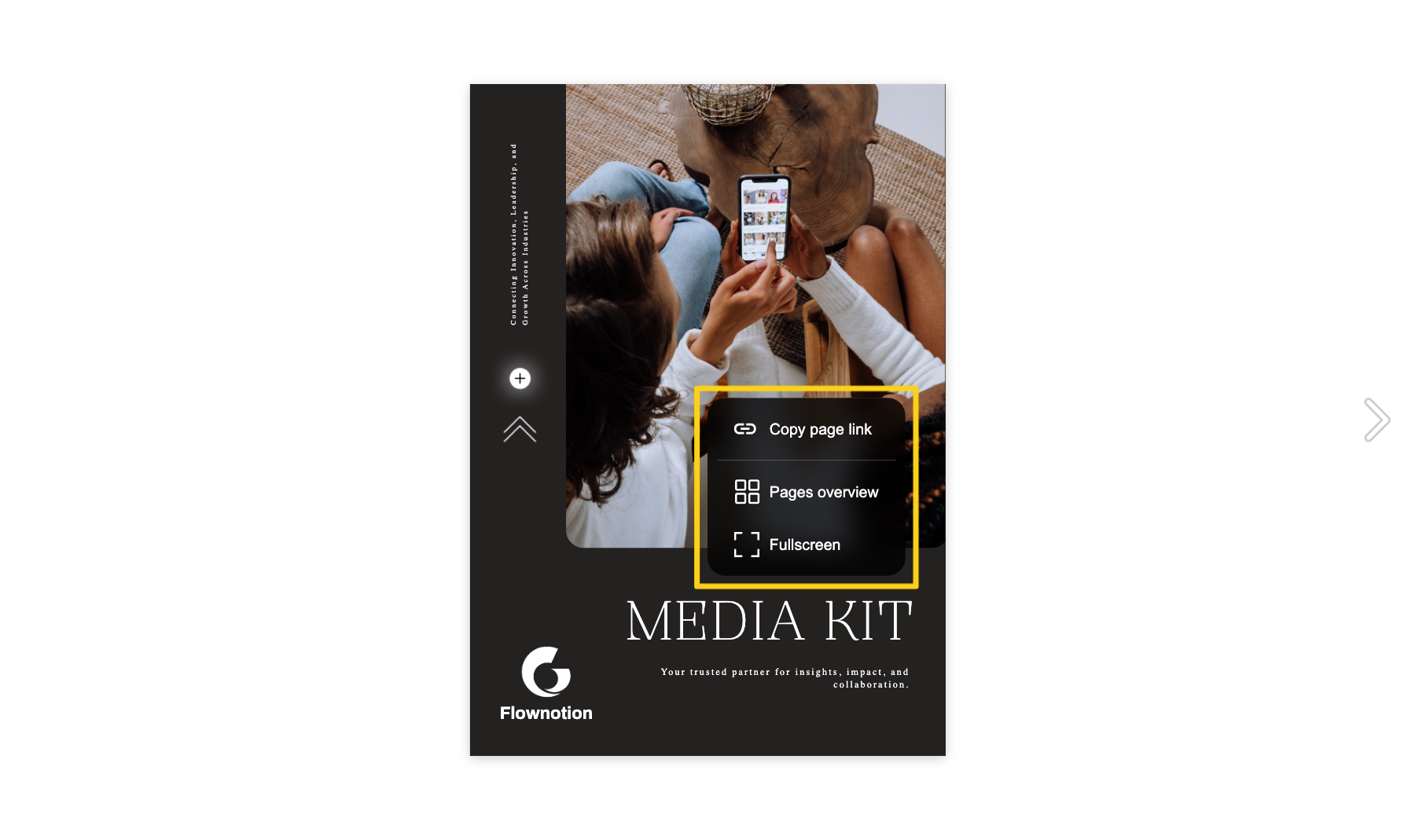
It offers quick access to essential actions:
- Copy page link to share the exact page you're viewing
- Download to save the flipbook as a PDF file (if enabled)
- Print the flipbook directly (if enabled)
- Pages overview to view thumbnails and navigate between pages
- Fullscreen to expand the flipbook to full screen, especially for long publications or presentations.
Sharing selected text
If the flipbook's owner allows text selection, you can also share specific snippets of text directly from the flipbook player.
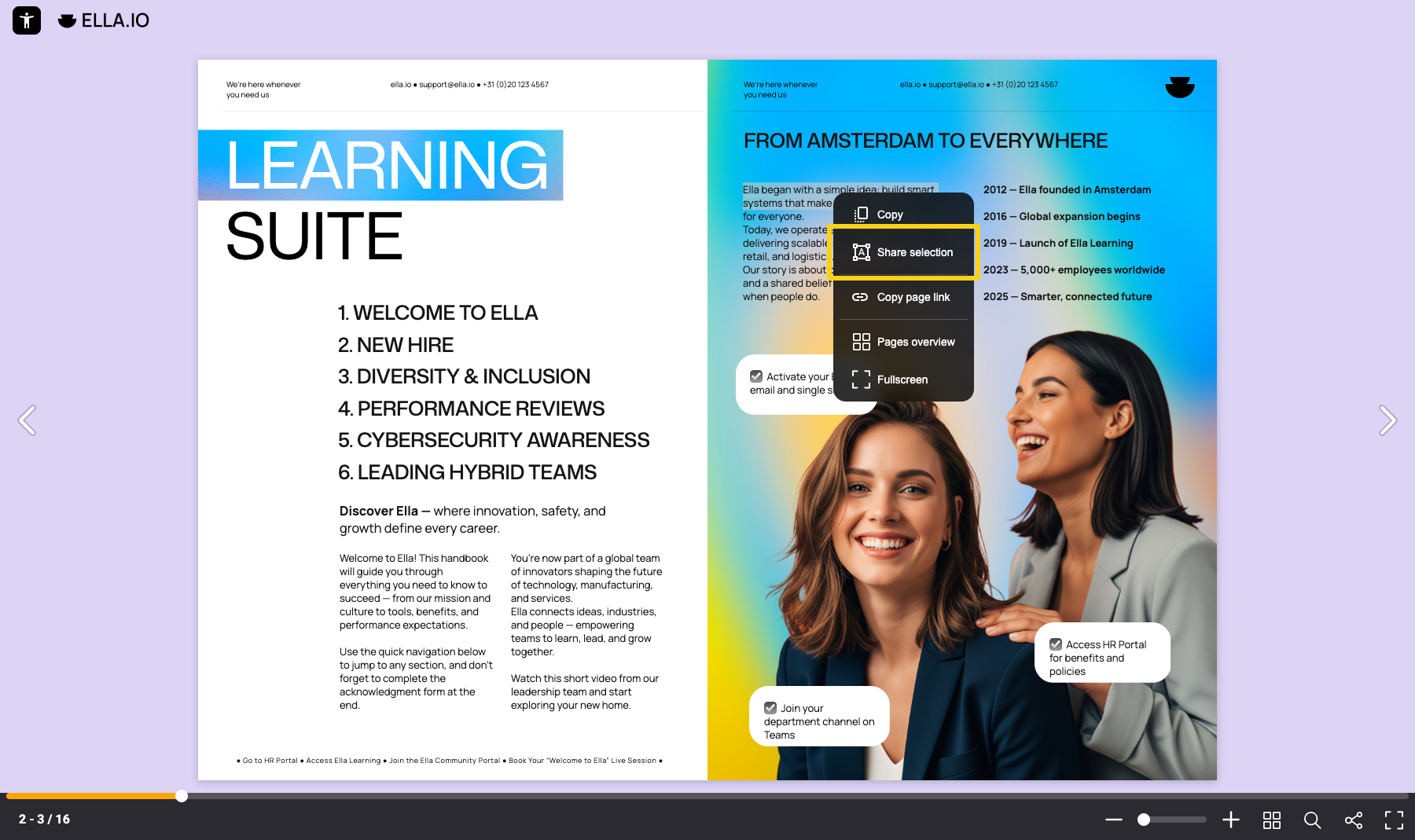
To share a piece of text:
- Click and drag your mouse over the text you want to share. The text is highlighted.
- Right-click the selected text. The context menu opens.
- Choose Share selection. A unique link is copied to your clipboard.
Once the link is generated and copied to your clipboard, you can send it to anyone. When they open the URL, it will automatically take them to the exact page with your selected text already highlighted.
To see this feature in action, check out this example: View a flipbook with shared selected text
Additional tips / FAQs
- Can I view the flipbook on mobile? Yes. The player adjusts to your device, using Smart View for optimal layout.
- Why don’t I see some buttons? The flipbook creator controls which options are available, like download, fullscreen, or search.
- Can I interact with embedded links or videos? Yes. Clickable elements are supported as long as the creator added them.
Next steps
- Workspace readers: members with read-only access rights: what the Reader role can open inside a workspace.
- How to search for text inside a published Flipsnack flipbook: find a word on any page without scrolling.
- How to create a table of contents for your flipbook: give readers a clickable list of sections.
- How to make your flipbooks accessible in Flipsnack: make the flipbook work with screen readers and the keyboard.
- Appearance settings for your Flipsnack flipbook, one by one: turn on Text selection and the other reader options.
Need expert support?
Our team is here to help. Connect with our team experts or message us via the live chat for personalized assistance.