
Overview
Flipsnack's HubSpot integration connects lead forms, pop-up or inline HubSpot forms, a chat widget, a cookie banner, and embedded HubSpot CTAs directly onto a flipbook's pages. Connect your HubSpot account to Flipsnack and turn on HubSpot tracking first, since that activates most of these integration features.
💡 Benefits of connecting HubSpot to Flipsnack
- Seamless lead capture: Collect and sync reader data directly to HubSpot CRM
- Enhanced user interaction: Use live chat and pop-ups to engage visitors
- Personalized experiences: Trigger content and actions based on audience behavior
- Streamlined marketing workflows: Consolidate your tools and data in HubSpot
Overview
Flipsnack's integration with HubSpot empowers you to turn your interactive flipbooks into powerful marketing and engagement tools. Whether you're capturing leads, embedding forms, or adding live chat, HubSpot offers multiple touchpoints to help you better understand and connect with your audience.
This article summarizes all available integration capabilities so you can choose what works best for your strategy. Each feature includes a direct link to a dedicated step-by-step guide.
Requirements
- HubSpot account: Required (any HubSpot plan that includes Forms, Chat, or Lists): go to HubSpot
1. Connect Flipsnack lead forms to HubSpot
You can use Flipsnack’s built-in forms to collect information from your readers, like names and emails. When you connect these forms to HubSpot, the data goes straight to your contact list. This helps your company stay organized, reach out to potential customers faster, and track who is most interested in your content.
Read how to integrate lead forms with HubSpot
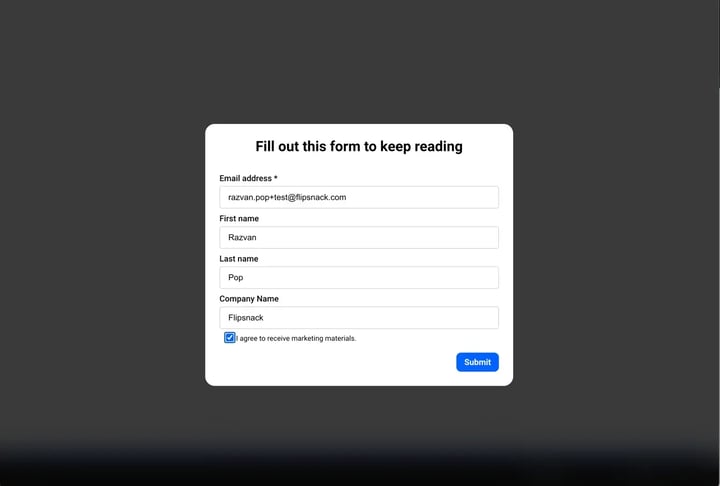
2. Use pop-up or inline HubSpot forms inside flipbooks
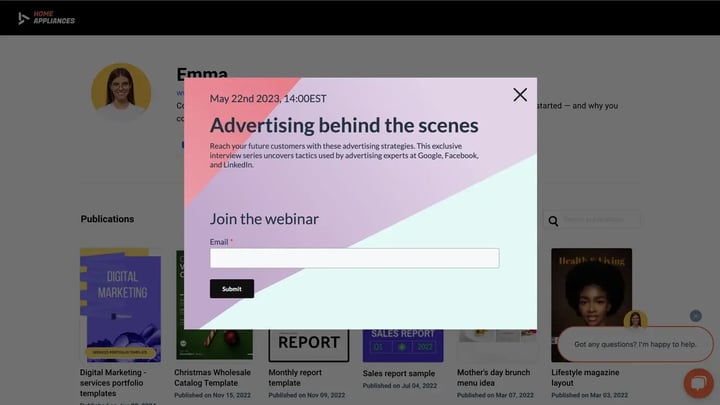
With HubSpot, you can add forms that pop up or sit right on the page of your flipbook. These forms let people send their contact details while reading. This helps your company collect leads in real time, start follow-up actions automatically, and understand which content works best.
Learn how to enable HubSpot lead form pop-ups
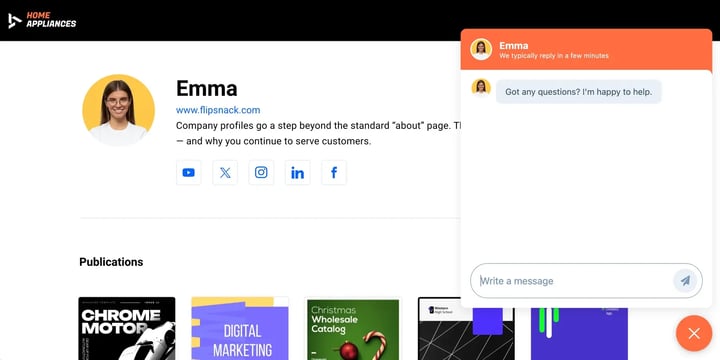
3. Add a HubSpot chat widget to your flipbook
You can embed a HubSpot chat widget directly in your flipbook, giving readers a way to ask questions or get support without leaving the page. This is especially useful for engaging prospects at the moment of peak interest, such as when they're browsing a product catalog or a promotional publication.
How to add HubSpot chat to a flipbook
4. Display a HubSpot cookie banner in your flipbook
Adding a cookie banner lets you ask readers for permission to track how they use your flipbook. This helps your company follow privacy rules like GDPR and CCPA. It also makes your tracking data more accurate and reliable for reporting.
Learn how to set up a cookie banner with HubSpot
.webp?width=720&height=373&name=Screenshot%202025-02-19%20at%2013.25.18%20(1).webp)
5. Embed a HubSpot CTA on any flipbook page
You can embed HubSpot CTAs (call-to-action buttons or banners) on any page of your flipbook. These CTAs can link to landing pages, signup forms, or promotional offers, helping you convert readers into leads and drive measurable action from your content.
Read how to embed HubSpot CTAs
Additional tips / FAQs
- Publishing requirement: All integrations require your flipbook to be published. Note that some features may also require the flipbook to be publicly accessible (not restricted to specific viewers).
- Forms and chat widgets: HubSpot forms and chat widgets must be created in HubSpot first, then linked or embedded
- Interaction tracking: You can track interactions in HubSpot using UTM parameters or event tracking
Common use-cases
- Marketing campaigns: Use embedded forms and lead sync to track campaign performance
- Customer onboarding: Add HubSpot chat and forms to guide users through product catalogs
- Event promotion: Trigger pop-up lead forms for RSVP or registration
- GDPR compliance: Add a custom HubSpot cookie consent banner to your catalogs
Troubleshooting
- Form not displaying? Make sure the embed code is correct and the form is published in HubSpot
- Chat not loading? Verify your chat widget settings allow for embedding on external domains
- Lead sync issues? Ensure API permissions are correctly configured in your Flipsnack–HubSpot connection. If you recently reconnected the integration, you may need to re-authorize permissions in your HubSpot account settings.
Next steps
- Integrate HubSpot with your Flipsnack account
- Sync Flipsnack lead forms with HubSpot
- Pop-up HubSpot forms
- Add a HubSpot chat widget
- Create a HubSpot cookie banner
- Embed HubSpot forms
Need expert support?
Our team is here to help. Connect with our team experts or message us via the live chat for personalized assistance.