
Overview
You can now embed Hubspot forms into your flipbooks to collect leads, survey readers, or drive newsletter signups. Whether placed directly on the page or in a popup window, these forms make your publications more interactive and valuable.
💡 Benefits of embedding a HubSpot form in your flipbook
- Lead capture within content: Collect user data without redirecting readers
- Seamless integration: Use your existing Hubspot forms
- Flexible placement: Embed inline or via popups
- Interactive experience: Encourage engagement in catalogs, brochures, and more
This article explains how to embed a Hubspot form into your flipbook using either the Hubspot form embed or Hubspot form pop-up interaction in the Design Studio.
Requirements
- Tip: To get your Hubspot form embed code, follow this Hubspot guide. It shows you how to copy the iFrame code for any form you’ve created in your Hubspot account.
- Plan: Enterprise only
- Hubspot account: You’ll need an active Hubspot form and access to the embed code
Embed a Hubspot form directly on the page
To embed your form using the Hubspot form embed interaction:
- Open your flipbook in Design Studio.
- Click on the Interactions tab on the left-side panel.
- Scroll to the Engagement section.
- Drag the Hubspot form embed interaction onto your desired page location.
- In the left panel, paste your Hubspot embed code. If you need help locating this, refer to Hubspot’s guide on embedding forms on external sites.
-1.png?width=720&height=381&name=Screenshot%202025-12-04%20at%2014_58_48-mh%20(3)-1.png)
Embed a Hubspot form in a popup window
To display your form in a popup that opens on click:
- In the Interactions tab, find and select Hubspot form pop-up.
- Place the popup frame over a button, image, shape, or any clickable element.
- Resize and reposition the frame to match your layout.
-
In the popup settings panel:
-
Paste your Hubspot embed code. You can find it by following this Hubspot article.
- Add a Tooltip message (e.g., “Open form” or “Click to fill out”)
-
- Adjust the frame’s color and transparency as needed.
- Preview the flipbook to test the popup interaction.
-1.png?width=720&height=381&name=Screenshot%202025-12-04%20at%2014_58_48-mh%20(4)-1.png)
Require a mandatory HubSpot form submission
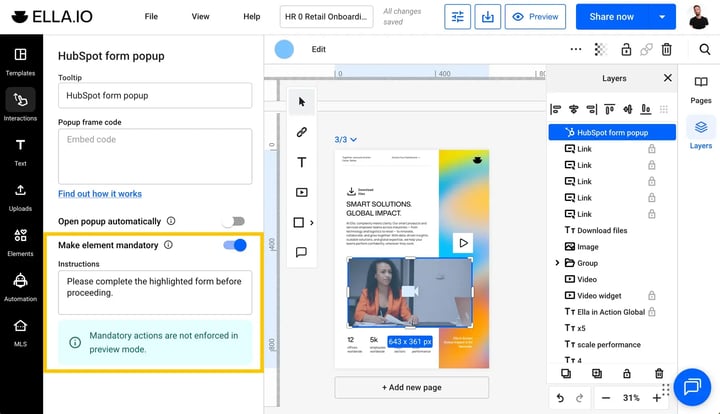
Embed a HubSpot form as a pop-up and require every reader to submit it before they can continue reading. Ideal for gate-keeping documents when you need a custom CRM form to qualify leads, control access, and sync submissions straight into your existing workflows.
- Select the embedded HubSpot form on your Canvas.
- Navigate to the Properties bar on the right side of the screen.
- Toggle on the Enforce mandatory action option. You can also add custom instructions to the prompt that will appear on screen before moving to the next page.
Once enabled, readers will not be able to interact with the rest of the document until the form is successfully submitted.
Additional tips / FAQs
- Where do I get the embed code? You can copy the iFrame code directly from your Hubspot form's settings. See Hubspot’s official instructions for more details.
- Which embed code format is accepted? Hubspot typically uses iFrame code, which is supported in both embed methods.
- Can I track form submissions in Hubspot? Yes, form submissions are tracked through Hubspot, not Flipsnack.
- What if the form doesn’t display? Ensure the code is correct and hosted on HTTPS.
Common use-cases
- Lead generation: Capture emails directly inside product catalogs
- Event sign-ups: Promote webinars or launches in interactive brochures
- Newsletter opt-ins: Invite users to subscribe within a digital magazine
Troubleshooting
Form isn’t displaying:
- Embed code copied incompletely: Double-check that your embed code is copied in full
Popup not triggering:
- Popup frame placement: Confirm the Popup frame is correctly placed over an interactive element
Next steps
- How to use Embed code interaction
- How to use Popup frames
- Design Studio overview
- Flipbook interactivity best practices
Need expert support?
Our team is here to help. Connect with our team experts or message us via the live chat for personalized assistance.