
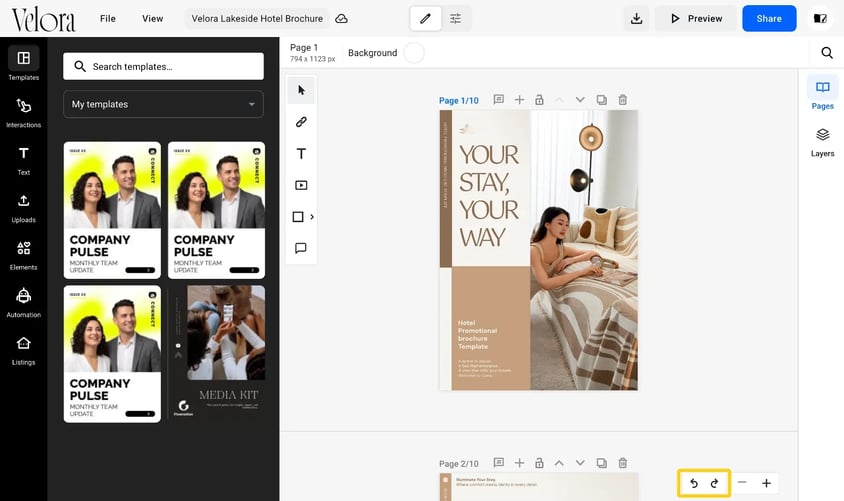
The Design Studio has an undo button and a redo button in the bottom right corner of the editor, to the left of the zoom out and zoom in buttons. Undo reverses your last edit. Redo brings back an edit you undid. On Windows, press Ctrl+Z to undo. On a Mac, press Cmd+Z to undo and Cmd+Shift+Z to redo.
How to undo or redo a change
- Open your flipbook in the Design Studio.
- Find the two arrow buttons in the bottom right corner, to the left of the zoom out and zoom in buttons. They have no label: undo is the arrow curving left, redo is the arrow curving right.
- Click undo to reverse your last edit. Click it again to reverse the edit before that.
- Click redo to bring back an edit you undid.
How to show or hide the undo and redo buttons
The undo and redo buttons sit on the zoom bar, so they show and hide with it.
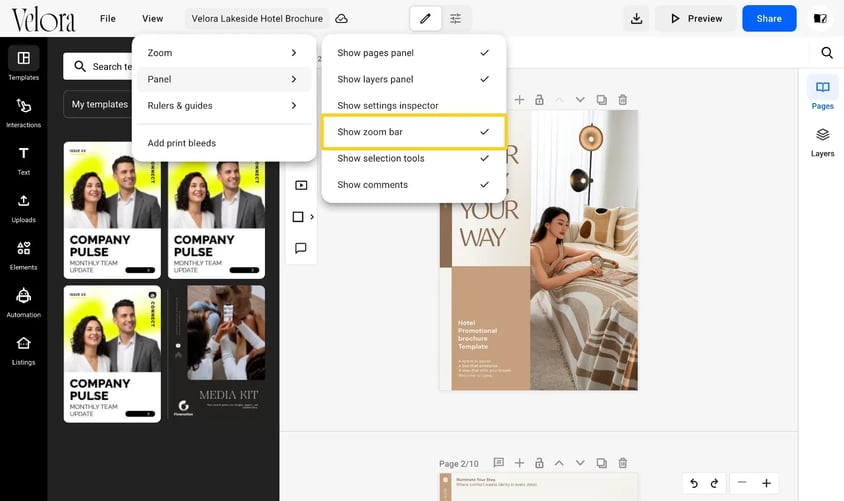
- In the top bar, click View.
- Point to Panel.
- Click Show zoom bar. A check mark beside it means the bar is showing. Click it again to hide the bar.
Troubleshooting
- The buttons are grey: there is nothing to undo yet. Redo stays grey until you undo an edit.
- The buttons are missing: turn on View > Panel > Show zoom bar.
Additional tips / FAQs
- Is there a list of my past edits? No. To return the whole flipbook to an earlier state, use File > Version history.
- Does undo work outside the Design Studio? No. Undo and redo cover edits made in the Design Studio only.
Next steps
- How to use version history to restore a past flipbook
- Every keyboard shortcut in the Flipsnack Design Studio
Need expert support?
Our team is here to help. Connect with our team experts or message us via the live chat for personalized assistance.