
Overview
Your template and spreadsheet are already set up and pre-mapped by our team, so what is left is your product data. This guide walks you through filling it in, then connecting, generating, syncing and sharing your catalog.
Table of content
How the connected spreadsheet works for a custom-made template
Step 1: Use the Flipsnack spreadsheet provided template
To ensure the automation works correctly, you must use the specific feed structure provided by Flipsnack. We have pre-mapped this file to align with your brand's unique design elements.
One row = one product listing. One column = one layer in your template. Keep this structure intact, merged cells, nested tables, or splitting a product across multiple rows will break the mapping.
- Open the template data file shared with you by us.
- Do not change the column headers, as these are linked to specific fields in the Flipsnack editor that are linked to your template.
- Fill in your product details (Title, Price, Description, etc.) following the existing format.
There is a limit of 2,000 products per generation from the spreadsheet. As a workaround, you can generate your catalog in multiple batches and use the Save as template feature for the resulting pages. However, please note that if you choose this solution, the Advanced sync (which automatically updates data from your spreadsheet) will no longer work for those specific pages.
Step 2: Add your product images
Automation requires direct image URLs.
- Upload your product images to a public hosting service or your own server.
- Copy the direct link for each image (ending in .jpg.png, or .webp).
- Paste the corresponding link into the Image column of your spreadsheet.
If needed, add categories and subcategories
If your products include categories and subcategories, you can use the category columns. You can edit your spreadsheet at any time to update these, but if you need to add more than the two levels provided, please contact us for a re-mapping.
Important: If you need to add new data fields, rename headers, or change how information is mapped to your design, please contact our support team. These structural changes must be configured by Flipsnack to ensure your automation continues to work correctly.
Step 4: Import your data source
- Log in to Flipsnack and go to the Automation tab on the left dashboard.
- Click on Import feed
- Choose Google Sheets (and authorize your Google account) or upload the CSV file you made based on the structure we sent you, and select the file you prepared.
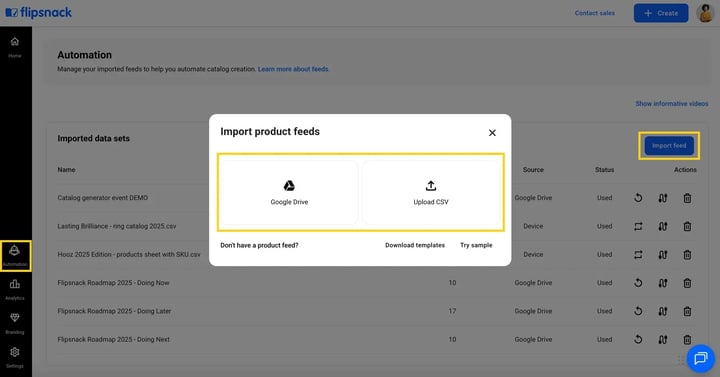
Note: Since we have already pre-mapped the fields for you, the data will automatically populate into your brand-specific layout once you generate the catalog.
How columns connect to layers
Each column in the spreadsheet maps to exactly one layer in the design template. The column header is what creates the link, it tells the generator which layer to fill with that column's data.
Think of it like a mail merge. Your design template is the letter with blank fields, and your spreadsheet is the address book. For every row (product), the generator fills in the blanks and produces a finished page.
A few important constraints to keep in mind:
- Layers don't adapt to content. If a product name is too long for the text box, it won't expand, the content has to fit the layer, not the other way around.
- Each layer connects to only one column, and each column feeds only one layer. There's no merging or splitting of data across layers.
- The template itself never changes. Once your layers are set up and connected, all updates happen exclusively in the spreadsheet, adding products, changing prices, swapping images and the layout stays exactly as designed.
How to use a custom catgen template
1. Open Design Studio and click the Product catalog iconFind the Product catalog icon in the left panel of the Design Studio to get started.
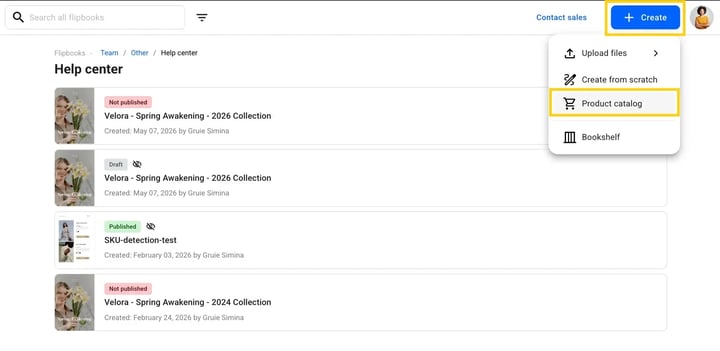
- Upload your product feed
- Google Sheets: authenticate your account and select your copy of the template from Drive. Updates to the sheet sync automatically.
- CSV upload: export your template as a CSV and upload it directly. Data is static, re-upload to apply any changes.
After connecting the feed, click on Continue,
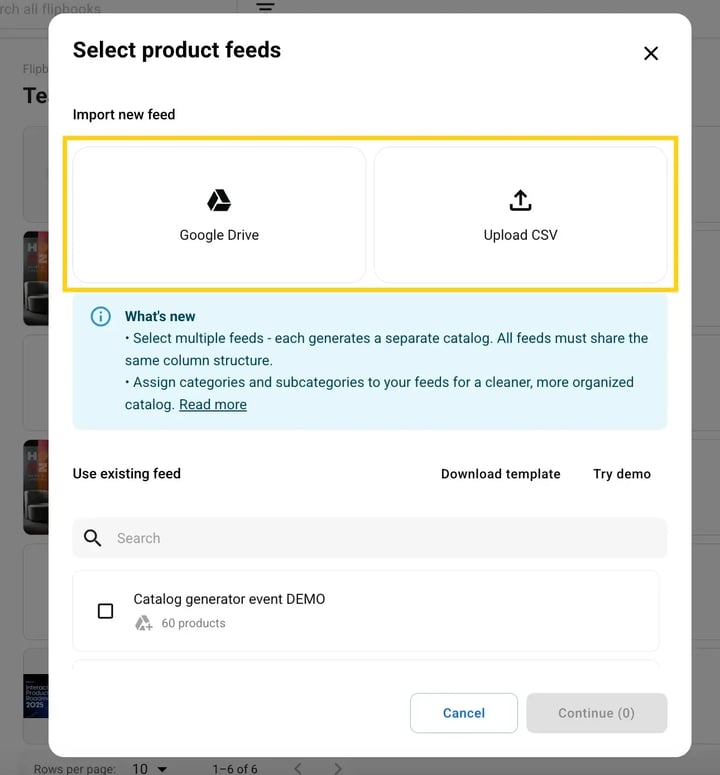
Tip: If you manage multiple product lines, you can generate several catalogs at once by selecting multiple feeds in a single flow.
After, you'll see your custom template and a preview on how it will look. Click Continue to generate the catalog.
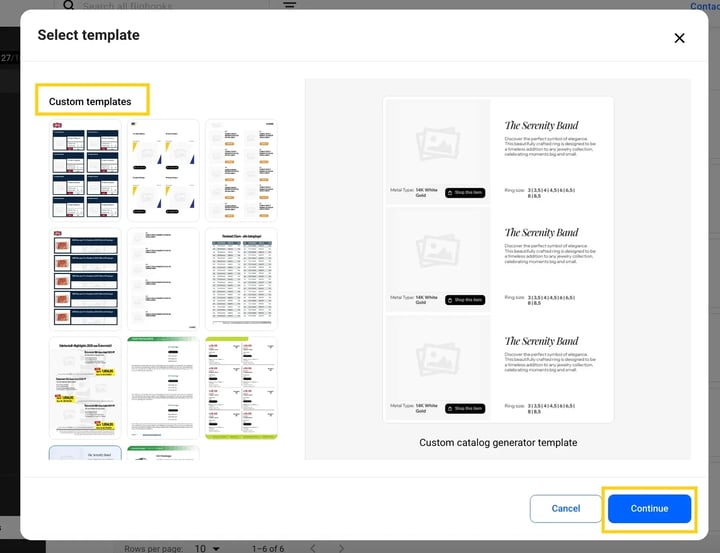
- Review the mapping and generate
The "Map feed content" screen appears next. The SKU field should already be selected as the unique ID, leave it as is. The AI mapping will be pre-filled to match your template layers.
When everything looks correct, click Generate catalog. And here is an example on how it can look like:
Important: Do not change the unique ID or remap any fields. Changing the SKU identifier will break future catalog updates for products already in the flipbook.
Something not looking right? Contact our team via the in-app chat and always include your spreadsheet. Keep a copy of the template structure on your own Google Drive so you have full control over your data.
How to sync your catalog
With a custom catgen template, the mapping is already done, so when you need to update your catalog after making changes to your spreadsheet, you use Sync. There are two versions: regular Sync and Advanced Sync.
What each sync does
Sync is based on the SKU column: never change or delete SKU values. If a SKU changes, future syncs won't be able to match the product and updates won't apply correctly.
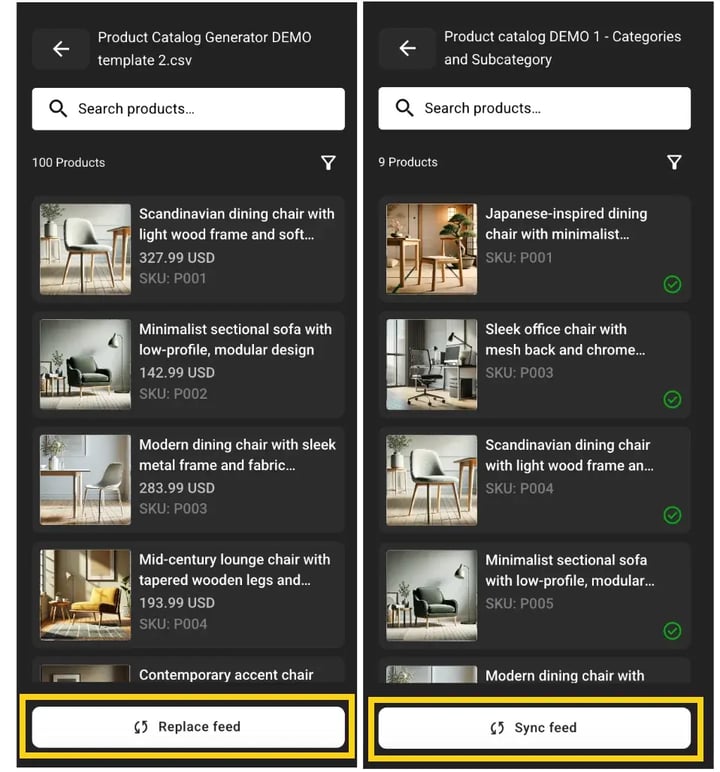
Advanced Sync is an additional feature. If you're not sure whether your account has it, connect with our team experts or message us via the in-app chat. If you uploaded a CSV instead of Google Sheets, you'll see a Replace button instead of Sync, this re-uploads the file from scratch.
1. Open your catalog in Design StudioOpen the flipbook you want to update. Make sure you've already made the changes in your spreadsheet before syncing.
If you made changes to your spreadsheet but haven't synced yet, Flipsnack is still using the old version of your data.
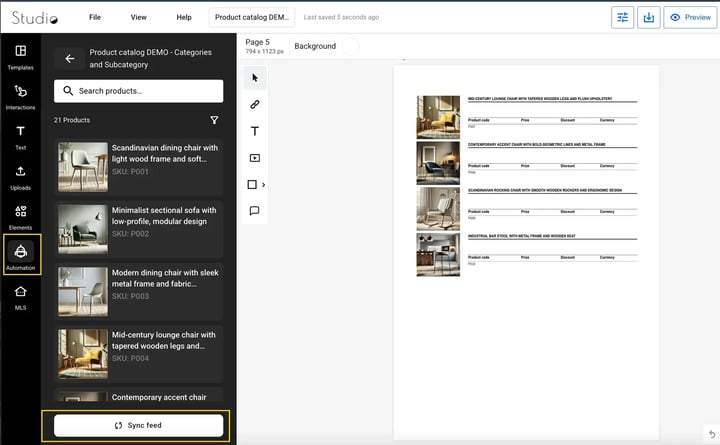
- Click the Automation icon and sync feed
On the left sidebar, click Automation. This opens the product feed panel where all your connected feeds are listed. At the bottom of the Automation panel you'll see the Sync feed button. Click it to pull the latest data from your Google Sheet.
If you uploaded a CSV instead of connecting Google Sheets, you'll see a Replace feed button instead. This works the same way, just select the new CSV file from your device to replace the old one.
- Choose whether to update products in the catalog
Once the sync is done, a pop-up will appear asking if you also want to update the products already placed in the flipbook. You have two options:
- Update products , applies the new data (prices, images, descriptions) to the pages in your catalog right away.
- Skip / cancel , only the feed is updated. The catalog pages stay as they are until the next time you sync or regenerate.
Good to know
- Sync only updates data inside existing product slots, it won't add new pages or remove empty ones. For that, you need Advanced Sync.
- Never change or delete the SKU values in your spreadsheet. Sync is based on SKU, if a SKU changes, the product won't be matched and updates won't apply.
- Custom pages you've added manually (like a cover page) and any elements you've placed by hand will remain untouched after a sync.
Shopping list feature: Overview
How it works: Pre-setup and mapping
During the initial setup of your catalog template, we establish how your data appears with the Shopping list feature. A few things are decided once and stay fixed:
- Shopping Area: a clickable transparent overlay)
- Shopping Button: a visible "Add to Cart" call-to-action).
- The Shop.Element Column: This specific column in your spreadsheet tells Flipsnack whether to render an AREA or a BUTTON.
- Visibility Control: The Shop.Button column must be set to TRUE for the "add to cart" functionality to be active for that specific item.
Understanding the data structure
For the Shopping list to function without errors, the spreadsheet must be managed with precision:
- SKU is mandatory, it's the unique identifier for every product. Never delete, modify, or duplicate SKU values. Sync is based on SKU, if it changes, updates won't apply correctly.
- No empty rows or columns, every product and variant must occupy its own row with no gaps between them.
- No quotation marks, never use standard " characters in your data. Use double apostrophes ' ' instead to prevent upload and sync errors.
Product variants
If your products have variations (sizes, colors, etc.), the Shopping list uses a parent/child structure:
1. Keep the first three columns intact, Product.Type, SKU, and Parent.SKU must have exactly these headers. Never rename them.
2. Product.Type only accepts product or variant (upper or lower case). Anything else, including variants with an "s", will break it.
3. List the parent product first, then its variant rows directly below. The Parent.SKU on each variant row must exactly match the parent's SKU, no extra spaces.
You only need to add variant rows individually if:
- They have a different price (Variant.Price)
- They have a different discount price (Variant.Discount.Price)
- They are out of stock (Visible → FALSE)
- They have specific images (Variant.ImageURL)
If you don't list a variant separately, it automatically inherits the parent product's price and images. Flipsnack generates the variant combinations for you from the attribute columns.
Checkout experience
In Shop Settings inside Design Studio, you can configure what happens after a buyer completes their list:
- Checkout options, allow buyers to send the order via email, download it as a PDF, or redirect to a URL.
- PDF order customization, personalize the generated order form with your company logo, custom terms, and specific fields.
- Advanced integrations, use Webhooks to send order data to your systems, or connect with Shopify and Zapier to automate fulfillment.
Formatting rules
- Prices, use a decimal point only (e.g. 10.99). No commas, no currency symbols like $ or €. Currency goes in its own separate column.
- Multiple images, place all URLs in the same cell separated by a semicolon ;. URLs must end in .jpg or .png. You can add up to 15 images per product.
- Mac users exporting CSV, make sure your system number format is set to 1,234,567.89 before exporting, to avoid data corruption.
- CSV encoding, always save and export your CSV with UTF-8 encoding to prevent character errors on upload.
Locate your templates in the workspace
You can find your saved templates in two locations:
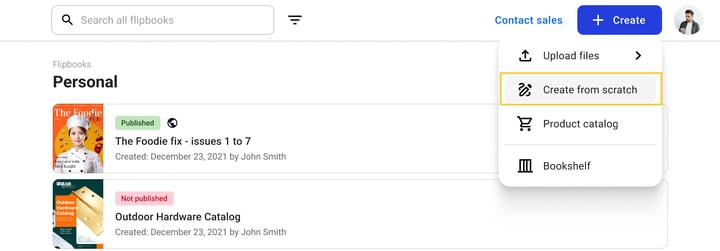
From your Dashboard, click Create from scratch.
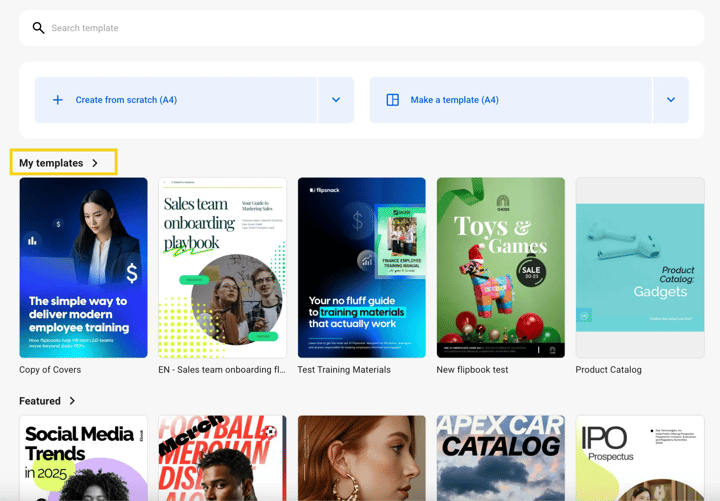
Then, choose a template you've created or saved previously from the "My templates" section, and click on it to start editing.
- In the Editor: While editing a flipbook, go to the Templates tab on the left-hand panel and select My templates from the dropdown menu.
Step 3: Apply template pages to a new catalog
To combine your batches:
- Open the new catalog where you want to add pages from the template.
- Go to the Templates tab and select My templates.
- Hover over your saved template and click View pages.
- Click on the “+” and a new blank page.
- Drag and drop on the page or click Apply all pages to merge the content into your current document.
Add teammates to your workspace
To speed up the creation of large catalogs, you can add teammates to your workspace to help apply templates and organize pages.
Advanced sharing and security options
Once your catalog is ready, you can choose how your audience accesses it. Flipsnack provides both Public and Private sharing methods to balance brand exposure with data security.
Public sharing
- Public: Your flipbook is indexed by search engines and appears on your Flipsnack profile.
- Unlisted: The flipbook is not indexed by search engines and won’t appear on your profile, but anyone with the direct link can view it. This is a common "middle ground" for sales materials.
Private sharing
- Password Protected: Readers must enter a password that you set before they can view the content.
- Share with Specific People: Grant access via email address. Only authenticated users can view the flipbook.
- SSO (Single Sign-On): The most secure option for large organizations. Access is restricted to users within your company’s internal system (e.g., Okta, Azure, or Google).
- Disable Sharing/Downloading: You can further protect your content by disabling the Share button or the "Download PDF" option in the viewer settings.
Tip: If you are sharing confidential B2B catalogs, we recommend using the SSO or Specific People options to maintain a full audit trail of who has accessed your files.
Limitations
SKU is the most critical. Never duplicate it. Sync, updates, variant grouping, all of it breaks without a clean SKU.
Prices breaking silently. If someone puts a comma instead of a decimal point, or adds a $ sign, the price just won't display, no error message. Users often don't realize the column format is the issue.
Only one currency per flipbook. People don't expect this. If you have products in USD and EUR, whichever was placed on the page last wins, and it applies to everything.
Quotation marks in the feed. A single " anywhere in the spreadsheet can corrupt the entire upload. Most people don't know this is even a rule.
The 90 attribute options limit across all 3 attributes combined. This one is especially confusing because the first attribute works fine, then the second one silently shows nothing, no error, just missing options.
Images not ending in .jpg or .png. People paste Google Drive links, Dropbox links, or CDN URLs that don't end in the right extension and then can't figure out why images are blank.
Empty rows between products. A single accidental empty row mid-spreadsheet can cause everything below it to be skipped or misread.
Not syncing before regenerating. If someone updates their spreadsheet but doesn't sync first, the catalog is generated from the old data. No warning is shown.
Something not looking right? Contact our team via the in-app chat and always include your spreadsheet. Keep a copy of the template structure on your own Google Drive so you have full control over your data.
Next steps
- How to prepare your spreadsheet product feed for automation
- CSV files for Flipsnack Automation: format, import, export
- How to sync your product feed automatically in Flipsnack
- How to build a catalog from a master feed with selected products
Need expert support?
Our team is here to help. Connect with our team experts or message us via the live chat for personalized assistance.