
Overview
Publishing for readers in more than one language usually means a translation service and a second file. In Flipsnack, you translate a whole flipbook or only the text boxes you choose, in the Design Studio.
This feature fits businesses, educators and publishers with international readers. Usually the text goes to a translation service, then back to a designer who rebuilds the layout. In Flipsnack you keep one design. Make a copy for each language and translate it with AI. Then check the text and publish each copy by link, email or embed.
Supported languages
AI translation supports 43 languages:
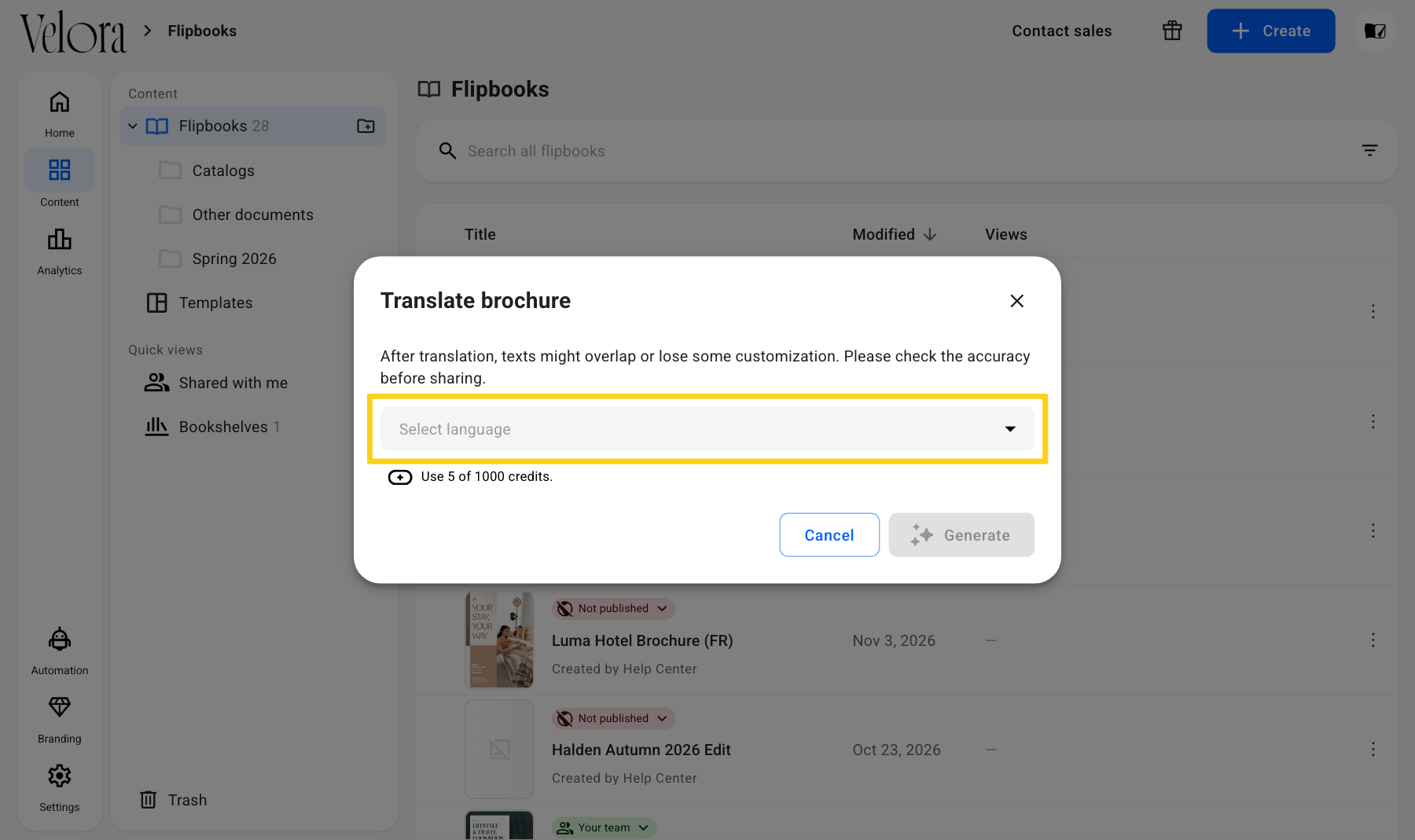
Translation also detects and translates text inside tables, not just regular text boxes, so catalogs and documents that organize content in table format stay accurate across languages.
Requirements
- Plan: All plans: check your plan or compare plans
- A flipbook created from scratch and not yet published
- 5 AI credits for each flipbook translation
How to translate an entire flipbook?
Goal: translate all the text of a flipbook into a new copy.
- Step 1: On the Content page, open the flipbook menu (three dots). The menu opens.
- Step 2: Go to More options and click Make a copy. The copy shows in the list. It keeps your original flipbook safe: the translation replaces the text of the flipbook you translate.
- Step 3: Open the menu of the copy. The menu opens.
- Step 4: Go to More options and click Translate with AI. The Translate brochure dialog opens.
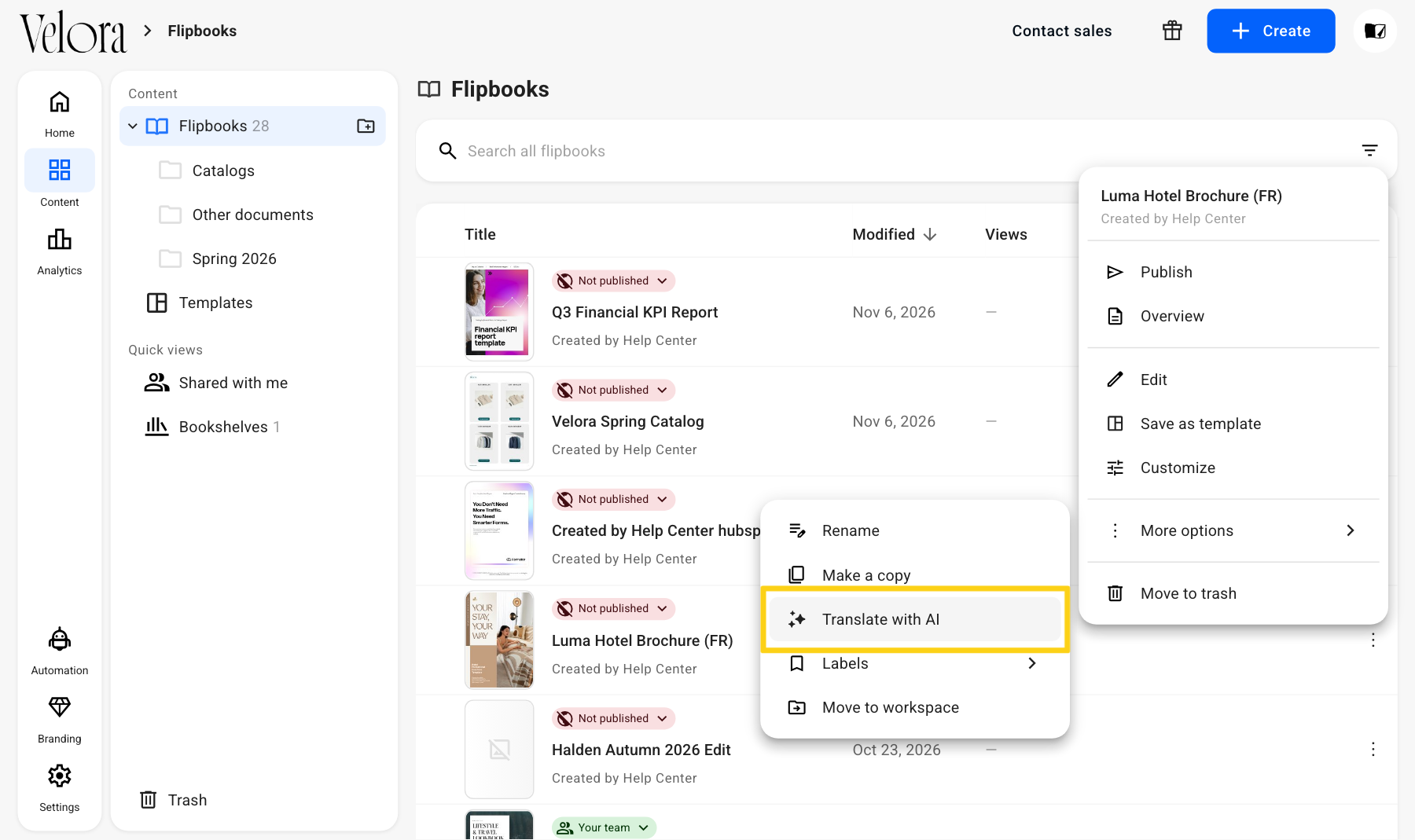
- Step 5: In Translate to, select a language. Generate becomes available.
- Step 6: Click Generate. The text of the copy changes to the chosen language.
Check the result:
- Translations may cause text overlaps or slight layout shifts. Check that each translated passage still fits its text box.
- Text inside tables is translated along with the rest of the page. Check column widths afterwards, since translated strings can be longer than the original.
- Review and edit your translated content to ensure readability.
- Verify the accuracy of translations before publishing.
Translate single or multiple text boxes
If you prefer to translate only certain parts of your flipbook, such as a heading or paragraph, you can use the text box translation feature.
Goal: translate only some text boxes, such as a heading or a paragraph.
- Step 1: Make a copy of the original flipbook. The translation replaces the original text, so the copy keeps both versions.
Note: Changes that you make later in the original flipbook do not go to the translated copy. Finish the text before you translate it.
- Step 2: Open the copy in the Design Studio.
- Step 3: Select the text box.
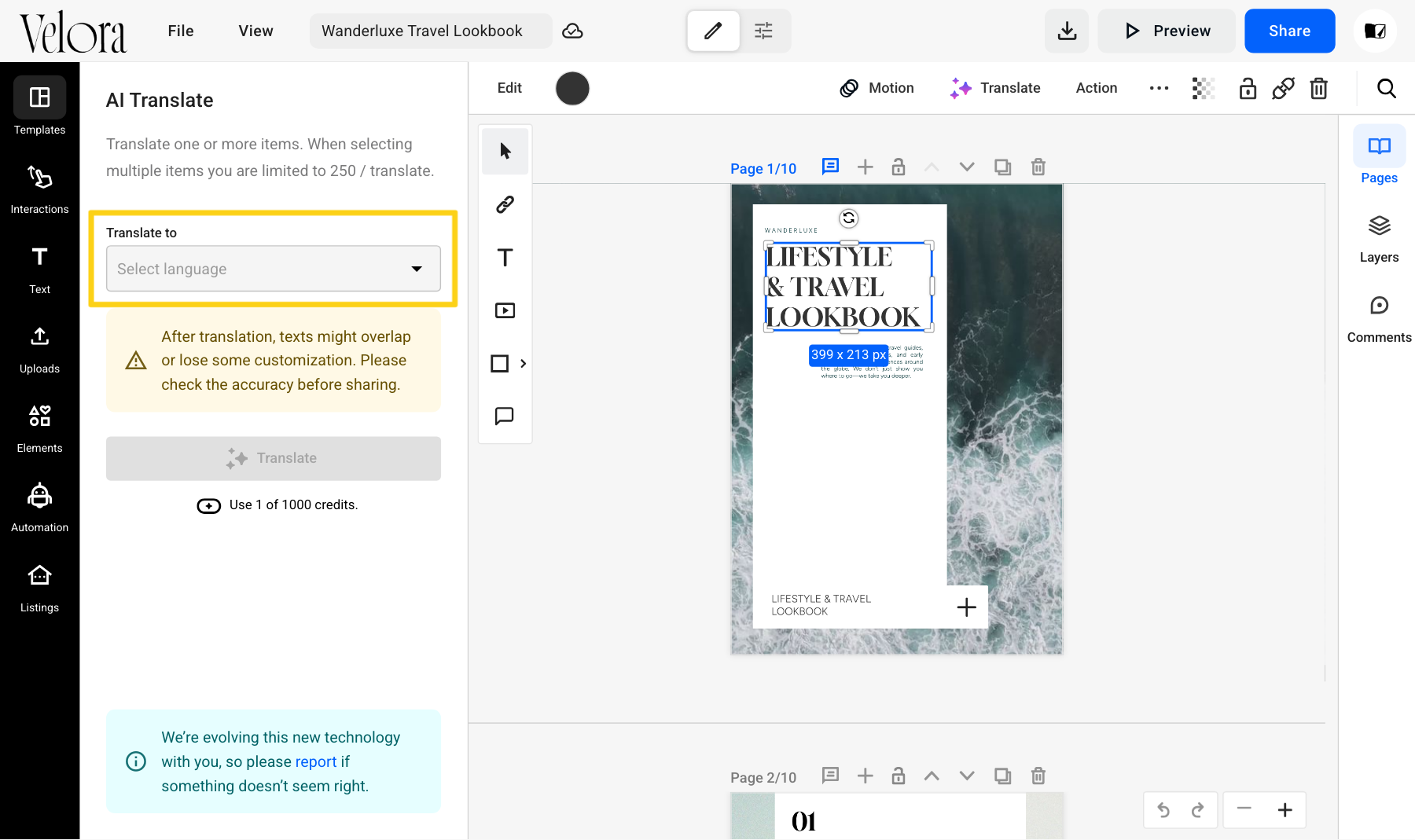
- Step 4: In the toolbar above the page, click Translate. The AI Translate panel opens.
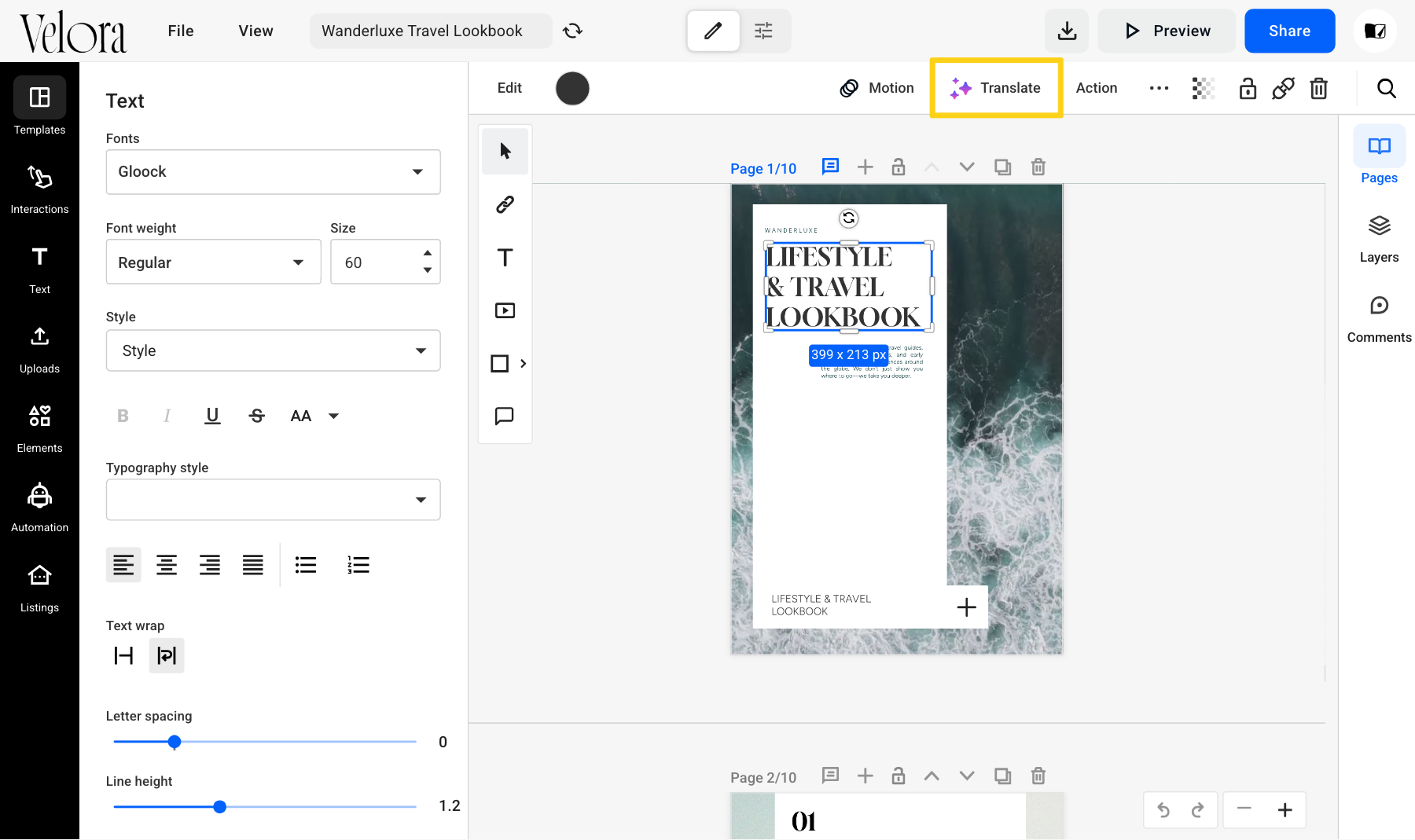
- Step 5: In Translate to, select a language.
- Step 6: Click Translate. The text box changes to the chosen language.
Translated text is often longer than the original. Check that it still fits the text box, and resize the box if needed.
Want the images to match each language? Generate new images with AI (all plans) in the same Design Studio.
Translate a text element on an editable PDF page
A flipbook made from a PDF can have its pages converted to editable elements. Once a page is editable, translate its text with AI into 43 languages, without leaving the Design Studio.
Requirements
- Plan: All plans
- A flipbook created from a PDF
- 1 AI credit for each translation
Goal: translate one text element on a page of a PDF flipbook.
- Step 1: Open the flipbook in the Design Studio.
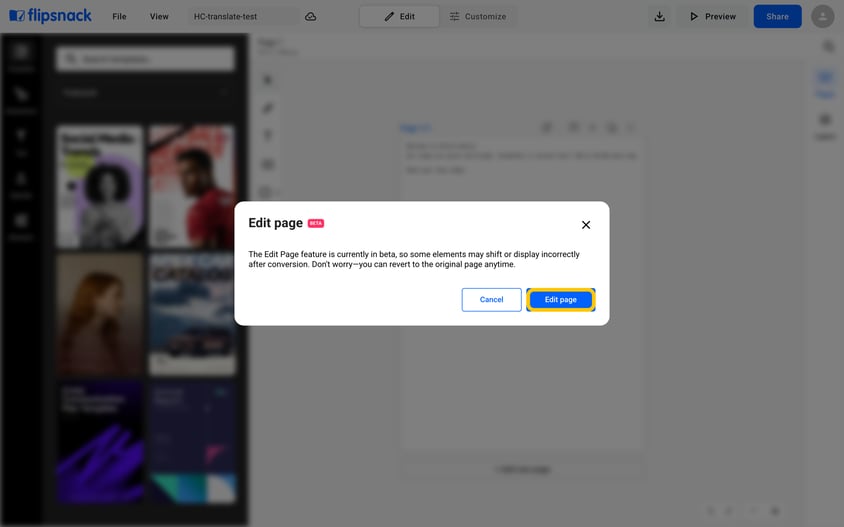
- Step 2: Above the page, click the Edit page icon. The Edit page (BETA) dialog opens.
- Step 3: Click Edit page. After about 20 seconds, the page has editable elements.
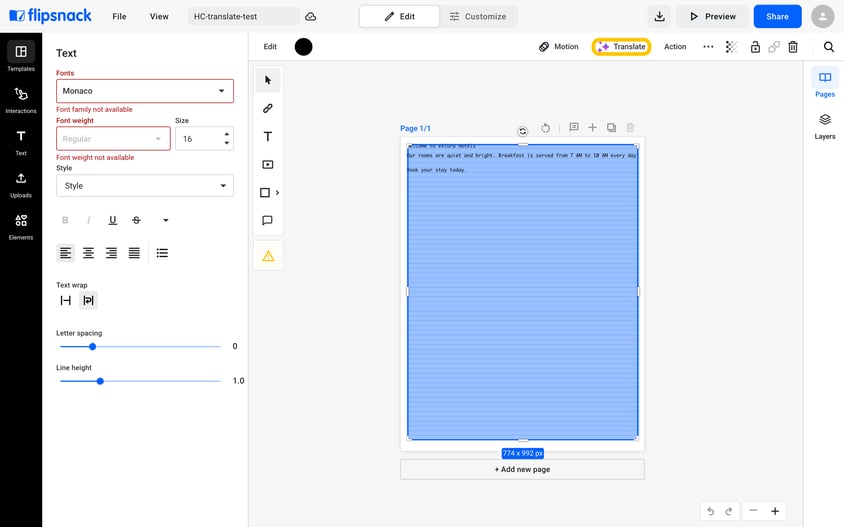
- Step 4: Select the text element that you want to translate.
- Step 5: In the toolbar above the canvas, click Translate. The AI Translate panel opens.
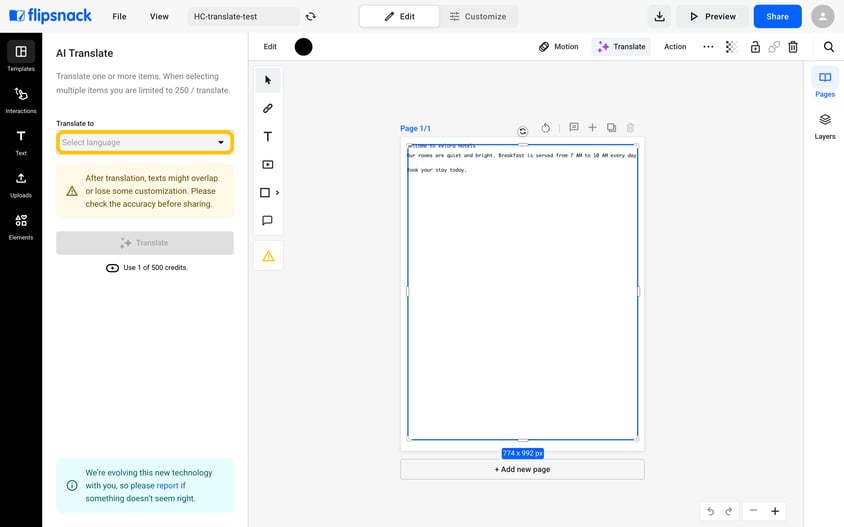
- Step 6: In Translate to, select a language.
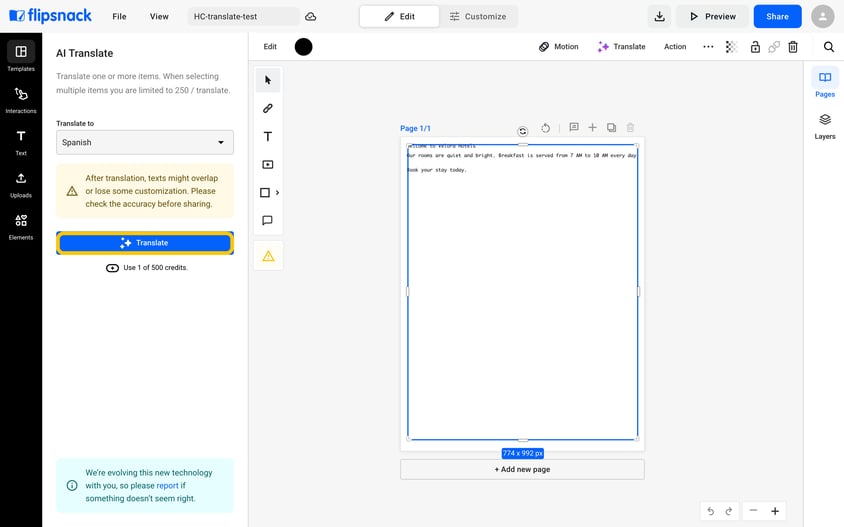
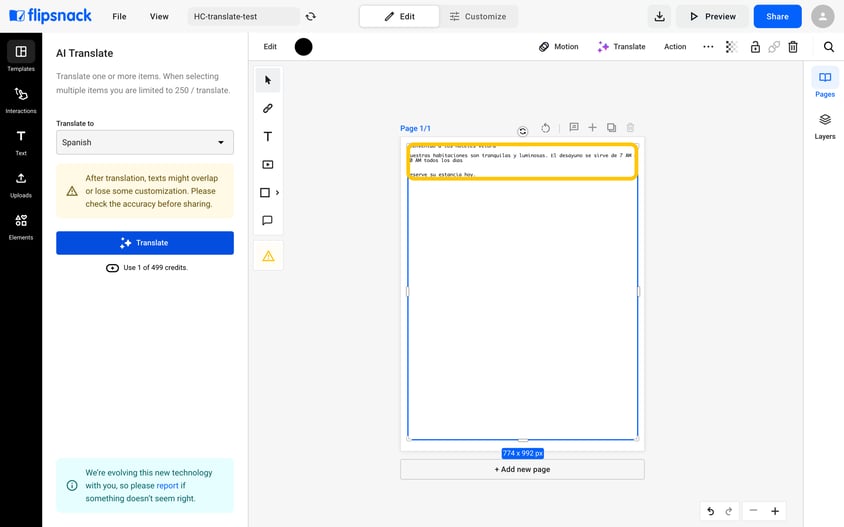
- Step 7: Click Translate. Each run costs 1 AI credit. The text on the page changes to the chosen language.
Check the result: translated text can overlap or lose some formatting.
When you select several items at once, one translation covers up to 250 of them. See Flipsnack AI Credits Explained for AI credit costs.
Other AI features in Flipsnack
Use these features on the translated copy:
- AI page summaries (all plans): give screen-reader users a description of each translated page. Read more
- AI Animate (Pro and up): add motion to an image so each language version gets attention. Read more
Each translation spends AI credits. See Flipsnack AI Credits Explained for the cost of each action.
Next steps
- AI Overview and how AI credits work in Flipsnack: see how many credits each AI action costs.
- How to generate AI-powered page summaries to improve accessibility?: make the translated pages readable for screen readers.
- AI Image Generation: How to create custom images from prompts: make visuals that fit each language version.
- AI Animate: How to turn a static image into Living Visuals: add motion to the images of your flipbook.
Need expert support?
Our team is here to help. Connect with our team experts or message us via the live chat for personalized assistance.