
Overview
Your brand assets often sit in a shared drive or a DAM, and each team copies them into its own workspace. The organization Media library keeps your logos, images and videos in one place in Flipsnack for all your workspaces. An organization admin uploads an asset once and chooses which workspaces can use it. The teams find it in Design Studio, so every flipbook uses the current brand files.
Requirements
- Plan: Enterprise, with an Organization of more than one workspace: manage multiple teams under one Organization
- Access to My organization in your profile menu
Upload assets to the organization
Goal: put a brand asset in one place for all workspaces.
- Click your profile image. The profile menu opens.
- Click My organization. The organization page opens.
- Click Media library. The library shows the Organization and Logos folders.
- Click Upload to Organization. The file window opens.
- Select your files (JPG, JPEG, PNG, GIF, WEBP, SVG or MP4). The message Media uploaded successfully shows.
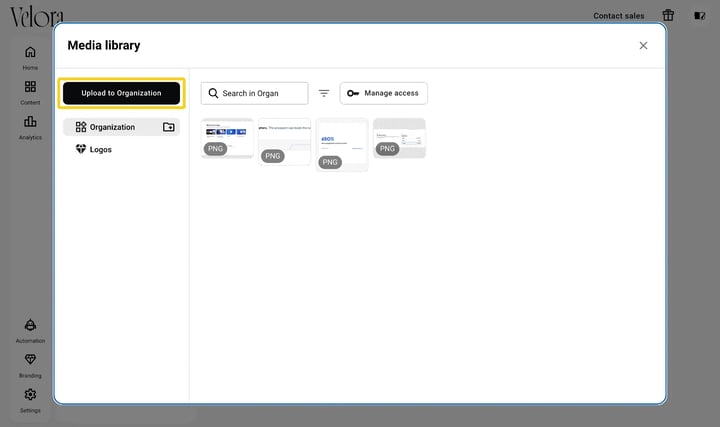
To find an asset later, use Search in Organization.
Choose which workspaces can use the assets
Goal: give the right teams access to the assets.
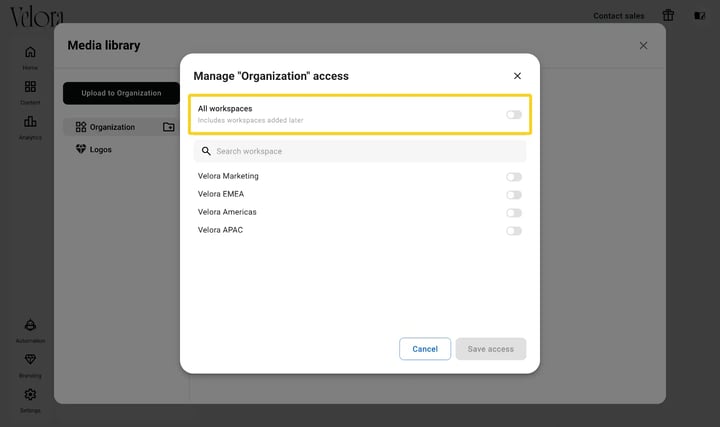
- In the Media library, click Manage access. The Manage "Organization" access window opens.
- Turn on All workspaces, or turn on each workspace in the list. The selected workspaces show as on.
- Click Save access. The selected workspaces can now use the assets.
All workspaces also covers workspaces that you add later. To find a workspace in a long list, use Search workspace.
Use the assets in Design Studio
Goal: add an organization asset to a flipbook.
- Open a flipbook in Design Studio. The editor opens.
- In the left panel, click Uploads. The upload tabs show.
- Click the Organization tab. The assets that your organization shares with this workspace show.
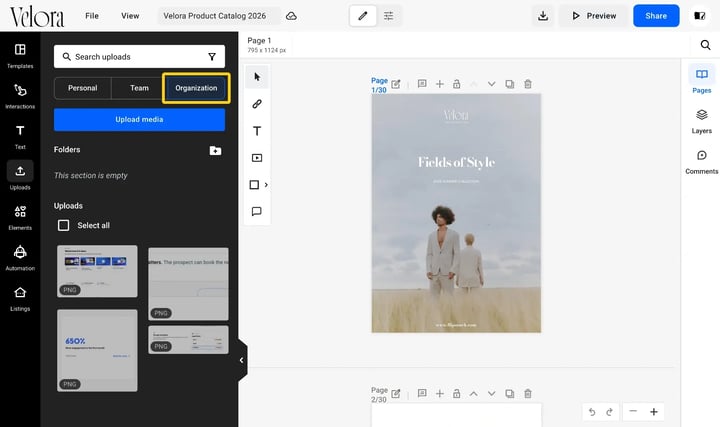
The Personal and Team tabs keep your own uploads and your workspace uploads. See Team and personal uploads in Flipsnack Design Studio.
Want the same fonts and colors in every workspace too? Set your fonts and colors on the Branding page (Business and up), so teams pick brand styles next to the brand assets.
Next steps
- How to use folders and subfolders in the Media Library: sort many assets so teams find them fast.
- Manage multiple teams under one Flipsnack Organization plan: add workspaces and admins to your organization.
- Team and personal uploads in Flipsnack Design Studio: see which uploads each person and team can use.
Need expert support?
Our team is here to help. Connect with our team experts or message us via the live chat for personalized assistance.