
💡 Benefits of limiting a private flipbook to approved domains
- Controlled distribution: Only allow your flipbook to appear on approved domains
- Secure sharing: Keep private content restricted to intended audiences
- Real-time updates: Always display the latest version without re-uploading
- Built-in analytics: Track views and engagement directly in Flipsnack
- Full interactivity: Preserve links, videos, and interactive elements
Overview
Embedding private flipbooks with domain restriction allows you to display your content only on specific, approved websites. This helps you keep content controlled while still making it available in secure environments.
Important: Embedding a private flipbook on a public page makes it accessible to anyone who can access that page. Domain restriction controls where the flipbook can be displayed, not who can view it. Always embed private flipbooks on protected pages, such as login-restricted areas, paywalls, or internal networks.
This feature is especially useful when you want to share premium or internal content without making it publicly accessible. By restricting where the flipbook can be embedded, you maintain control over distribution while still benefiting from Flipsnack’s interactive viewer and analytics.
Requirements
- Plan: Enterprise: contact sales
- Setup: Access to the website where the flipbook will be embedded
Step-by-step instructions
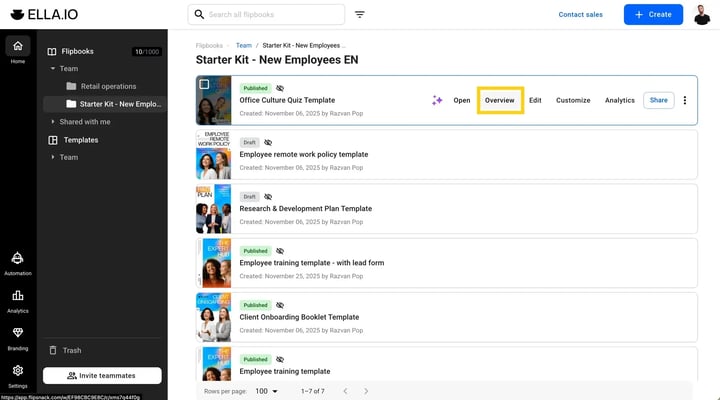
1. Open the flipbook Overview page
- Go to your Flipsnack dashboard
- Select the flipbook you want to embed
- Open the Overview page of the flipbook
.png?width=720&height=400&name=Screenshot%202026-03-20%20at%2017.08.04-mh%20(1).png)
2. Set the flipbook to private
- In the Overview page, locate the Visibility setting
- Change visibility to Private
.png?width=720&height=400&name=Screenshot%202026-03-20%20at%2017.08.04-mh%20(2).png)
3. Add allowed domains
- Navigate to the Embed settings section
- Enter the domain(s) where the flipbook will be embedded
- Save your changes
![Domain restriction input field]](https://help.flipsnack.com/hs-fs/hubfs/Screenshot%202026-03-20%20at%2017.08.04-mh%20(4).png?width=720&height=400&name=Screenshot%202026-03-20%20at%2017.08.04-mh%20(4).png)
4. Copy the embed code
- From the Overview page, click on Embed
- Copy the generated embed code
.png?width=720&height=400&name=Screenshot%202026-03-20%20at%2017.08.04-mh%20(3).png)
5. Add the embed code to your website
- Paste the embed code into your website’s HTML
- Make sure the page belongs to one of the approved domains
Additional tips / FAQs
- Are there any limitations on mobile devices? Yes. On iOS devices, the fullscreen option may not be available for embedded flipbooks due to platform restrictions. This happens because iOS limits how embedded content can access certain interactions, such as opening fullscreen views from within an iframe.
This does not affect the flipbook’s functionality, but users will need to view it within the embedded frame instead of expanding it to fullscreen.
- Can anyone view my embedded flipbook? Yes, if the page where the flipbook is embedded is public. Domain restriction only limits where the flipbook can be displayed, not who can access that page.
- How do I keep my flipbook fully secure? Embed it on a protected page, such as:
- A login-restricted area
- A paywalled section
- An internal company intranet
- What happens if I embed it on a non-approved domain? The flipbook will not load.
- Do updates reflect automatically? Yes, any changes you make to the flipbook will automatically appear wherever it is embedded.
Common use-cases
- Client portals: Share premium brochures or reports behind a login
- E-learning platforms: Provide course materials to enrolled users only
- Internal communications: Distribute documents via company intranets
- Membership sites: Offer exclusive content to paying subscribers
- Partner resources: Share restricted materials with authorized partners
Troubleshooting
The flipbook is not displaying
- Domain not on approved list: Check if the domain is correctly added to the approved list
- Domain typo: Ensure there are no typos in the domain
Users can access the flipbook publicly
- Page not protected: Verify that the page where it’s embedded is protected
- Missing authentication: Add authentication (login or paywall) if needed
Changes are not visible
- Refresh the page: Refresh the page
- Clear browser cache: Clear browser cache
Next steps
- Publishing options
- How to embed a flipbook on your website with an embed code
- Private sharing options
- Improving content security with domain restriction
- What to do if your embed does not look as intended
Need expert support?
Our team is here to help. Connect with our team experts or message us via the live chat for personalized assistance.