
Overview
Turn your Shopify storefront into a place people can actually flip through your catalog, not just look at product photos. This guide covers grabbing your embed code from Flipsnack, then dropping it into your store using whichever method matches your setup: the Page editor, which works on any theme and is the safest choice, or Custom liquid, if you're on Online Store 2.0 and want it as a drag and drop section.
Either way, no apps, no Liquid coding, just a copy paste, and shoppers get your full catalog live on the page with no plugins needed.
Requirements
- Plan: Starter or above: check your plan or compare plans
- Admin access to your Shopify store: go to Shopify
Get your embed code
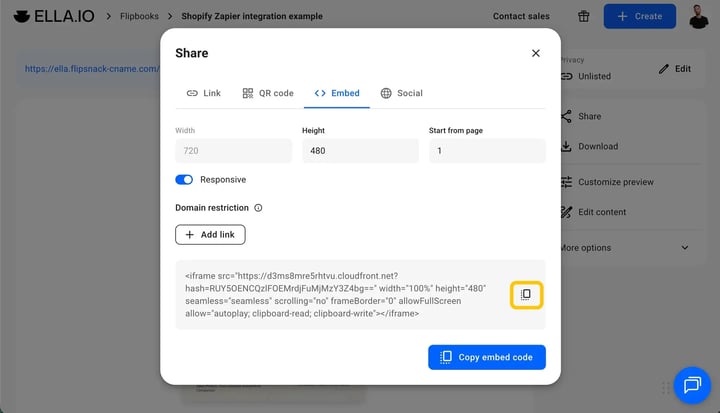
Open your published flipbook, click Share, then the Embed tab, then Copy code. You get one iframe:
<iframe src="https://d3ms8mre5rhtvu.cloudfront.net?hash=YOUR-FLIPBOOK-HASH"
width="100%"
height="480"
seamless="seamless"
scrolling="no"
frameBorder="0"
allowFullScreen
allow="autoplay;
clipboard-read;
clipboard-write">
</iframe>
Tip: Width is already 100%, so the flipbook fills its container. Height is the only number to change. Try height="700" for a taller spread, and check it on a phone before publishing.
Method 1: Page editor (any theme)
Recommended. Works on every theme and survives theme updates.
- Go to Content, then Pages, and open your page.
- Click Show HTML in the toolbar, the angle brackets icon.
- Paste the embed code and click Save.
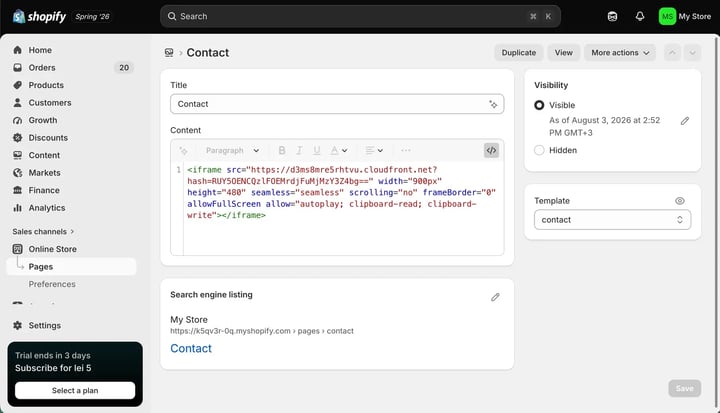
- Click View page. The flipbook only renders live, never inside the editor.
Method 2: Custom liquid (Online Store 2.0)
Use this to place the flipbook as a section you can drag around.
Note: Custom liquid is just Shopify's box for pasting HTML. You will not write any Liquid code.
1. Go to Online Store, then Edit theme.
2. Click Add section and choose Custom liquid. Use Add block instead to place it inside an existing section.
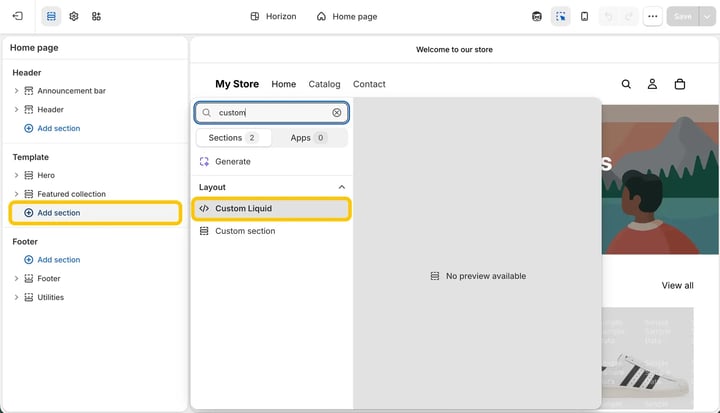
3. Paste the embed code and click Save.
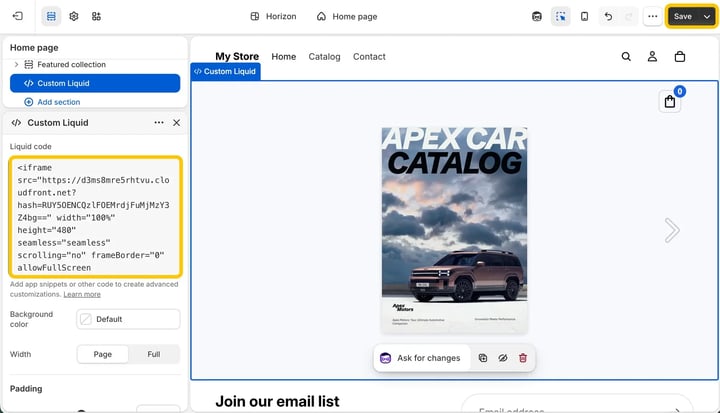
Note: No Custom liquid in the list? Look for Custom HTML or Custom code, since names vary by theme. Otherwise use Method 1. Never paste into theme.liquid, which controls every page on your store.
Troubleshooting
Flipbook does not appear: confirm it is published as public or unlisted, and check the live page rather than the editor.
Flipbook is too short or tall: change the height value in the iframe.
Embed code vanished after saving: Shopify's visual editor can strip markup. Paste last, save, and do not reopen the visual view.
Additional tips / FAQs
- Can I embed on a product page? Yes, Show HTML is in the product description editor too.
- Do I need the Shopify Buy Button app? No, this is a separate embed.
- Can orders from the flipbook reach Shopify? Yes, see how to send orders to Shopify via Zapier.
Next steps
Need expert support?
Our team is here to help. Connect with our team experts or message us via the live chat for personalized assistance.