
Overview
You connect RD Station Marketing to Flipsnack in 2 parts. Google Tag Manager adds the RD Station tracking code to your flipbooks, so RD Station sees which channel brought each reader and which flipbooks your leads read. Zapier sends each lead form submission from a flipbook to RD Station as a conversion. You can set up one part or both. Flipsnack has no direct RD Station integration, so both parts use these tools.
💡 Benefits of connecting RD Station to Flipsnack
- Leads with context: every lead form submission arrives in RD Station with the flipbook it came from.
- Automations from reading: start an RD Station email flow when someone fills in the form in your catalog.
- One view of the journey: RD Station records the channel that brought each reader to your flipbooks.
- RD Station pop-ups on flipbooks: the pop-ups you create in RD Station can show on your flipbook pages.
Marketing teams use it to follow up on catalog and brochure readers, and sales teams to see which leads read the price list before a call.
Requirements
- Flipsnack plan: Enterprise for Google Tag Manager: contact sales
- RD Station Marketing: an active Light, Basic or Pro plan with API access enabled in your RD Station account, as the Zapier help article for RD Station states.
- Google Tag Manager: a container connected to your Flipsnack profile: integrate Google Tag Manager
- Zapier: a Zapier account and a published flipbook with a lead form
Add the RD Station tracking code with Google Tag Manager
The RD Station tracking code identifies the source channel of your leads and tracks the pages they visit.
Note: the tracking code runs on your flipbook pages on Flipsnack and on your custom domain. It does not run when a flipbook is embedded on another website, so track those visits with the RD Station code on that website.
Copy the tracking code
- In RD Station Marketing, open Settings, then Tracking Code.
- Under Step 1: Tracking Code Installation, click I want to perform the setup on my own.
- Click Copy code.

Add it to your Flipsnack container
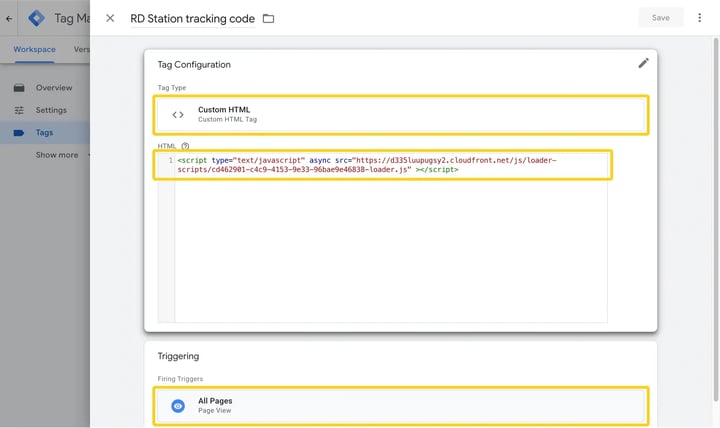
- In Google Tag Manager, open the container connected to Flipsnack and click Add a new tag.
- Choose the tag type Custom HTML and paste the tracking code.
- Under Triggering, choose All Pages.
- Name the tag, for example "RD Station tracking code", and click Save.
- Click Submit, then Publish.
Check the installation
- Copy the link of a published flipbook, or your profile URL from Branding > Brand Profile > Settings > See my profile. If you use a custom domain, use that address.
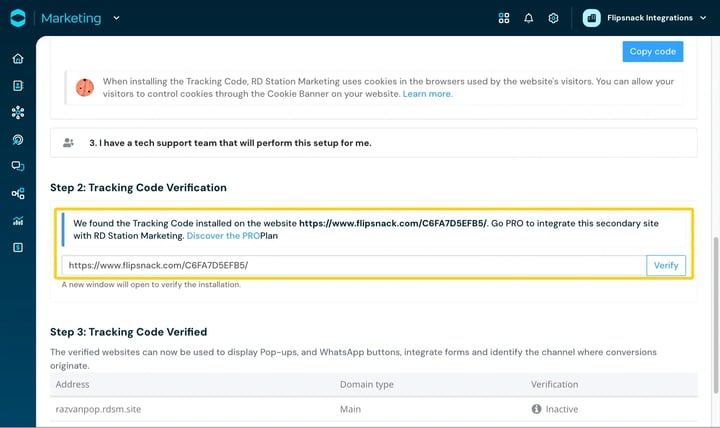
- In RD Station, under Step 2: Tracking Code Verification, paste the URL and click Verify.
When the tag works, RD Station answers that it found the tracking code installed on that address. The code sets cookies in your readers' browsers, so if you use a cookie banner, include RD Station in it.
Send lead form submissions to RD Station with Zapier
- In Flipsnack, go to Settings, then Integrations, and copy the API key for Zapier. See how to connect Flipsnack to Zapier.
- In Zapier, click Create Zap. For the trigger, choose Flipsnack and the event New Lead Form Data.
- Connect your Flipsnack account with the API key, then select the flipbook that has the lead form.
- For the action, choose RD Station and the event Conversion Event.
- Connect your RD Station account. Map the email field of the lead form to the RD Station email, and type a conversion identifier, for example "flipsnack-lead-form".
- Test the step, then click Publish.
Each new submission now shows in RD Station as a conversion with the identifier you typed. Use the identifier to find these leads and to start your RD Station automations.
Troubleshooting
- The lead form does not show in Zapier: publish the flipbook with the lead form, then load the list again.
- Leads do not reach RD Station: check that the email field is mapped. RD Station needs an email for each conversion.
Next steps
- How to integrate Google Tag Manager (GTM) with Flipsnack
- How to connect Flipsnack to Zapier
- How to send lead form submissions to HubSpot via Zapier
- Using a lead form to gather reader contact details
- How to set up Hotjar tracking on Flipsnack via Tag Manager
Need expert support?
Our team is here to help. Connect with our experts or message us via the live chat for personalized assistance.