
Overview
A lead form only earns its keep once the submissions reach the place your sales team works in. If that place is HubSpot, Zapier can move them for you: a reader submits the form, and the data arrives in HubSpot organized and ready to use.
Requirements
- The Zapier integration is available with Flipsnack Business and up: go to Zapier
- You need to have the Owner or Admin role in the workspace you are in to have access to these features: about roles
Step 1: Create the Flipbook and set up the lead form
Log in to your Flipsnack account and create a flipbook by uploading a PDF or creating it from scratch. Then, you must add a lead form and publish your flipbook, which can be found in Zapier. This article will guide you on how to add a lead form to a flipbook.Step 2: Obtain your API key from Flipsnack
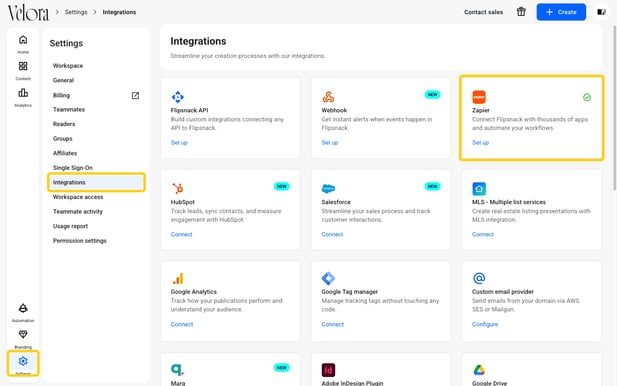
- Click Settings in the lower left corner.
- Click Integrations.
- Find Zapier and click Set up.
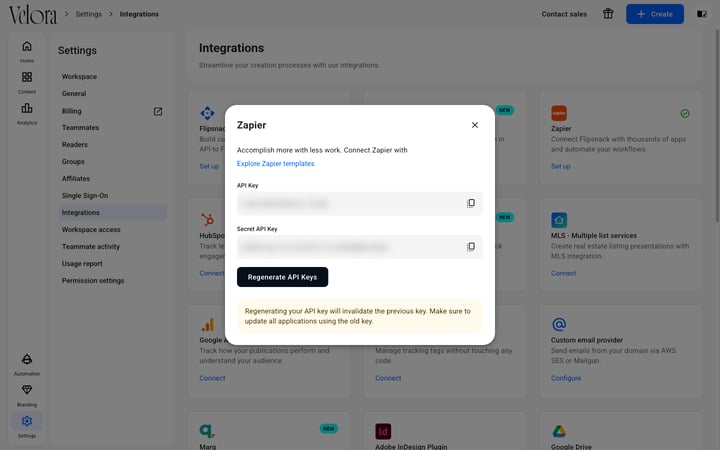
- Click the copy icon next to API Key to copy your API key. You need it in the next steps.
Step 3: Set up a Zap in Zapier
- Go to Zapier and create or log in to your existing account.
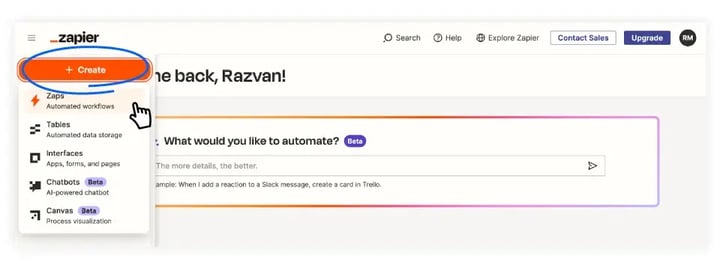
- Once logged in, click on Create Zap button in the top left corner and select Zaps from the newly opened dropdown menu.
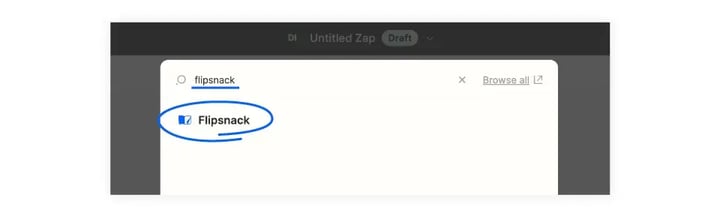
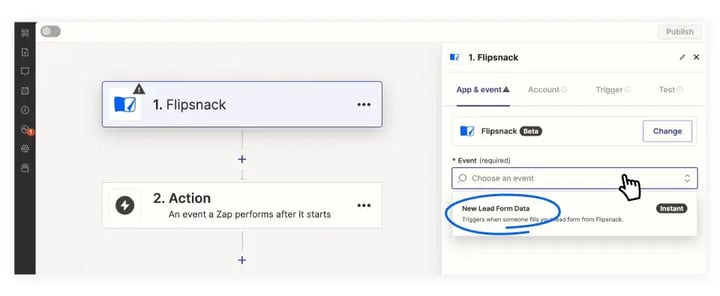
- A new page in the editor will open. Click on the first step, called Trigger. In the search apps modal, type "Flipsnack" and click on the first result, as in the image below.
- In the left panel, click on Event input, and a dropdown will appear with all the Flipsnack events. Choose New Lead Form Data.
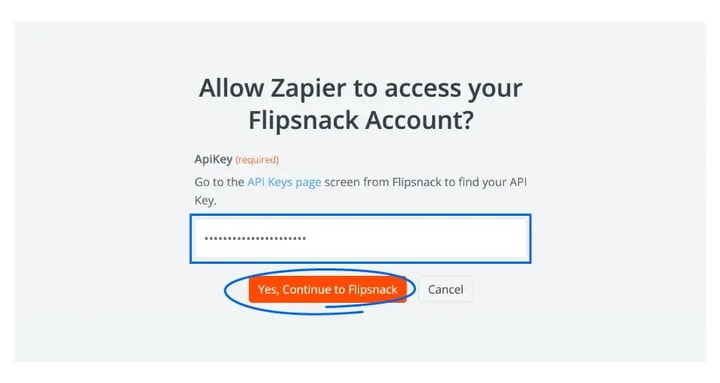
Click on the Continue button and move to the Account tab.
- When prompted, log in to your Flipsnack account. In the newly opened window, paste your API key from Step 2 and click Yes, Continue to Flipsnack.
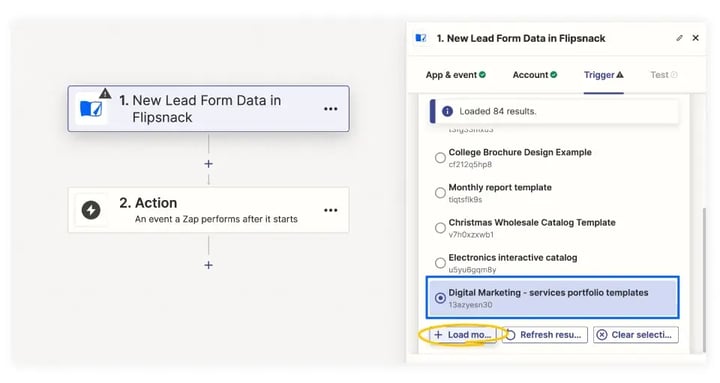
Now click on the Continue button and move on to the Trigger tab.
- Here, you must select the flipbook to which you added the form in step 1. If you can't find it with the search function, you need to load more results by scrolling down until you see the Load more button.
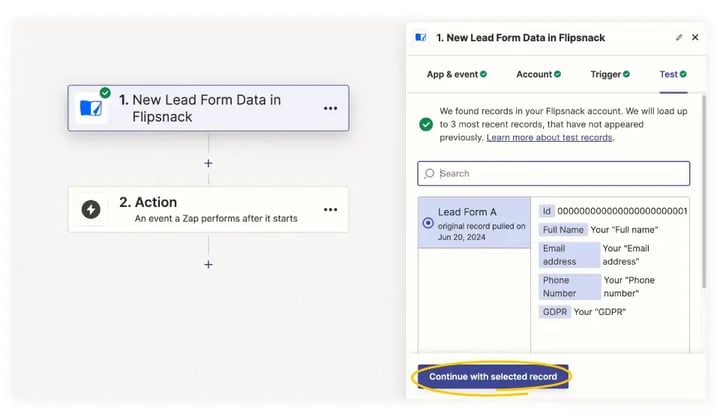
- Click Continue and move to the Test tab. You must test the Zap to ensure everything is set up correctly. Once the test is successful, the green checkmark appears. You can continue configuring the next action to receive notifications.
Step 4: Choose a destination app - HubSpot
After setting up the trigger, choose the app where you want the form data to be sent. To simplify the process, we’ve created pre-built templates for connecting Flipsnack to various CRMs and apps. You can find them on the Flipsnack Integrations page on Zapier.
For our case, we will export our form submissions from Flipsnack to HubSpot. Here's how to do it:
- While in Zapier, click on Action, and you will be prompted to choose an app.
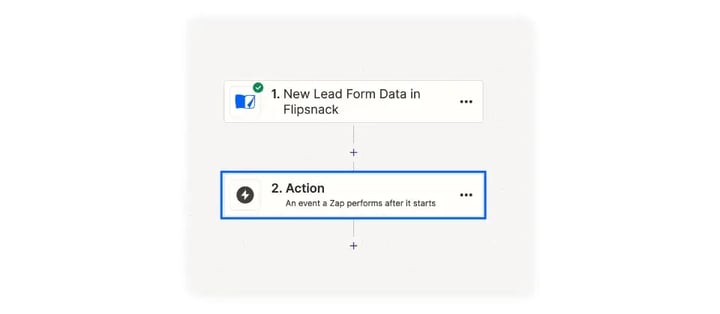
2. Choose HubSpot.

3. In the Event dropdown menu, choose Create form submission. There are different options, but this is the one you should choose to receive form submissions in HubSpot. Click on Continue.
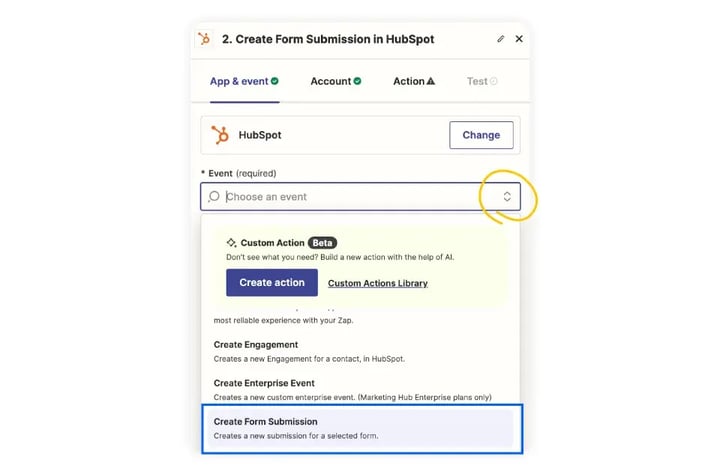
4. In the Account tab, connect with your HubSpot account. Once done, click on Continue.
5. In the Action tab, there are multiple fields to which you can add information.
- The Form field is mandatory, and you must select a form you have created in HubSpot. If you have not yet made a form in HubSpot, create one first, and then proceed.
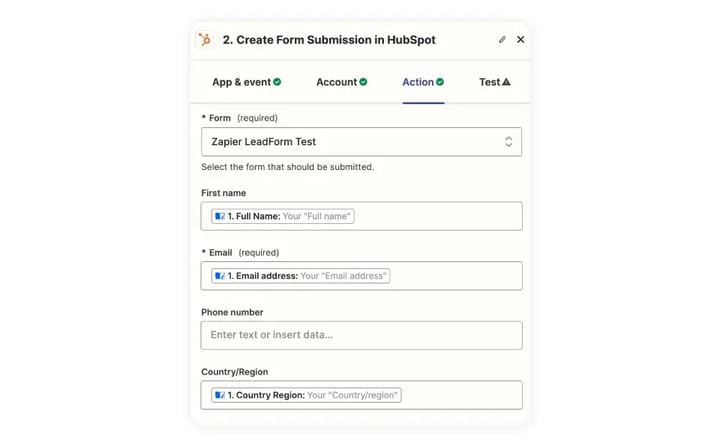
- The Email field is mandatory, and you can select the Email address property from the dropdown menu. Note that the options in the dropdown menu are based on the fields included in the Flipsnack form from your flipbook.
When you select the form, multiple other fields are available, such as First name, Country/Region, Phone number, Website URL, etc. These fields are not mandatory, but you can select their respective fields from the dropdown menu if they exist in the Flipsnack form.
There are also additional general fields, but I will mention the ones relevant to this use case.
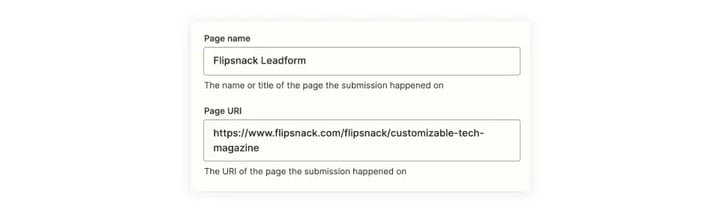
- In the Page name field, add Flipsnack Leadform or any other relevant name.
- In the Page URI field, add the flipbook link.
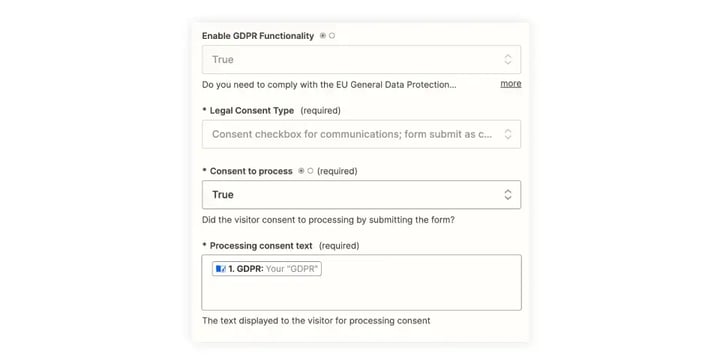
If you have included a GDPR compliance check for the form in Flipsnack, choose the following settings for the field:
- Enable GDPR functionality - True;
- Legal consent type - Consent checkbox for communications; form submit as consent to process;
- Consent to process - True;
- Processing consent type - Add the text or select GDPR from the dropdown options.
Note: For now, you can only send GDPR information from Flipsnack. Cookie information cannot be currently sent, but it will be possible in the future.
Once you are done completing the desired fields, click on Continue.
Next, in the Test tab, you can click Skip test or Test step. We recommend selecting Test step to ensure everything is functioning correctly. The test is successful if the green checkmark appears. Afterward, click Publish.
This is how you can automate the flow of lead form submissions from Flipsnack to your preferred third-party applications, enhancing your workflow efficiency.Additionally, you can set up email notifications for new lead form submissions, or automatically centralize all leads in your CRM (e.g., Google Sheets) whenever a new lead is collected from your flipbook.
Related articles
- How to send contact form submissions to HubSpot via Zapier
- Using HubSpot with Flipsnack: integration features
Next steps
- How to send lead form submissions to HubSpot;
- How to automate Gmail notifications for flipbook lead form submissions using Zapier;
- How to automate Shopping list orders using Zapier integration in Flipsnack.
- fill out this form
- How to connect RD Station Marketing to Flipsnack
Need expert support?
Our team is here to help. Connect with our team experts or message us via the live chat for personalized assistance.