
Overview
Your readers can ask your flipbook a question and get the answer in seconds. The AI assistant add-on puts an AI assistant inside your published flipbook. Readers ask in their own words, in any language they write in. Each answer comes from your pages and shows the page it came from.
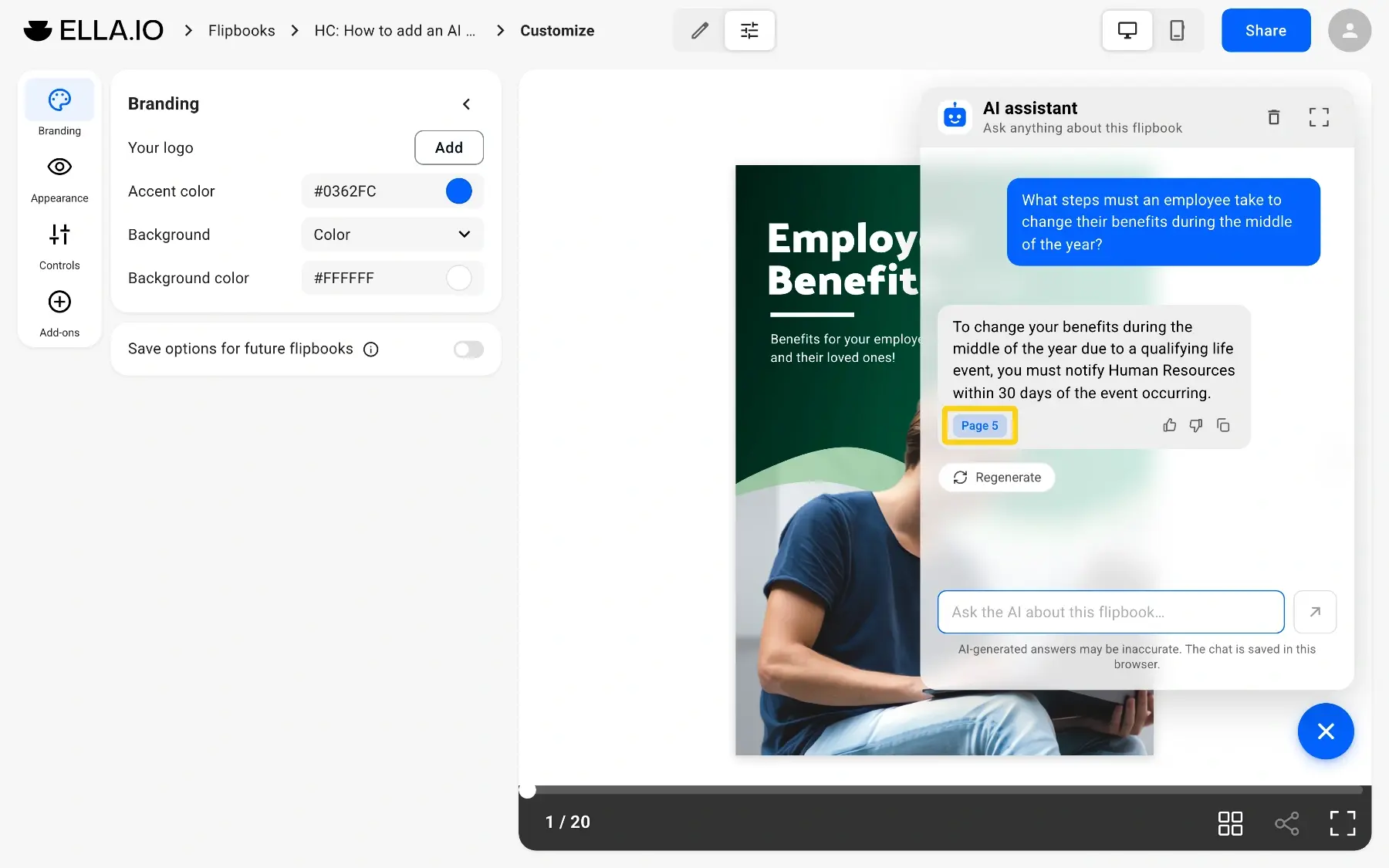
Say your HR team keeps a long employee benefits guide as a PDF. You publish it as a flipbook and share the link by email or on your intranet. Today, an employee who can't find an answer emails HR. With AI assistant, they ask how to change their benefits mid-year. The assistant answers from the guide and links to Page 5. Your PDF stays the source, and your team gets fewer of the same questions.
See it for yourself: try the chat in our benefits guide.
How AI assistant answers
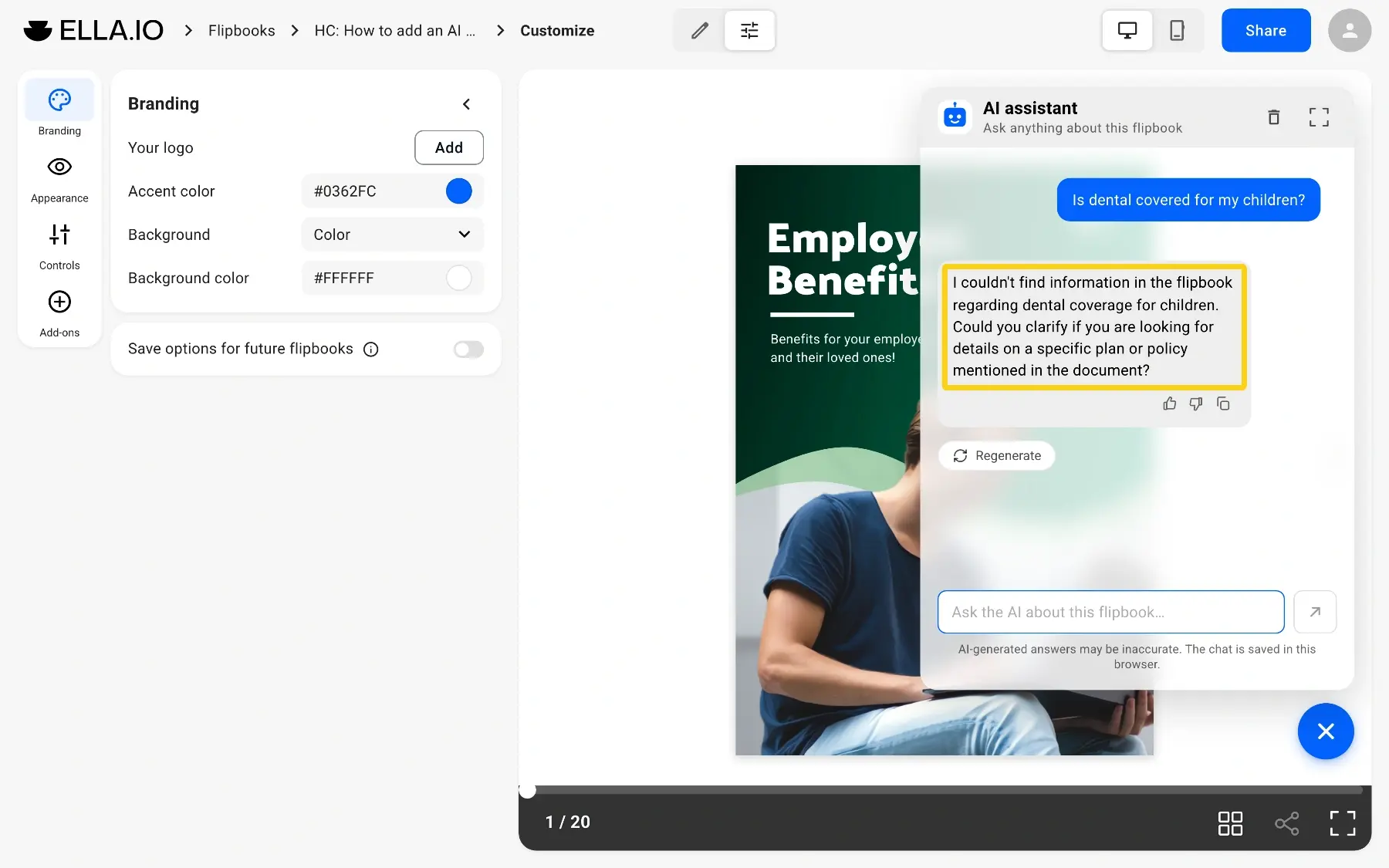
The assistant answers only from the content of your flipbook. It works on public, unlisted and private flipbooks. Readers can also ask it to explain a dense passage in plain words, such as a rule of their benefits plan. When your flipbook doesn't hold the answer, the assistant says it couldn't find it.
When you turn it on, Flipsnack prepares your flipbook's content once. This uses AI credits. Enterprise and Organization include 1,000 AI credits a month. They reset each month and don't roll over. Running low? Request more AI credits from our Support team.
Requirements
- Plan: Enterprise and Organization: contact sales
- AI credits: Flipsnack AI credits explained
- A flipbook you can publish: how to publish a flipbook
Turn on AI assistant
Start with the flipbook your readers ask the most questions about. It takes one switch, and no developer.
- Go to Content, open the three-dot menu of your flipbook and select Customize.
- Click Add-ons in the left rail, then open AI assistant.
- Turn on Use AI assistant.
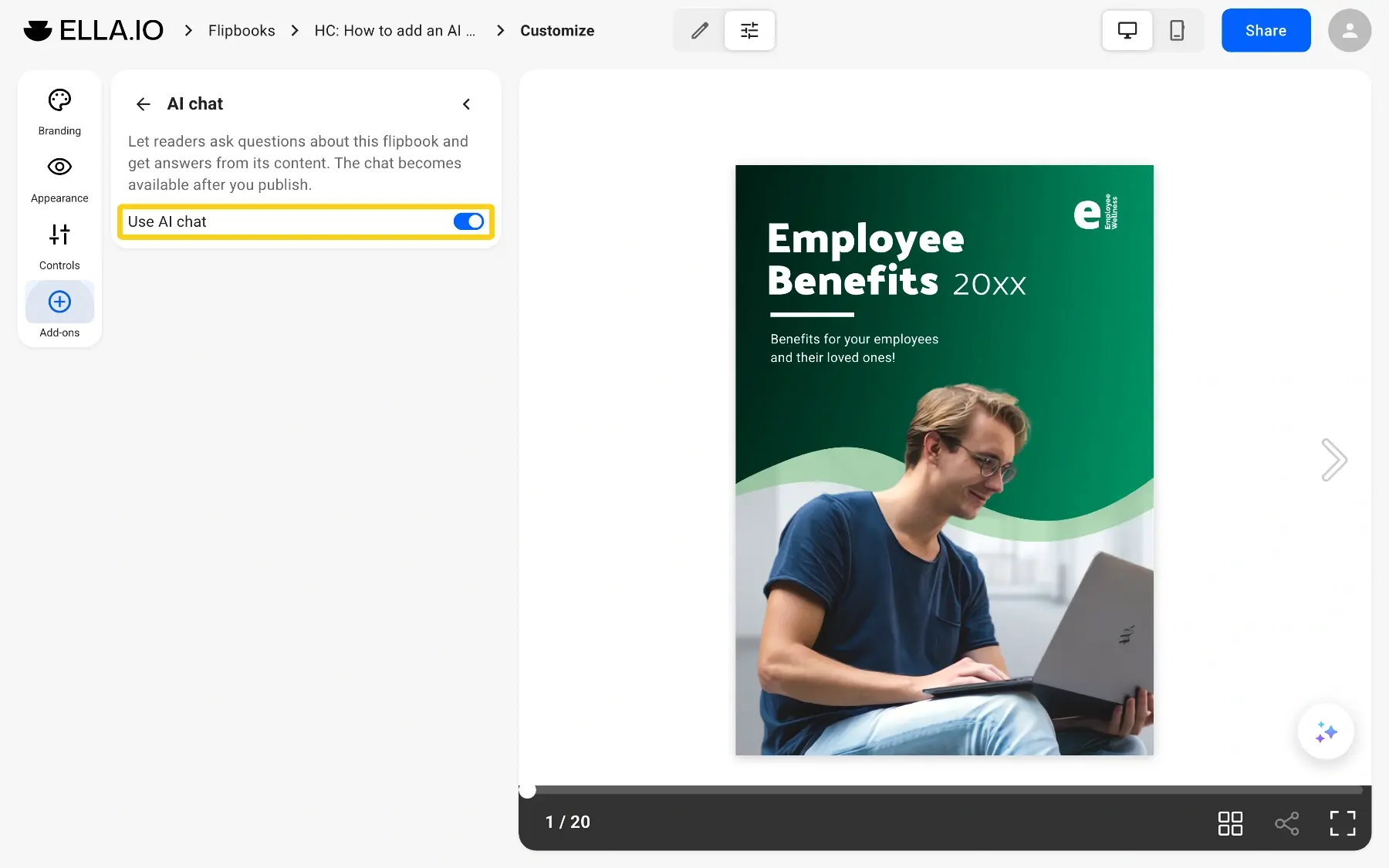
- Click Share and publish your flipbook. The chat becomes available after you publish.
Your published flipbook now has an AI assistant button in the bottom-right corner of the player. Changed the flipbook later? Publish it again, so the answers use the new content.
What your readers see
Readers don't install anything or leave your flipbook. They read and ask in the same place.
- The button: an AI assistant button sits in the bottom-right corner of the player, on every page.
- Questions to start with: the AI assistant window opens with three questions about your flipbook under Try asking. One click asks one. Readers can also type their own question in Ask the AI about this flipbook, in any language.
- The source of each answer: under the answer, a page link such as Page 5 turns the flipbook to that page. Readers check the source themselves.
- Answer tools: readers can rate an answer, copy it or click Regenerate to get a new one.
- A saved chat: the chat stays in the reader's browser, so it is still there when they come back.
Try it in the benefits guide below. Click the AI assistant button, then pick a question under Try asking or type "How do I change my benefits mid-year?".
Test it as a reader
You can try the chat before your readers do. On the Customize page, click the AI assistant button in the preview on the right. The AI assistant window opens with suggested questions under Try asking, so you see the chat before you set it live.
When it looks right, open your published flipbook from its direct link, the way your readers will. Is it a private flipbook? Sign in as one of its readers, so you see what they see (what each publishing status means). Then ask one question it can answer and one it can't.
- Click the AI assistant button in the bottom-right corner of the player. The AI assistant window opens.
- Type a question in Ask the AI about this flipbook and send it.
- Click the page link under the answer, for example Page 5, to check the source.
Next, ask something your flipbook doesn't cover. Our benefits guide has nothing on "Is dental covered for my children?". So the assistant says it couldn't find that information in the flipbook.
Want readers who know the exact word to find it fast? They can also search the text of your flipbook, on all plans.
Share the link, and your readers get their answers without leaving the flipbook.
Next steps
- What the Customize page does: set up the other add-ons readers see next to the chat.
- How to add a table of contents: let readers jump to a chapter as well as ask questions.
- Flipsnack AI credits explained: see the other AI features in Flipsnack.
Need expert support?
Our team is here to help. Connect with our team of experts or message us via the live chat for personalized assistance.