
Note: You can switch to the older version anytime using the Switch option at the bottom of the page. This option will be available for the next 2 months to help you transition.
Overview
With this update, the Customize page will be reorganized into four clear navigation areas: Branding, Appearance, Edit, and Add-ons. This new structure helps you get to the settings you need faster, without scrolling through a long list of sections.
We redesigned the Customize page to align it with Flipsnack’s new design system, similar to Analytics and Overview. The updated layout is easier to scan, reduces scrolling, and helps you find the right settings more quickly.
What changed in the Customize page
Previously, all customization settings: branding, appearance, integrations, lead forms, and accessibility, were stacked in a single vertical panel, requiring a lot of scrolling to navigate.
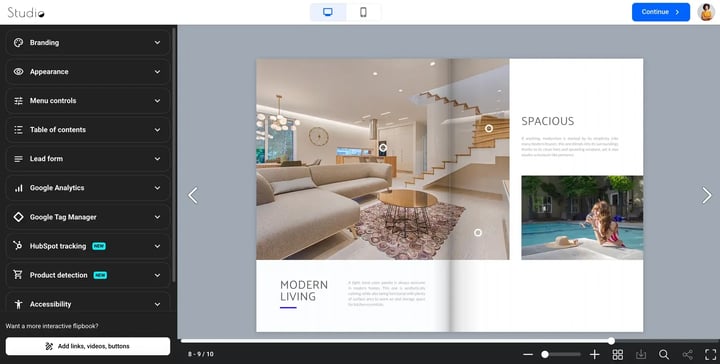
In the updated interface, these options will be grouped into a side navigation menu with four main areas:
- Branding
- Appearance
- Edit
- Add-ons
This new structure makes it easier to understand where each setting belongs:
New navigation structure
The Customize page will include four main sections in the left navigation menu:
1. Branding
This section contains all visual identity settings for your flipbook player.
You can configure:
- Your logo
- Accent color
- Background type and color
2. Appearance
You can use it to adjust options such as:
- Page transition (Flip / Slide / Scroll)
- Mobile page transition - Only works on phones. Embeds don't support this feature.
- Auto transition
- Flip sound - Flip sounds will be disabled on mobile devices and when the slide effect is selected.
- Skin
- Layout style
- Page shadows - Shadow on pages will be disabled when the slide effect is selected.
- Right-to-left orientation
- Animate interactions
- Add links highlight
- Text selection - Text and pop-ups are selectable when flipbooks are created from scratch or uploaded as vector PDFs. With older PDF conversions, only pop-ups are selectable.
Tip: When text selection is active, readers can highlight any text on the page, right-click to open the context menu, and click Share selected text. This copies a unique URL to their clipboard. When anyone opens this link, the player will automatically navigate to that exact page and highlight the selected text.
You can test this reader experience yourself using this example link with shared text.
- Detect unmarked links - Alerts you if any links in your document haven’t been marked or made interactive.
- Tooltip language
It also includes Menu controls, where you can choose which player options are available to readers:
- Always show navigation controls - Navigation controls are shown in full screen, even if hidden in normal view.
- Allow fullscreen
- Show navigation arrows
- Show navigation bar
- Show pages overview
- Enable search inside your flipbook
- Share options
- Show Shopping list - Allow readers to add products to their list and download it.
- Allow PDF download
- Allow flipbook printing
- Background audio - Add an MP3 audio that plays across pages in the background.
Note: At the end, you can choose to enable or disable the option to save these settings for future flipbooks. This applies only to appearance, branding, and menu controls.
3. Edit
This is a new section focused on editing your flipbook content, with quicker access to the Design Studio.
From here, you can:
- Open the editor to add links, videos, and interactive elements
- Upload or replace the PDF used for the flipbook
4. Add-ons
This section groups optional features and integrations that enhance your flipbook.
You can configure:
- Lead forms
- Table of contents
- Google Analytics
- Google Tag Manager
- HubSpot tracking
- Product detection
- Accessibility settings
Note: Have feedback about the new layout? Get in touch with us on the support chat and share your thoughts to help us improve your experience.
FAQs about the customize page redesign
Did any features get removed?
No. All customization features are still available; they’ve simply been reorganized into clearer categories for easier access.
Do my existing flipbooks change automatically?
No. Your existing flipbooks and their settings remain unchanged. The update only affects how options are displayed in the interface.
Will the customization workflow change?
No major changes were introduced. The workflow remains the same, with improved navigation and organization.
Can I switch back to the old layout?
Yes. You can switch back to the previous version at any time using the Switch option. This option will be available for the next 2 months to help you transition comfortably.
Can I update the customization settings programmatically with an API?
Yes. The Flipsnack API now let's you set all the customization setting above when you create or update a flipbook. For more information please Flipsnack API reference: methods, parameters, examples
.png?width=720&height=474&name=Switch%20to%20the%20old%20desing%20-mh%20(1).png)
Next steps
Need expert support?
Our team is here to help. Connect with our team experts or message us via the live chat for personalized assistance.