
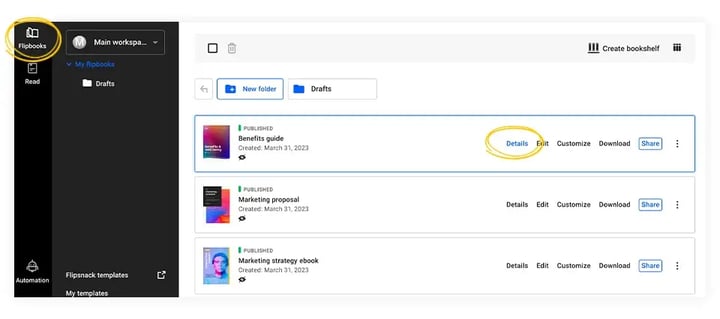
Whenever you publish something in Flipsnack, whether it’s a catalog, brochure, flyer, magazine, and so on, you have the option of showing, hiding, or editing the publication date. You can check out the publication date by going to Flipbooks, and then you’ll find it under the under the title of the flipbook.
Let’s see how you can show, hide, or edit the publication date.
Show or hide the publication date
If you want your readers to see when the content was published, you can show the publication date. From Content, click on the Overview button and you will be redirected to the Overview page.
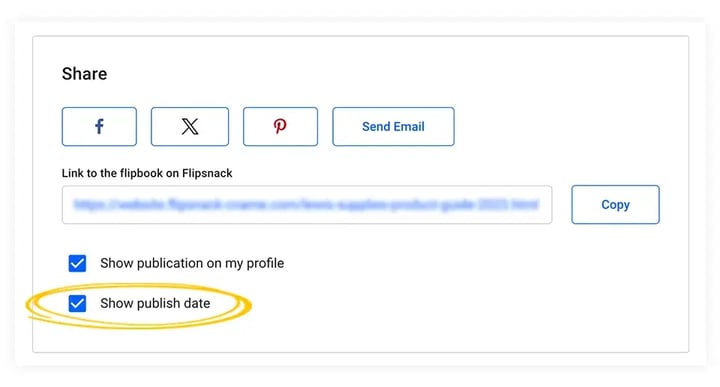
Scroll down to the Share section, and check the Show publish date box. On the other hand, if you want to keep the publication date private, simply uncheck the Show publish date box.
Modify the publication date
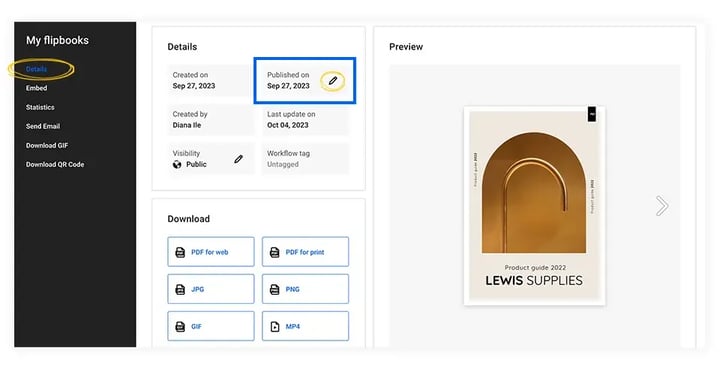
On your public profile, publications are listed in chronological order, based on the publishing date. If you want to rearrange your flipbooks on your profile, you can modify the dates, from the Overview page.
You also have the option to show or hide publication on your profile if you want to.
Don’t hesitate to contact us by chat if you have any questions.
Next steps
- Flipbook status labels and what each publishing status means
- How to schedule a flipbook to publish or deactivate
- Flipsnack publishing options explained: who sees a flipbook
Need expert support?
Our team is here to help. Connect with our team experts or message us via the live chat for personalized assistance.