
Overview
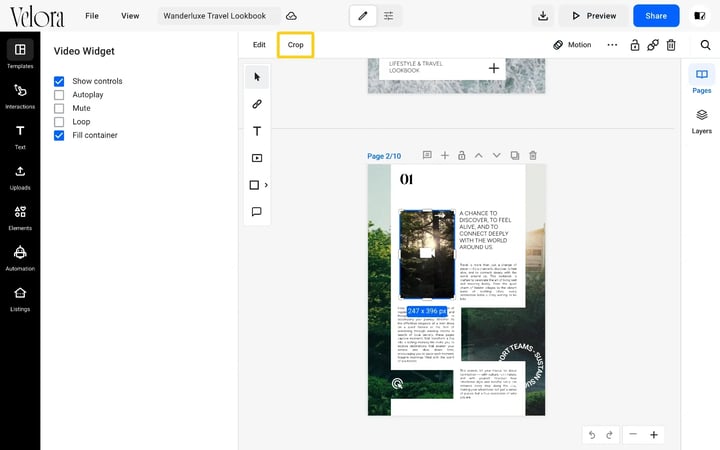
You can crop, resize and replace a video in the Design Studio. Select the video and click Crop to choose which part of it shows. Drag a corner handle to make it larger or smaller. Drag another video onto it to replace it, and the frame stays where it is.
💡 Benefits of cropping and replacing videos in place
- No re-editing outside Flipsnack: show the part of the video you want without exporting a new file.
- Layouts stay intact: a new video takes the position and size of the one it replaces.
This is useful wherever a page is designed around a fixed frame.
👥 Where cropping and replacing videos is helpful
- Seasonal updates: swap last season's product video for the new one without rebuilding the page.
- Templates: drop your own video into a template's video frame.
- Vertical layouts: crop a wide video to fit a narrow column.
Requirements
- Plan: Pro or higher. Other plans cannot add videos to a flipbook.
Crop a video
- Select the video on the page.
- Click Crop in the toolbar, or double-click the video.
The whole video appears behind the frame, so you can see what is cut off.
- To keep a fixed shape, open Ratio and choose Original ratio, 1:1 Square, 4:5 or 16:9.
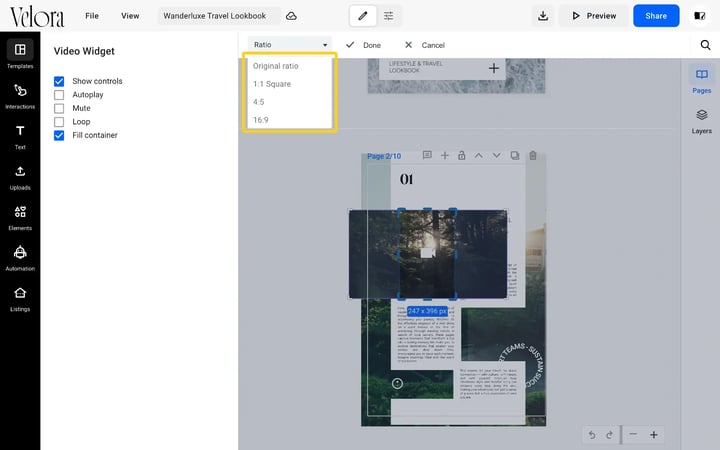
- Drag the frame's handles to choose the part of the video that shows.
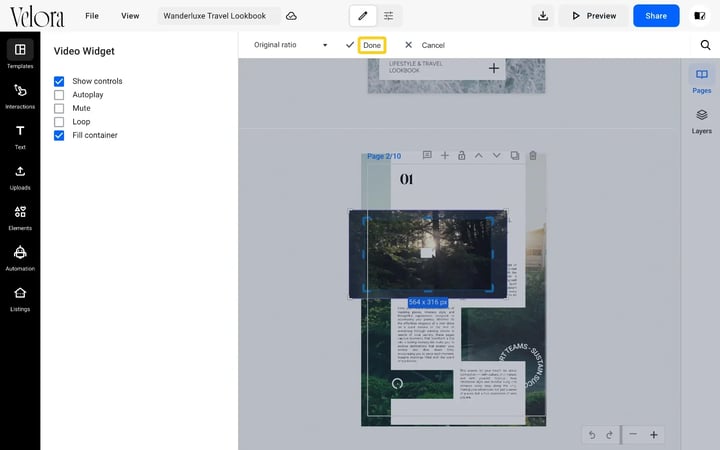
- Click Done to keep the crop, or Cancel to leave the video as it was.
Resize a video
The handles around a selected video do two different things:
- Corner handles make the video larger or smaller and keep its proportions.
- Side handles move one edge of the frame and crop the video on that side, without scaling it.
Replace a video
- Click Elements, then Stock videos, and find the video you want.
- Drag it onto the video you want to replace. A preview of the new video appears in the frame.
- Release the mouse button.
The new video takes the old video's position, size and playback settings, such as Show controls.
You can also drop a video onto an image on the page. The image becomes a video in the same frame.
Troubleshooting
- There is no Crop button: select the video first. The toolbar shows Crop only while a video or an image is selected.
- The video was cut off when I resized it: you dragged a side handle, which crops. Drag the side handle back, or use a corner handle to resize.
- The wrong element was replaced: press Ctrl+Z (Cmd+Z on a Mac) to undo, then drop the video again on the element you want.
Additional tips / FAQs
- Does cropping delete part of my video? No. Crop mode always shows the whole video, so you can open Crop again and choose a different part.
- Do I lose my playback settings when I replace a video? No. The new video keeps the settings of the one it replaces.
Next steps
- How to upload and manage videos in your Flipsnack flipbooks
- How to adjust autoplay, mute, and loop for embedded videos
- How to crop images in your flipbooks using the Design Studio
- Free stock photos and videos from Pexels and Pixabay
Need expert support?
Our team is here to help. Connect with our team experts or message us via the live chat for personalized assistance.