
Overview
Videos are a powerful way to make your flipbooks more interactive and engaging. Whether you're embedding YouTube, Vimeo, or uploaded files, Flipsnack gives you full control over how those videos behave inside your publication.
How to add and configure the video widget
To embed a video into your flipbook:
- Open your flipbook in the Design Studio.
- Click on the Interactions tab, then select Video widget.
.png?width=720&height=1004&name=image-mh%20(26).png)
.png?width=720&height=320&name=image-mh%20(27).png)
4. Use the Edit panel on the left to customize the playback settings. Once the widget is on your page, just add your link.
Available settings by video type
Each video option has different settings you can choose from:
YouTube
- You can set a tooltip for the widget;
- Show/hide controls;
- Autoplay;
- Mute;
- Loop;
-
Start at.
Tip: Start at sets the time where the YouTube video begins. Enter it as mm:ss. For example, 00:30 starts the video 30 seconds in.
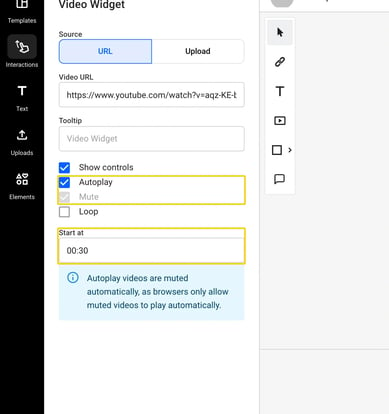
Note: When you tick Autoplay, Mute stays ticked and you cannot change it. The panel says: "Autoplay videos are muted automatically, as browsers only allow muted videos to play automatically."
How autoplay behaves for readers
- The video starts again each time the reader comes to the page.
- The video stops when the reader leaves the page.
- If you set Start at, the video starts from that time.
Vimeo
- You can set a tooltip for the widget;
- Autoplay;
- Mute;
- Loop.
Vimeo videos have no Start at field, so they always start from the beginning.
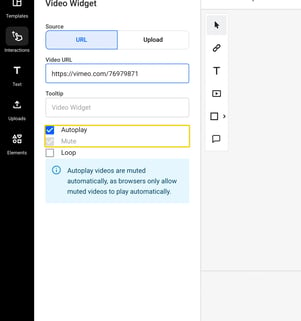
Important: In order for YouTube and Vimeo videos to function properly, they need to be set as public and shareable. Unlisted videos will not work. Additionally, Vimeo videos must also have a rating assigned to them.
Your own URL
- Show controls;
- Autoplay;
- Mute;
- Loop.
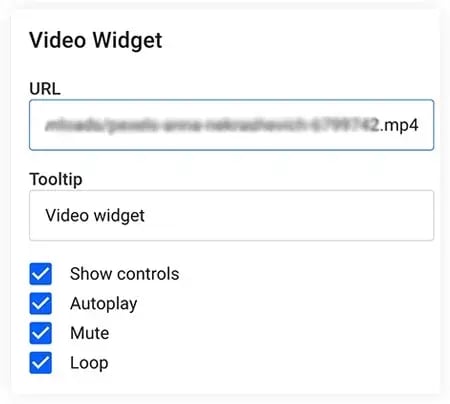
Important: The URL must end with .mp4 and must be a direct link to the video file itself, not a webpage that hosts the video. If the URL does not end in .mp4, Flipsnack will not be able to detect or play the video.
Uploaded videos
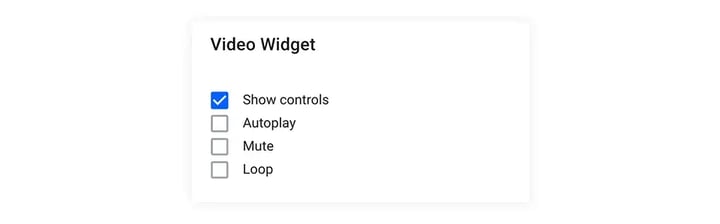
- Show controls;
- Autoplay;
- Mute;
- Loop.
Technical limitations with autoplay
Keep in mind that browser and device policies restrict video autoplay in certain environments. Chrome and iOS policies prevent the videos from autoplaying. Unlike iOS, which has no workaround for this limitation (see article here), Chrome allows the videos to autoplay if the video is muted. For this reason, the Mute option is checked by default, and it can't be unchecked, when you check the Autoplay option.
Here's an example of a flipbook where a YouTube video was set to autoplay. As you can see, when you get to page 2, where the video was embedded, it starts automatically.
Important: Due to a YouTube platform policy change, the Related videos option cannot be disabled anymore.
Next steps
- How to add interactions and elements to your flipbooks
- How to add a product tag
- How to add music and videos to flipbooks
- How to create shoppable catalogs
- How to publish your flipbook
- Adding photo slideshows in your publications
- How to automate multimedia elements in your digital flipbooks
Need expert support?
Our team is here to help. Connect with our team experts or message us via the live chat for personalized assistance.