
Overview
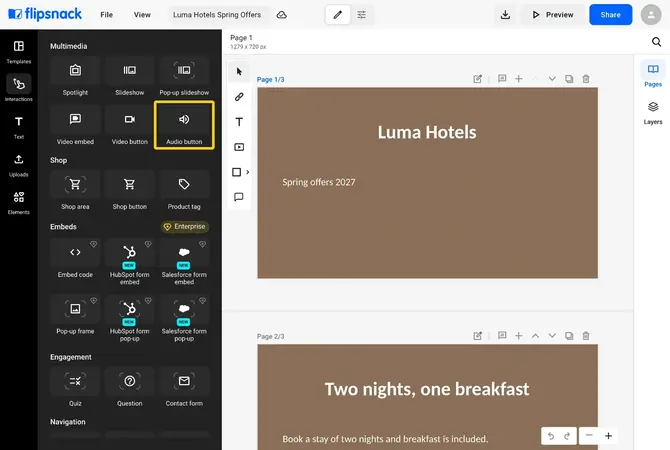
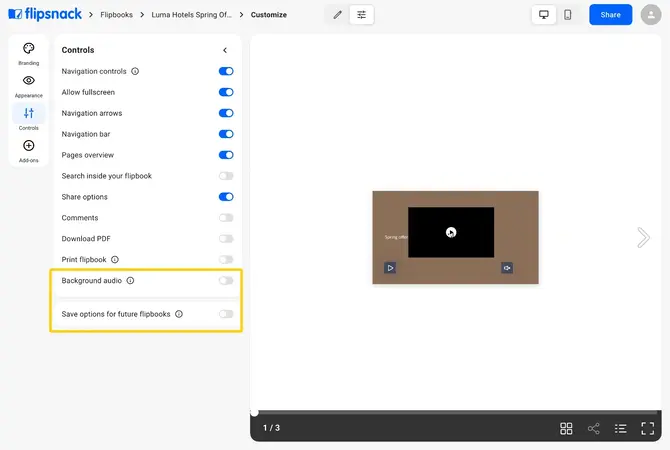
To add sound or video to a flipbook, open the Interactions tab in the Design Studio and place an Audio button, a Video button or a Video embed on the page. For one track that plays across the whole flipbook, turn on Background audio in Customize.
💡 Benefits of adding music and video to a flipbook
- Readers stay longer: sound and moving images hold attention more than a static layout.
- Stories come alive: add narration, interviews or a promotional video.
- Everything plays in the flipbook: readers do not leave for an external link.
- Clicks go up: interactive content invites more reader interaction.
The audio button, video button and video embed each sit on one page and play when a reader clicks them. Background audio belongs to the whole flipbook and plays behind every page, so choose it for a single soundtrack and the page elements for narration, clips or product videos.
Requirements
- Plan: Pro or above: check your plan or compare plans
- Embeds: the Embed code element for SoundCloud and Spotify players needs the Enterprise plan: contact sales
How to add music and audio files
- Click the Interactions tab and select Audio button under Multimedia.
- Drag the button onto the page.
- Click Upload MP3, then pick your audio file.
- Tick Trim audio to set where the track starts and stops.
- Write a hint in the Tooltip field, such as Click to play.
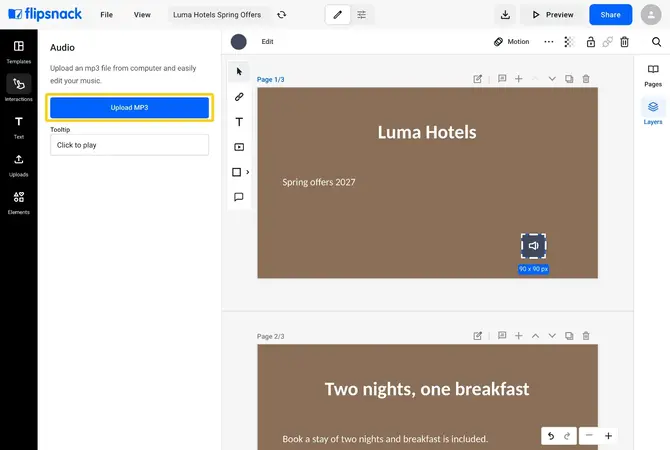
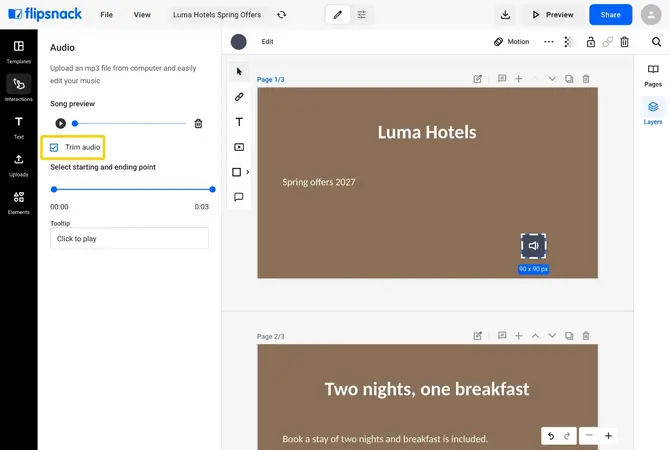
Readers click the audio button to play, pause or stop the track. The maximum file size for an audio file is 20MB.
How to set background audio for the whole flipbook
One audio track can play behind the entire flipbook instead of sitting on a single page.
- Open the flipbook and go to Customize.
- Open Controls and turn on Background audio.
- Click Add next to Audio file and upload your MP3.
- Click Share, then Update, so readers get the change.
How to embed external playlists
To play a SoundCloud or Spotify playlist, copy the embed code from that service and paste it into the Embed code element on a page. The Embed code element needs the Enterprise plan.
How to insert videos in the flipbook
Flipsnack has two video elements, and a third way to create motion from an image.
Option 1: Video button
The video opens in an overlay when a reader clicks the button.
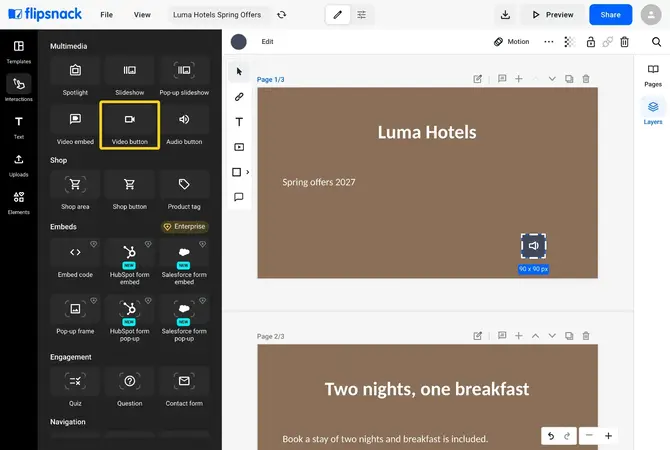
- Click the Interactions tab and select Video button under Multimedia.
- Drag the button onto the page.
Paste a URL link
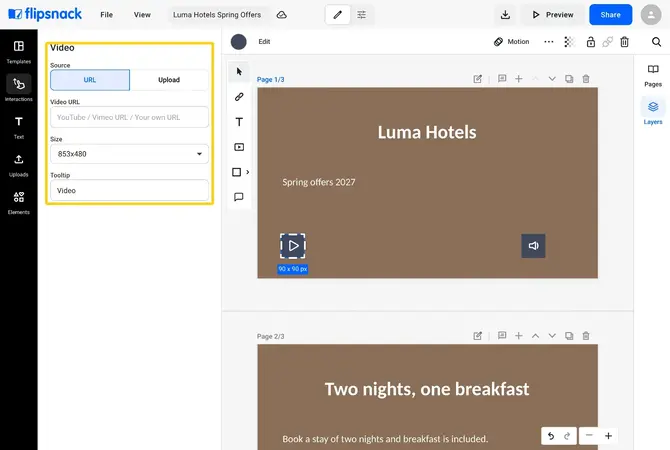
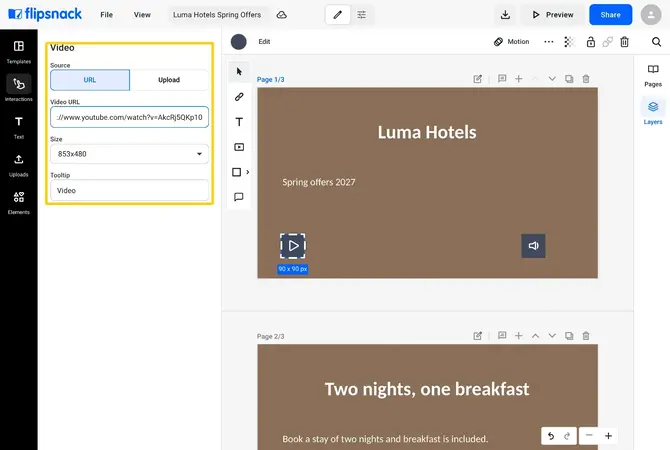
- Under Source, keep URL selected.
- Paste a link from YouTube, YouTube Shorts, Vimeo or a self-hosted video into Video URL.
- Write a hint in the Tooltip field.
Use a video uploaded to Flipsnack
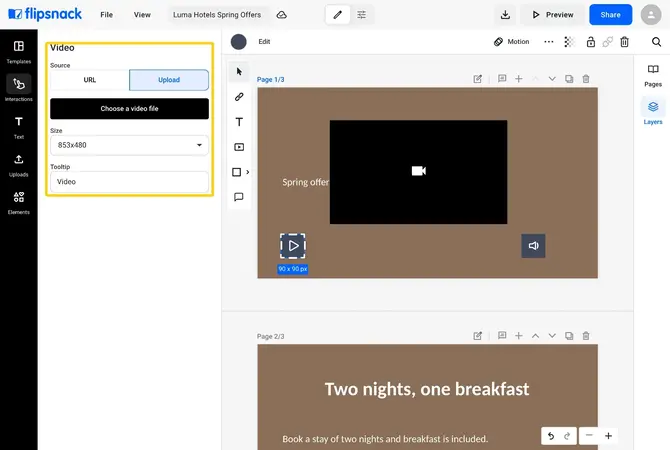
- Under Source, click Upload.
- Click Choose a video file to open the Media library.
- Pick one of your previously uploaded videos and click Insert. It plays in preview mode.
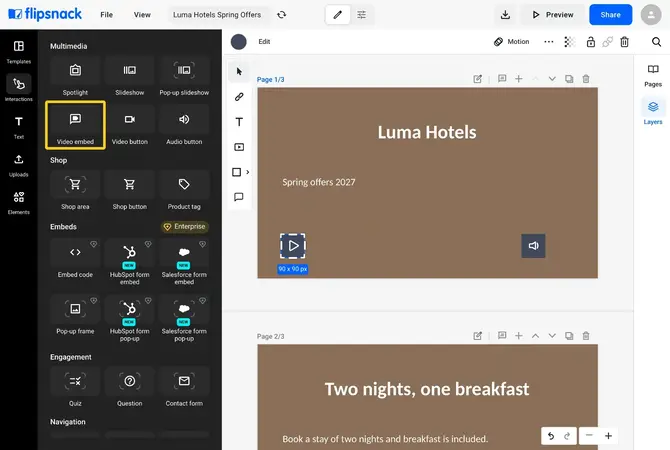
Option 2: Video embed
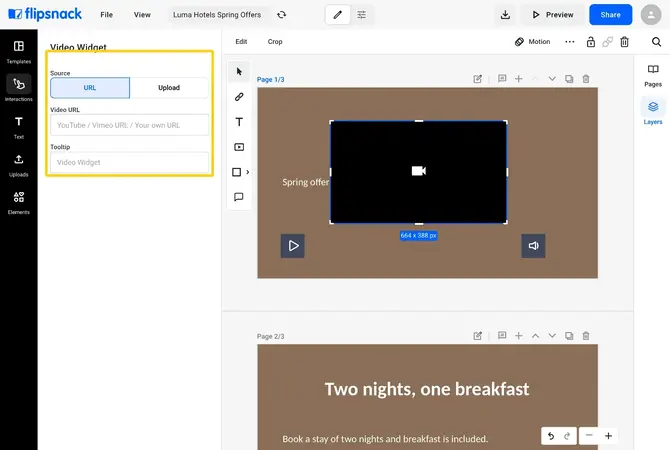
The video plays on the page itself, with no overlay. In the Design Studio the panel is named Video Widget.
- Click the Interactions tab and select Video embed under Multimedia.
- Drag the player onto the page and resize it by its handles.
- Paste a link from YouTube, YouTube Shorts, Vimeo or a self-hosted video, or click Upload to use a video from your media library.
- Write a hint in the Tooltip field.
Option 3: Create motion with Living Visuals (AI Animate)
With no video file, you can create motion from an image.
- Upload an image to your flipbook page in the Design Studio.
- Select the image on the page.
- Click AI Animate in the top toolbar.
- Flipsnack generates subtle motion from the image with AI.
The result behaves like a video widget, so you can change its playback settings the same way.
Troubleshooting
- Audio upload fails: confirm the file is an MP3 and does not exceed 20MB. Clear your browser cache or try another browser, and check your internet connection. If it still fails, note any on-screen error and share it with us via live chat.
- The Embed code element is locked: it needs the Enterprise plan. Contact sales to unlock it.
- An unlisted Vimeo video cannot be added: unlisted videos from Vimeo do not work in flipbooks. Use a public link instead.
- Autoplay video stays silent: browsers only autoplay muted videos, so readers hear it after they unmute.
- Vimeo autoplay does not start: some browsers do not support Vimeo autoplay.
Additional tips / FAQs
- Which audio format can I upload? MP3 only, up to 20MB.
- Can I play one track across every page? Yes. Turn on Background audio in Customize > Controls.
- Which video links work? YouTube, YouTube Shorts, Vimeo and self-hosted video links.
Next steps
- How to add interactive elements to flipbooks
- Adding photo slideshows in your publications
- How to automate multimedia elements in your digital flipbooks
- How to turn a static image into Living Visuals
Need expert support?
Our team is here to help. Connect with our team experts or message us via the live chat for personalized assistance.