
Overview
You can build a catalog from only the products you choose, instead of your whole product feed. Click Create, then Product catalog, and choose Selected products. Filter your master feed by a column, such as brand or category, then add the products you want to Your selection and click Generate. Flipsnack builds the catalog from those products only. When you sync, the products in your catalog get the latest data from your feed, and your selection stays the same.
💡 Benefits of building a catalog from selected products
- One feed, many catalogs: keep a single master feed and build a different catalog for every customer, season or brand.
- Large feeds stay manageable: filter hundreds of products down to the few you need, using the columns your feed already has.
- Exactly what you picked: the catalog holds only the products in Your selection.
- No spreadsheet edits: you choose products in Flipsnack, so the master feed stays untouched.
Use Selected products when you build a catalog for one audience from a shared product list.
👥 Where Selected products is helpful- Sales teams: make a catalog for one retailer with only the brands and products that retailer stocks.
- Distributors and wholesalers: split a large range into smaller catalogs by segment, such as bakery or food service.
- Marketing teams: pull a seasonal or single-brand edit out of the full product list.
Before you start, check that your account has the add-on and that your feed is ready.
Requirements
- Plan: Product catalog is on the Enterprise plan: contact sales
- Add-on: Selected products, a separate paid add-on on top of the Enterprise plan, activated by the Flipsnack sales team: contact sales
- Master feed: your full product list as a CSV file or a spreadsheet: prepare the spreadsheet
Activated by our sales team
Product catalog and Selected products are turned on for your account by Flipsnack. Our sales team sets them up with you.
Choose your master feed
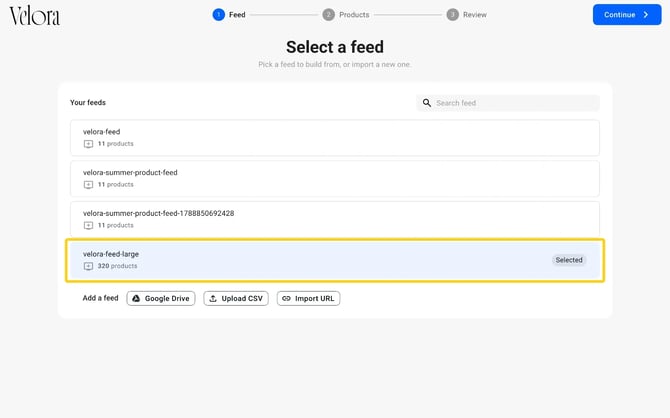
- Click Create, then Product catalog.
- Under Your feeds, select your master feed and click Continue.
Pick the products
The Select products step starts on All products, which builds the catalog from the whole feed.
- Click Selected products.
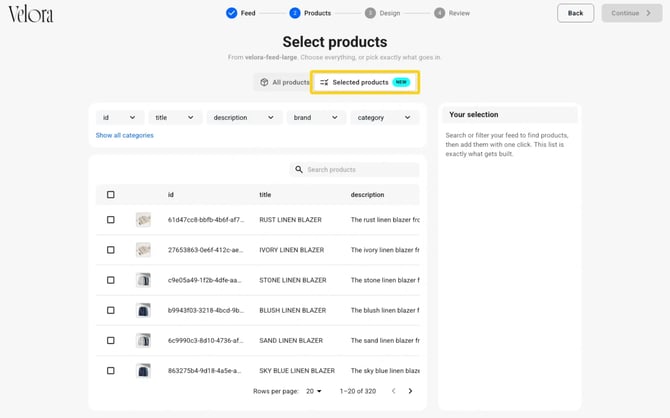
Each column of your feed becomes a filter above the product table. If the column you need is not shown, click Show all categories. It lists every column of your feed.
- Click a filter, such as brand, tick the values you want and click Apply.
- To narrow the list further, type in Search products.
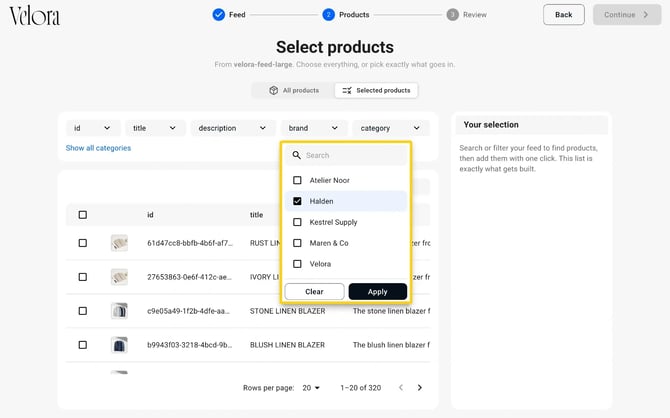
The table now shows only the products that match.
- Tick the products you want. The checkbox in the table header ticks only the products on this page. To take every matching product, click Select all above the table.
- Click Add in the bar at the bottom of the table. The button shows how many products you are adding.
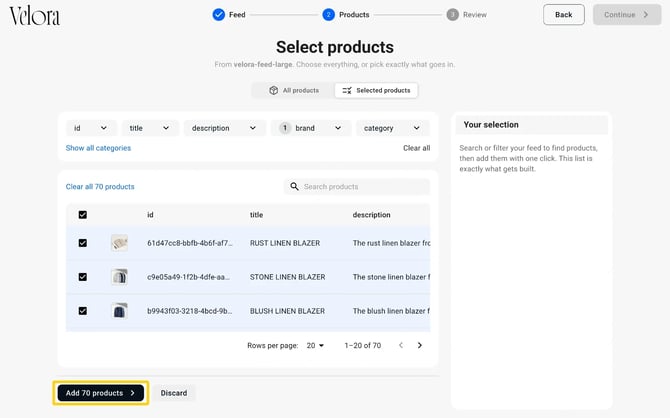
The products move to Your selection on the right. Only these products go into the catalog.
- Use Search selection to find a product in the list, or Clear all to start over.
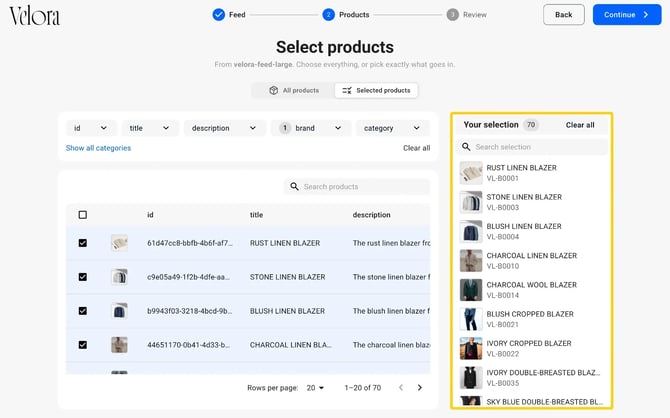
Products appear in the catalog in the order you added them. If you add several batches, each batch keeps the order of your feed.
- When your selection is complete, click Continue.
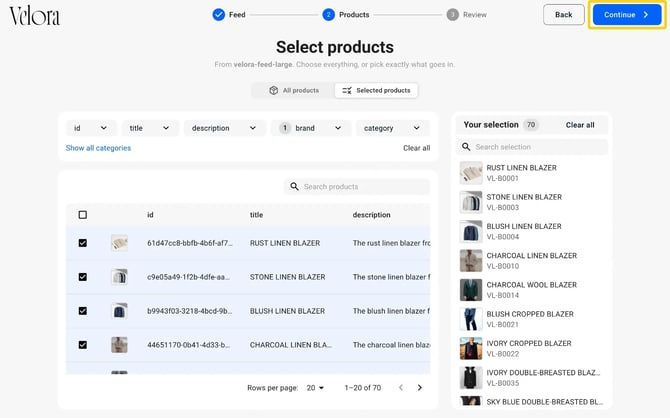
Choose a template
In the Design step, select one of Your templates or Default templates, then click Continue. The FS_template_name column is optional. It is how the products of one category get a different template. If your feed has it, Flipsnack applies the templates and skips this step. See how to choose a template.
Review and generate
The Review & generate step sums up your feed, the catalog name and how many products are selected.
- If your feed sets the templates, the Templates row reads From your feed, matched to your products.
- The catalog takes your feed's name. To rename it, click Edit next to Catalog name.
- Click Generate.
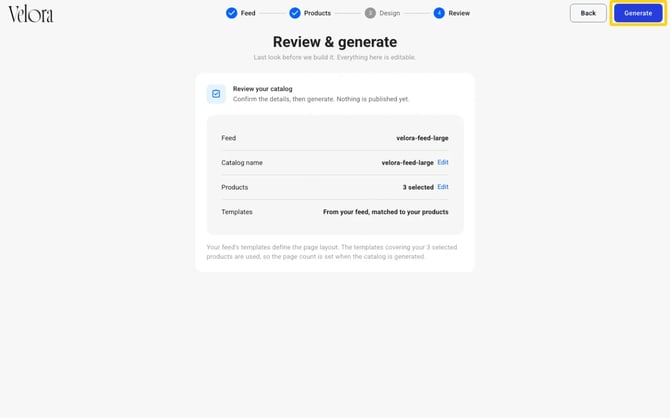
Flipsnack reads your feed and builds the catalog. To keep working while it builds, click Run in background. When it is ready, the catalog opens on its overview page, unpublished, so you can review it before you publish.
The whole selection, from the brand filter to Your selection:
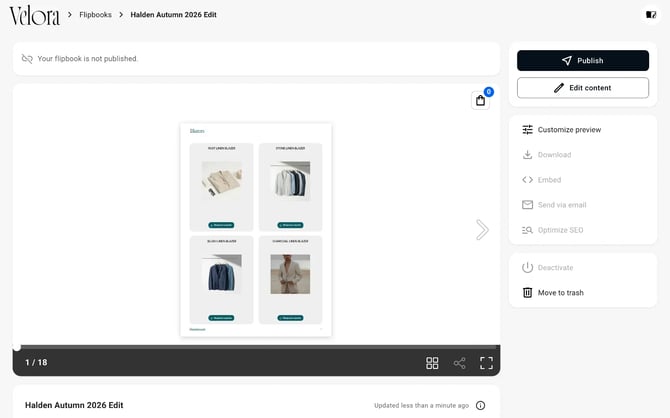
Important: when you sync, the products in your catalog get the latest data from your feed, such as prices and descriptions. The sync does not add or remove products: products you add to the feed are not added to the catalog, and products you remove from the feed stay in it. To add new products, build a new catalog from the updated feed.
When you update the feed, the catalog takes the new data for its products, such as prices and stock. See Update every catalog that uses a feed.
Troubleshooting
- Selected products is locked: the add-on is not active on your account. Click Contact us, or contact sales to turn it on.
- Continue stays greyed out: add at least one product to Your selection. Ticking products in the table is not enough; click Add as well.
- Only some of the products I selected are in the catalog: the header checkbox ticks only the page you are on. Click Select all above the table to take every product that matches the filter.
- A category has no template: if some products in the feed have no template, Flipsnack uses the template of the first product in the feed for them and shows a notification.
- The catalog does not generate: check the
FS_template_namecolumn. Every product must hold the template's name exactly as Flipsnack gave it; if one space or capital letter is different, Flipsnack cannot find the template.
Additional tips / FAQs
- What is the difference between All products and Selected products? All products builds the catalog from the whole feed. Selected products builds it only from the products in Your selection.
- Can I use columns I did not map when I imported the feed? Yes. Every column in your feed is available as a filter.
- What happens if I change a product's SKU in the feed? Flipsnack treats it as a new product. The product already in your catalog stops updating, and the new SKU is not added.
Next steps
- Create a catalog in Flipsnack with Catalog Generator
- How to prepare your spreadsheet product feed for automation
- CSV files for Flipsnack Automation: format, import, export
Need expert support?
Our team is here to help. Connect with our team experts or message us via the live chat for personalized assistance.