
Overview
The pages overview feature is ideal for flipbooks that have a large number of pages. It improves readability as it allows you to preview the entire content of the flipbook you are about to read and to quickly navigate to a specific page or chapter from your publication.
The pages overview feature works with both Classic and Modern player skins, regardless of your subscription plan. It works for uploaded PDFs and flipbooks made from scratch or with the help of a template.
How to add the pages overview feature to your flipbooks
The page overview feature is not active by default on flipbooks. However, you can easily activate it in the customization phase when creating a new flipbook or when updating an existing one.
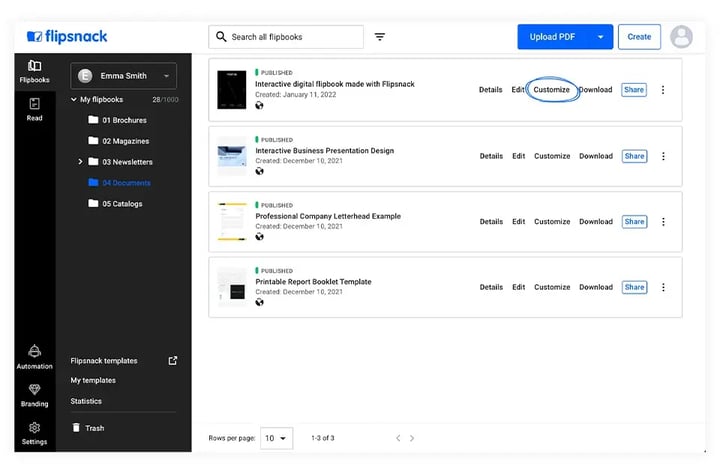
There are two ways to reach the Customize page: from Content or from the Design Studio.
For existing flipbooks, when on Content, click on Customize.
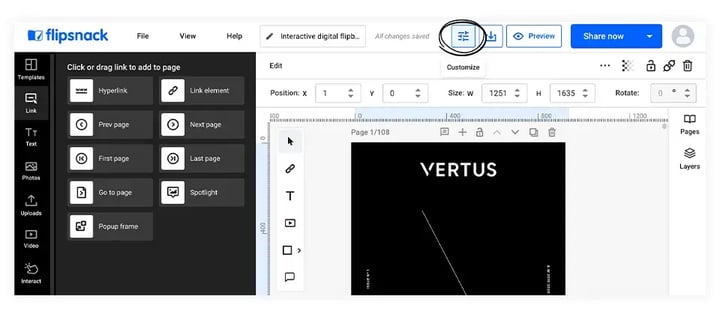
When creating or editing a flipbook in the Design Studio, click on the Customize button.
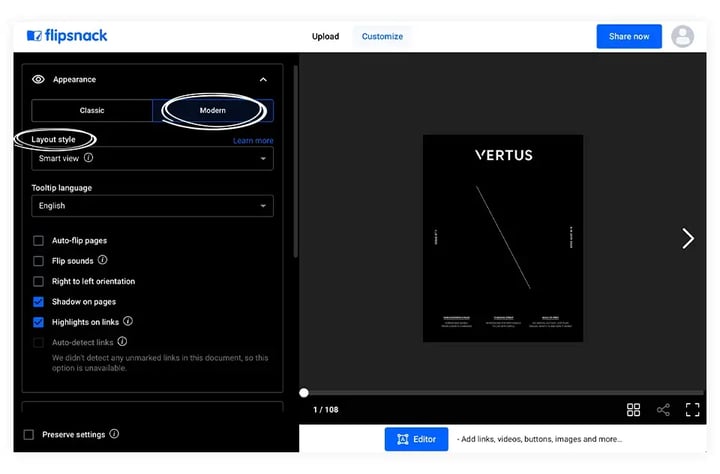
Once you are on the customization page:
1. Click on Appearance & branding and set the player to Classic or Modern. You can also choose any of the layout styles (smart view, single page view, two-page view), and the overview will adapt to the style.
2. Click on Controls and check the Pages overview checkbox. The Pages icon will appear on the control bar.
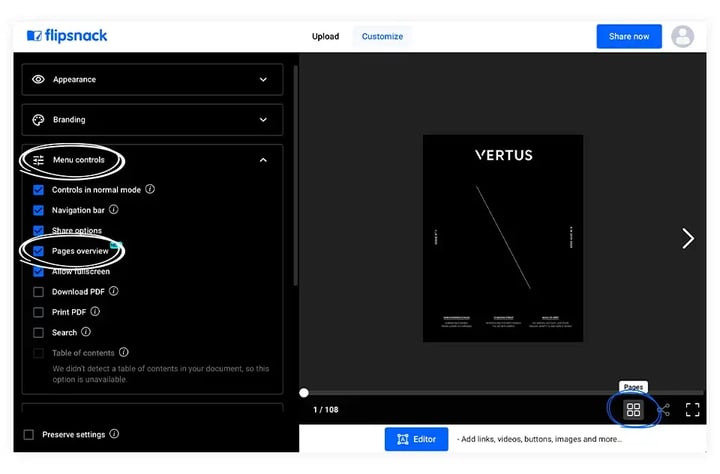
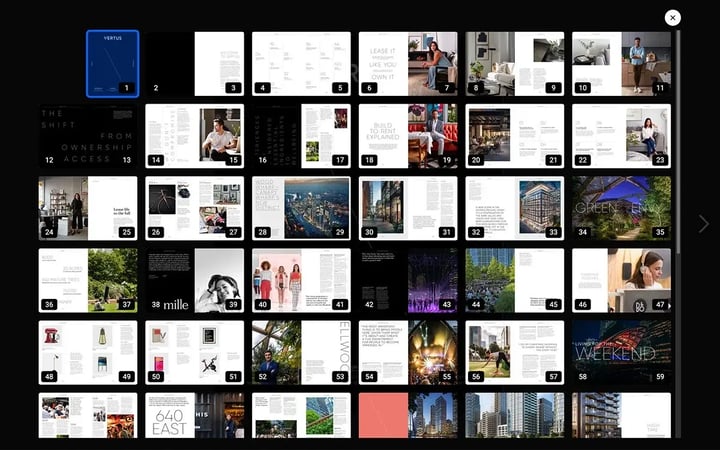
3. Click on the Pages icon on the control bar to open the overview. From there, you can navigate to any page by clicking on it.
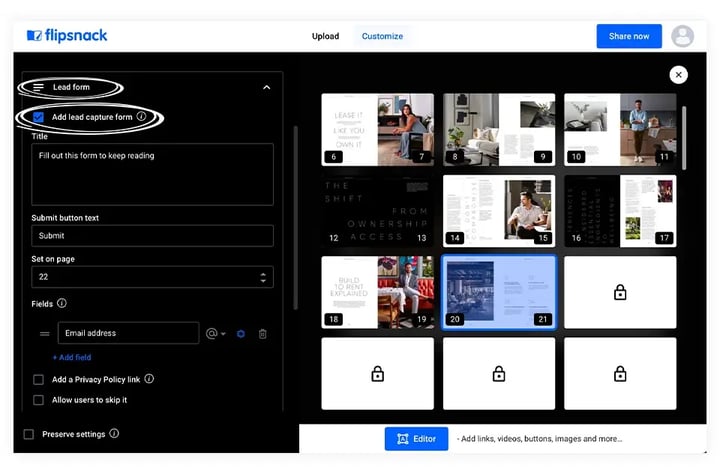
In case you have included a lead form in your publication, or if you are selling a subscription for your publications, the pages which are hidden behind the lead form will appear as locked.
For any questions, please contact our support team via live chat.
Next steps
Need expert support?
Our team is here to help. Connect with our team experts or message us via the live chat for personalized assistance.