
Overview
A player skin is the visual style your flipbook reader sees, and Flipsnack currently offers Classic and Modern, chosen from the Appearance button in the Customize window. Both are rebuilt on new technology for smoother reading and better performance than the older skins they replace. Flipbooks published before the switch keep working under the new skins.
Where can you find the skin options?
Upload PDF
If you created your flipbook by uploading your PDF, you’ll be automatically directed to the Customize window where you can hit the Appearance button and choose between the Classic and Modern skins.
Create from scratch
If you created your flipbook from scratch in Design Studio, click on the Customize button that’s in the right top corner which will take you to the Customize window. Here, you have to click on the Appearance button and choose between the Classic and Modern skins. Find out more about all the customization options available in Flipsnack.
We’re striving to come up with the latest technologies, so we hope you’ll enjoy the new player skins as much as we do!
Why are we retiring the old player skins?
The old Classic and Modern skins served us exceptionally well over the years, but as Flipsnack grew and developed more in both functionalities and complexity, we needed a new flipbook player.
The new Classic and Modern player skins are based on a new technology that offers a smoother and better reading experience and also improves responsiveness and performance across all devices.
The differences between the old and new player skins
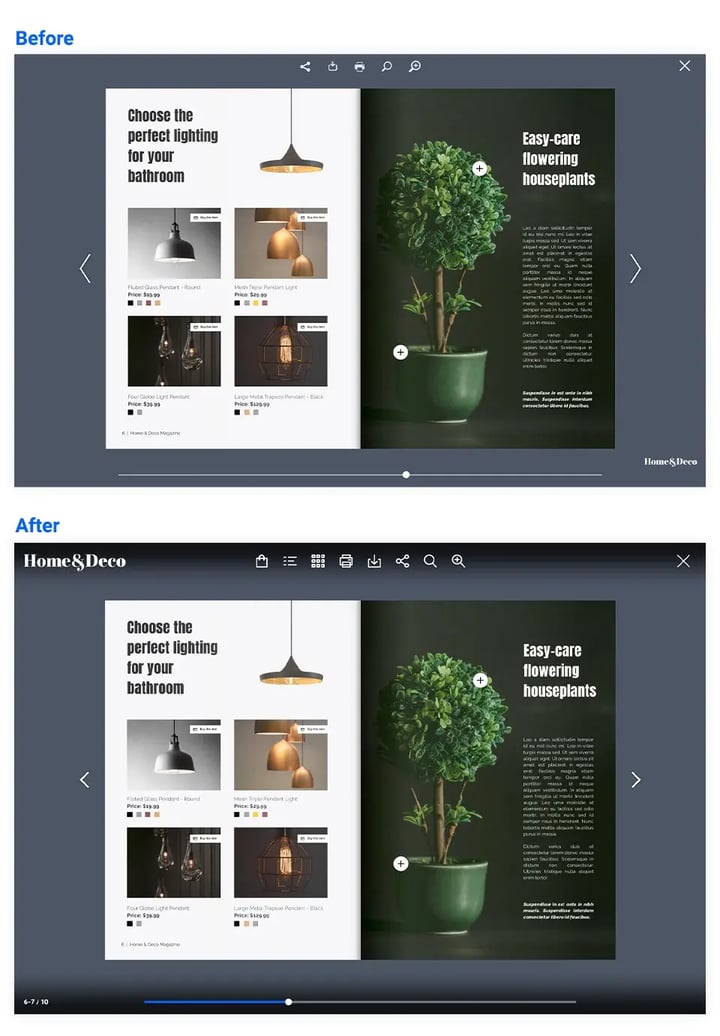
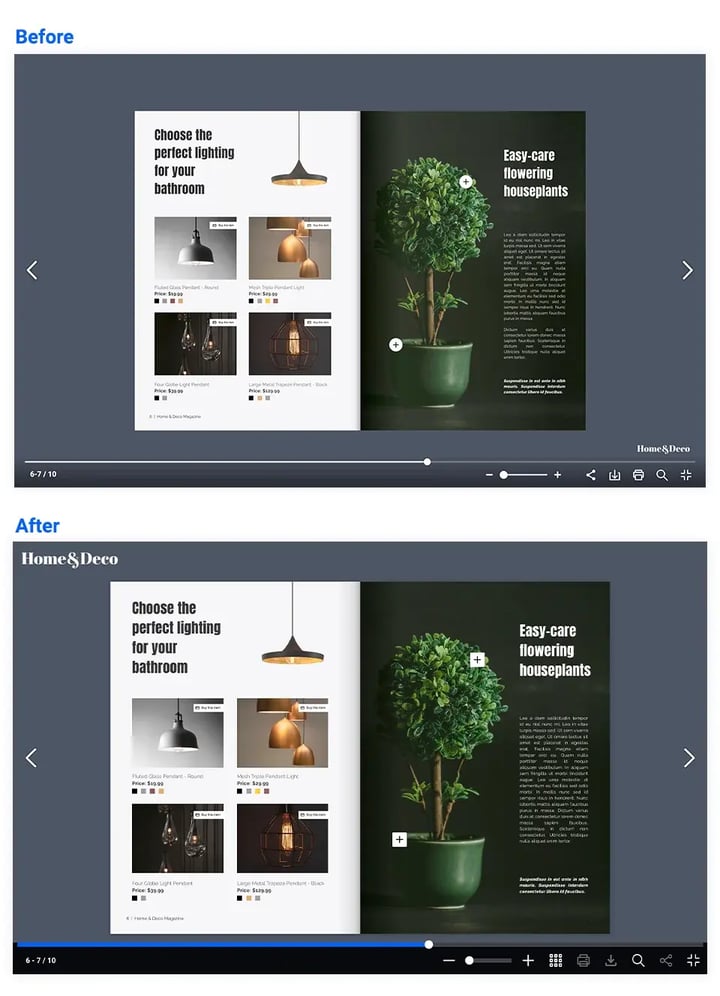
The new player skins are similarly looking to the old ones but with extra benefits and updates such as smoother animations, page overview function, and a more pleasant visual experience.
Check out the new technology and appearance below, exemplified by a product catalog created in Flipsnack
Classic
Modern
What happens to the already published flipbooks?
- The published flipbooks will keep their current appearance until you will edit and update them in Flipsnack.
- The embedded flipbooks will have to be updated in Flipsnack and re-embedded on your website in order to switch to the new skin.
Important: On mobile devices, all flipbooks will be displayed with the new Modern skin.
For any other related questions, please feel free to contact our lovely people from live chat support.
Next steps
- How do I change my flipbook's appearance settings?
- How do I customize my flipbook on the Customize page?
Need expert support?
Our team is here to help. Connect with our team experts or message us via the live chat for personalized assistance.