
Overview
Flipsnack offers three page view layouts for a published flipbook: Single page view, showing one page at a time; Two-page view, always showing spreads; and Smart view, which adapts between the two based on the reader's screen size and is the default. You choose the layout under Customize > Layout style. Two-page view is the only option for flipbooks built in double-page mode in the Design Studio.
This article is all about the way pages are displayed in the flipbook after you publish it.
In Flipsnack, there are 3 different layout style options available:
- Single page view - Displays one page at a time in the flipbook widget, regardless of the device size or browser size. We recommend this option if you want to use the pages as slides in a presentation and for other landscape-oriented flipbooks. For landscape publications, if you display both pages, they sometimes look a little bit small and hard to read.
- Smart view - It's called "smart" because it provides the best display solution based on the screen size. It displays one page at a time on mobile devices and 2 pages on laptop screens or computers, balancing readability with the elegance of a real-life-looking publication. This is the default setting for most flipbooks.
- Two-page view - Displays two-page spreads always, regardless of the screen size. It's also the only option available for publications designed in Flipsnack's Design Studio with the double-page mode enabled.
Changing the layout style can be useful sometimes. You can access it by going to Customize and selecting the desired option for Layout style.
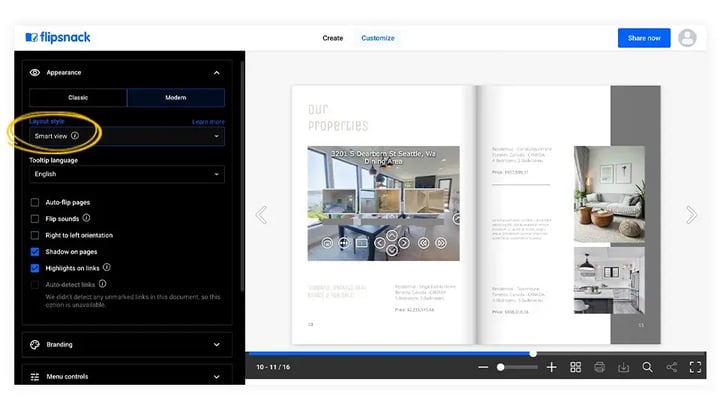
Why can't I change the Layout style?
If you designed your publication in our Design Studio and used the double-page layout, the Smart view and Single page view options will be grayed out. However, if you wish to make the other options available, there is a solution.
While editing your flipbook in the Design Studio, click on File in the top-left corner, then select Flipbook settings. Modify the page layout from Double to Single in the newly opened popup.
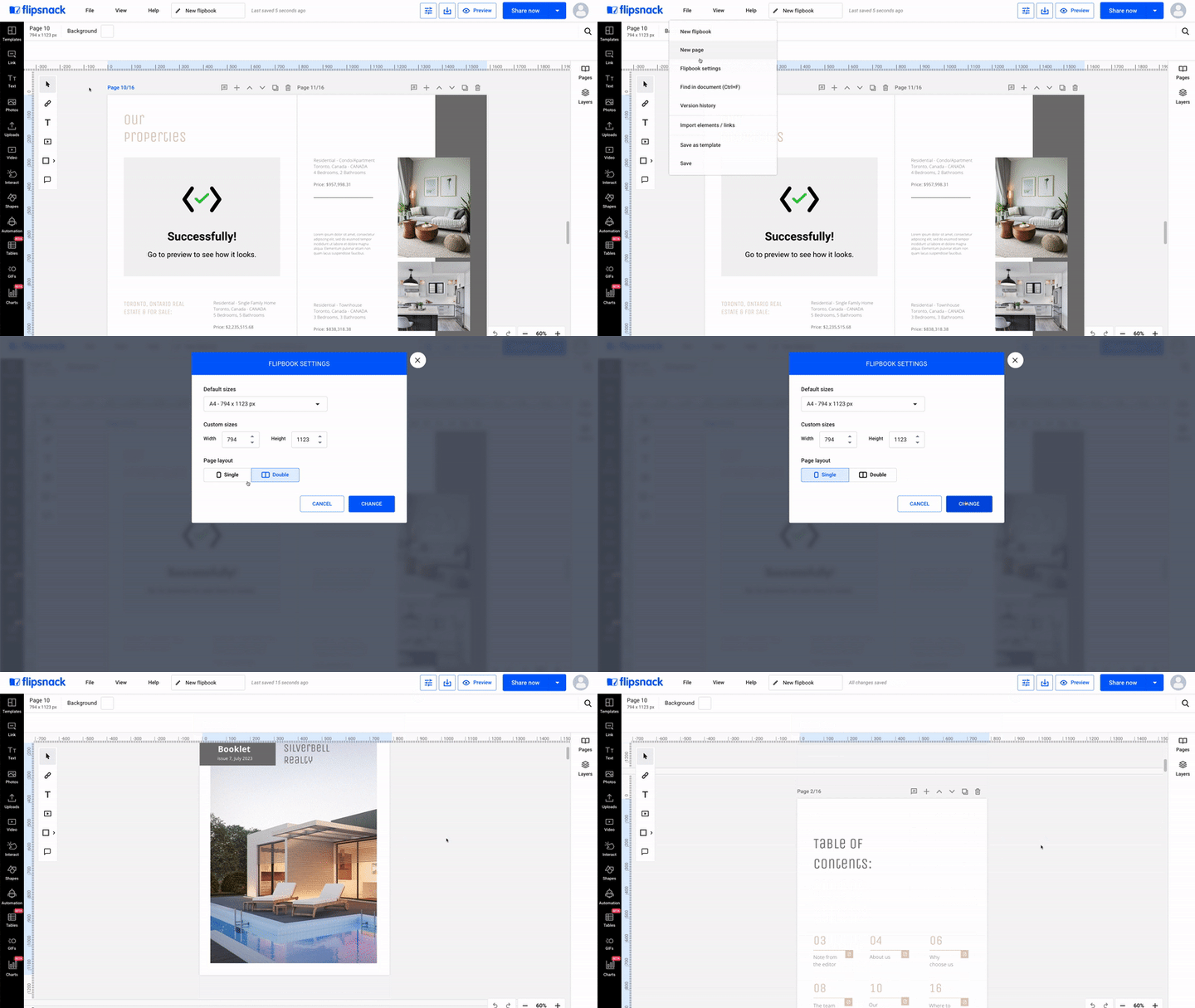
The Single page view option is available from the Starter plan.
Important: All design elements added in Design Studio across two pages (text boxes, pictures, etc.) with the Double page layout will be considered anchored to the left page.
So, if you switch to the Single page editing mode after you finish your design, the design element will only appear on the page on the left. This is because the design elements will not be automatically duplicated or split as you switch the design mode to a Single page layout.
For this reason, we recommend choosing a page layout that will suit your needs. Changing the layout after the design is complete is possible, but the process requires additional effort.
Also, remember that the design model you're using will affect the Layout style - how your publication appears on mobile and desktop devices.
If you have any questions or suggestions, please do not hesitate to contact us via live chat.
Next steps
- What is the difference between impressions and views in Flipsnack Analytics?
- What the Content tab holds and how it is organized
Need expert support?
Our team is here to help. Connect with our team experts or message us via the live chat for personalized assistance.