
Overview
Maintaining uninterrupted access to your Flipsnack account is essential for seamless operations. When a password is forgotten or compromised, Flipsnack provides a straightforward password recovery procedure to restore access promptly.
Requirements
- Plan: Enterprise: contact sales
Step-by-Step Guide
1. Initiate Password Recovery
- Navigate to the Flipsnack Sign-In page.
- Click on the "Forgot password" link located above the password input field.
.jpg?width=720&height=769&name=markuphero-RoIuROleCSKRLcezG6ZJ%20(1).jpg)
- Input the email address linked to your organization's Flipsnack account.
- Click the "Recover password" button.
.jpg?width=720&height=622&name=markuphero-dIjJms6yXR2g04FfwBVB%20(1).jpg)
- An email with a password reset link will be sent to the provided address.
- Open the email and click on the reset link.
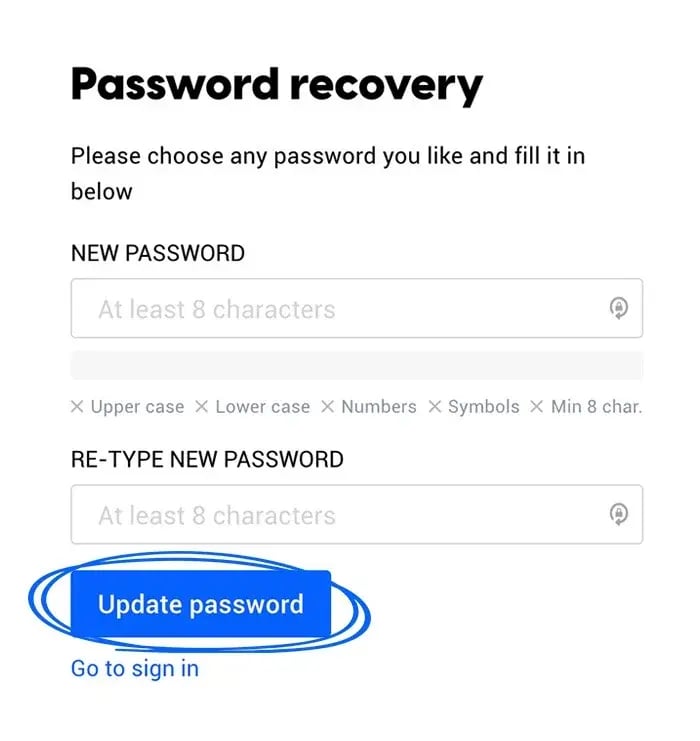
- Enter a new, secure password following Flipsnack's password guidelines.
- Click "Update password" to finalize the process.
Important considerations
- Email Delivery: If the password reset email does not appear in your inbox, check spam or junk folders. Ensure that your organization's email filters do not block emails from Flipsnack.
By adhering to this password recovery protocol, you can swiftly restore access to your Flipsnack account, ensuring the continuity of your digital publishing activities.
Troubleshooting
What to do if the password reset email doesn’t arrive
- Wrong email address: Make sure you are entering the correct email address associated with the account.
- Add to safe senders: Add Flipsnack to your email provider’s safe senders list so reset emails are not blocked.
- Request reset again: Request the password reset again from the Sign-In page.
What to do if the Sign-In page doesn’t work as expected
- Browser translation interferes: Turn off any automatic browser translation tools and refresh the Sign-In page. The sign-in and password reset processes work in English, and translations can interfere with login.
- Try another browser or device: Try logging in from a different browser or device to rule out compatibility or local caching issues.
- Account status not refreshed: Log out and log back in after account changes (for example, after a plan upgrade) so the account status refreshes.
What to do if your account is new, inactive, or under review
- New account activation email: If the account is newly created, look for an activation email and check the spam or junk folder.
- Account under review: If the account or a publication is under review, suspended, or otherwise restricted, contact our team via live chat for a manual review.
What to do if you cannot access the email address tied to the account
- Changing account email: Flipsnack Support can update the account email address, but this requires a security verification process. Reach out via live chat, complete the verification form requested by Support, and provide the required details so the team can confirm account ownership and update the email address.
What to prepare when contacting Support
- Info to give support: The email address associated with the account, or a link to a published flipbook if available.
- Error details to share: Any specific error messages or behavior you notice when attempting to sign in.
Next steps
- How to log in to Flipsnack: email, Google, Microsoft, SSO
- Password protected flipbooks
- Password change
- Why can't I change or reset my password?
- Ensuring a simplified account activation
- Why don’t I see my account upgrade reflecting when I log in?
Need expert support?
Our team is here to help. Connect with our team experts or message us via the live chat for personalized assistance.