
Regularly updating account passwords is a fundamental practice to prevent unauthorized access and protect sensitive information. Flipsnack advises organizations to change their passwords periodically and will prompt a reset if they haven't been updated within 12 months.
Step-by-Step Guide
1. Access Account Settings- Log in to your organization's Flipsnack account.
- In the top-right corner, click on your account image and select My Account.
.jpg?width=720&height=1574&name=markuphero-lsbulV1I1Rn7wZsBL9NK%20(1).jpg)
- Within the Account Details tab, locate the password section.
- Click on Change to initiate the password update process.+
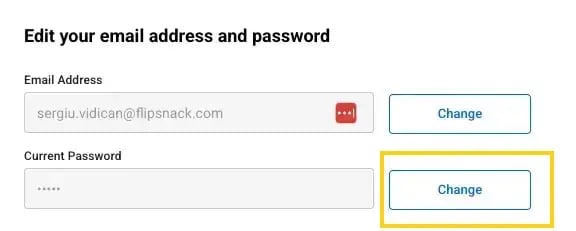
- Enter your current password for verification.
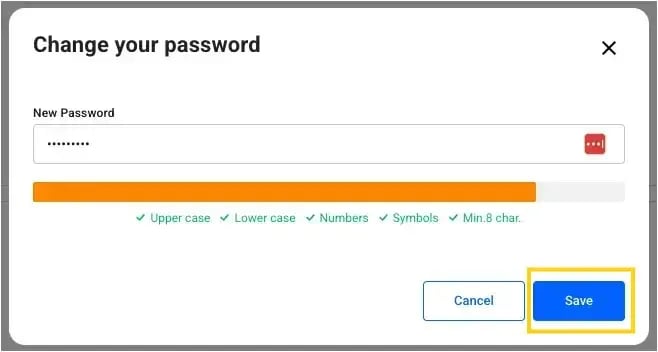
- Input your new password, ensuring it meets the following criteria:
- At least eight characters in length.
- Includes uppercase and lowercase letters.
- Contains numbers and symbols.
- Click Save Changes to finalize the update.
Important Considerations
- CAPTCHA Verification: Flipsnack employs CAPTCHA to distinguish between genuine users and automated bots. If unusual activity is detected, such as multiple failed login attempts, you may be prompted to complete a CAPTCHA verification.
- Password Complexity: Utilizing complex passwords enhances security. Consider using a combination of letters, numbers, and special characters to create a robust password.
- Regular Updates: Implement a schedule for periodic password changes to maintain optimal security.
Next steps
- How to log in to Flipsnack: email, Google, Microsoft, SSO
- Password protected flipbooks
- Password recovery
- What to do if you encounter log-in or password-related issues
Need expert support?
Our team is here to help. Connect with our team experts or message us via the live chat for personalized assistance.