
Overview
The Pages panel in the Design Studio lets you reorder, duplicate or delete flipbook pages, opened by clicking the arrows in the top-left corner of the Pages slider. You select multiple pages with Ctrl+click (Cmd+click on Mac) or a range with Shift+click, then drag them into place or delete them together. Pages created from scratch don't display thumbnails; only uploaded pages do.
In case you didn't know, Flipsnack's Design Studio has a super cool feature that allows you to organize and work with your pages way easier, thus saving you a lot of time!
We are talking about the Pages panels, and you can reveal it by clicking on the arrows from the top left corner in the Pages slider. In order to hide it, simply click on the arrows again, as shown below.
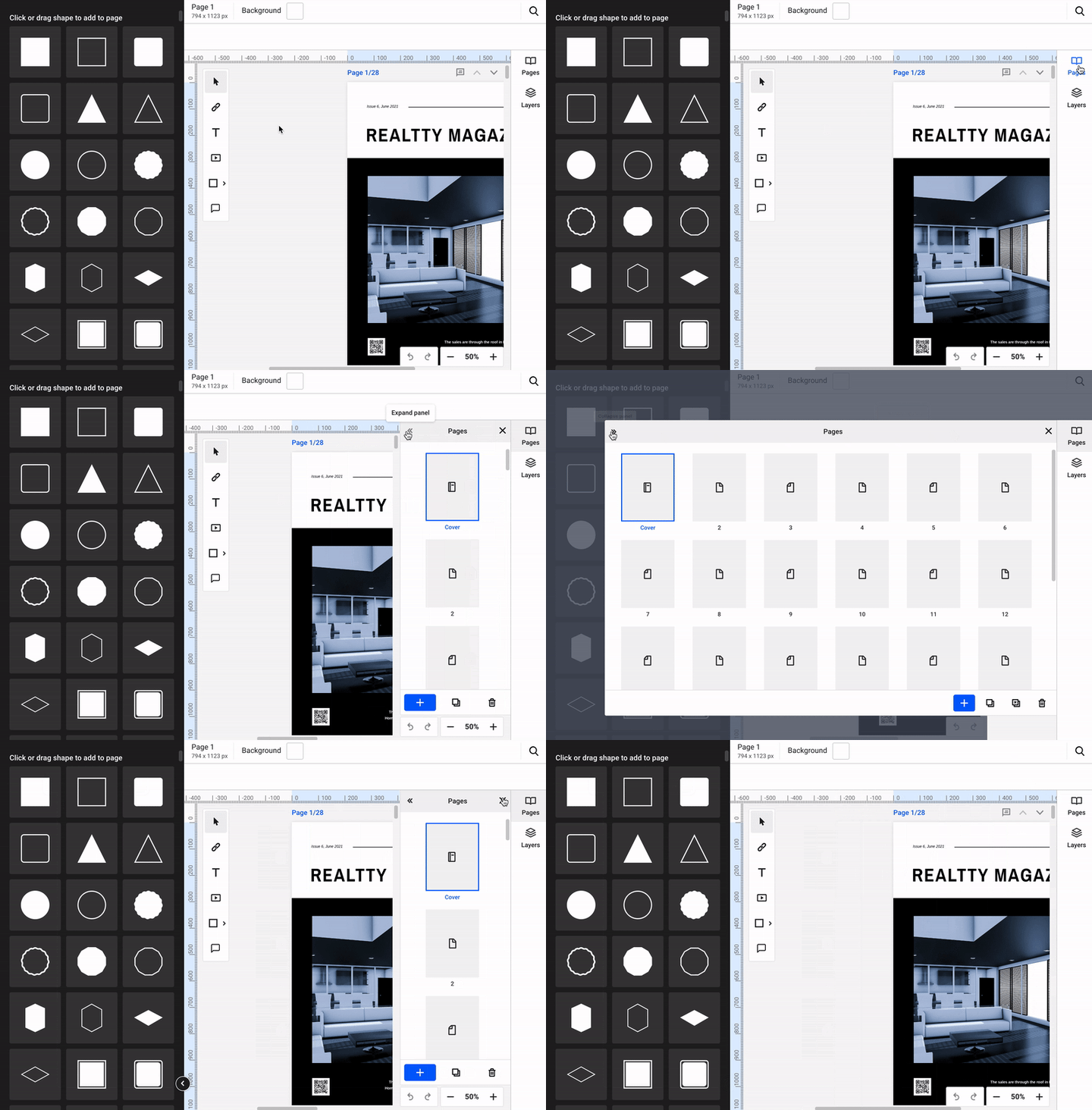
Once you have opened the panel, you can select multiple pages using CTRL + click on a Windows device (or CMD + click for a Mac device), and then drag them where you want inside the flipbook.
If you wish to select a specific section, you can keep Shift pressed and click to include a larger number of pages in one go.
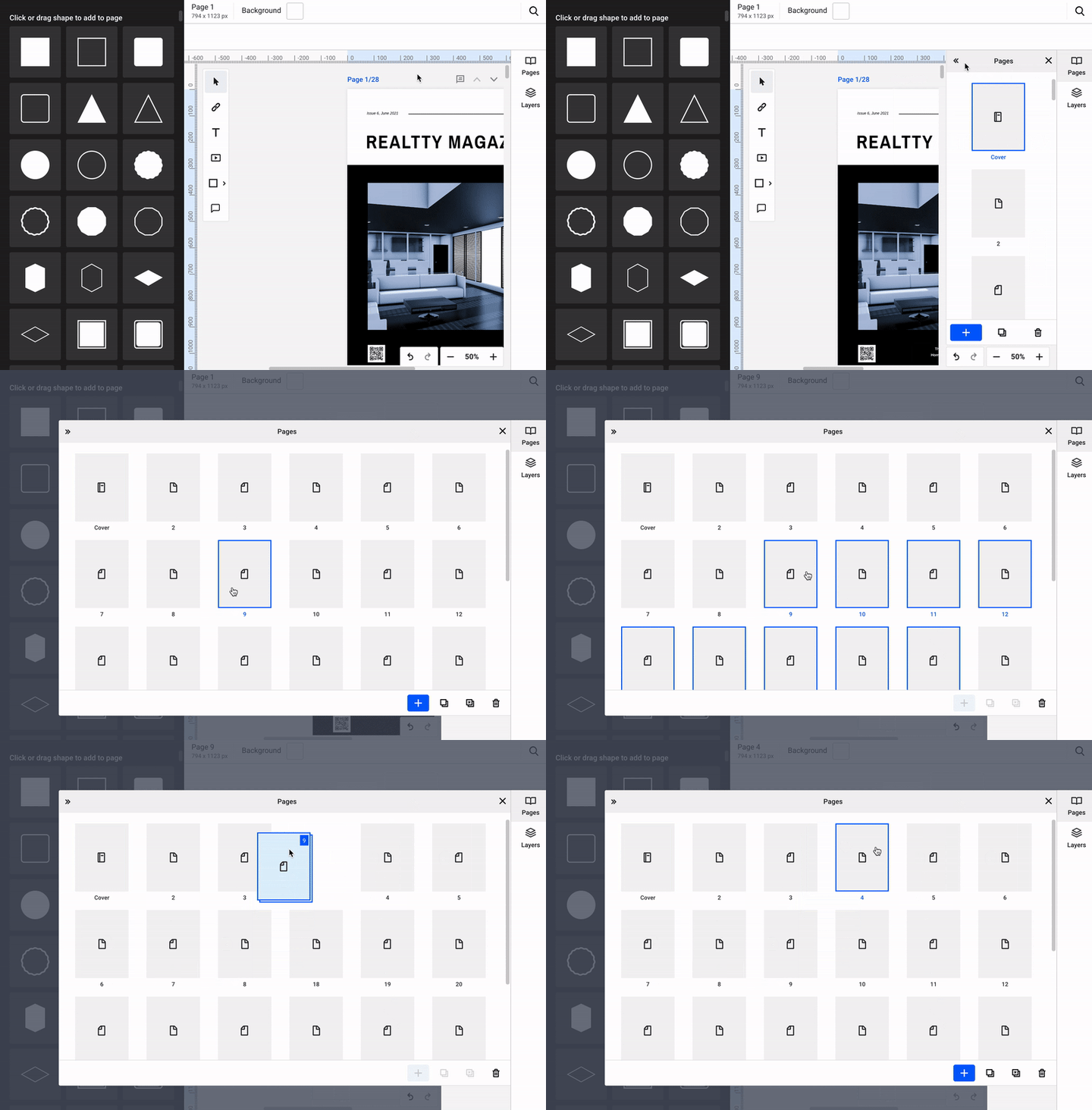
Also, if you want to deselect a page, you just have to click on it again and it's done.
If you want to delete multiple pages at once, you can easily do that by selecting the pages you want to delete and clicking the delete button. Here's more information about multiple-page delete.
You might also be interested in learning more about organizing pages when designing a flipbook.
Important: pages that are created from scratch will not have thumbnails. Thumbnails are displayed only for pages uploaded as PDF or JPG.
Next steps
- How to organize, delete, or replace pages in Design Studio
- How to delete multiple pages from a flipbook all at once
- Pages overview: preview every flipbook page and jump to one
Need expert support?
Our team is here to help. Connect with our team experts or message us via the live chat for personalized assistance.