
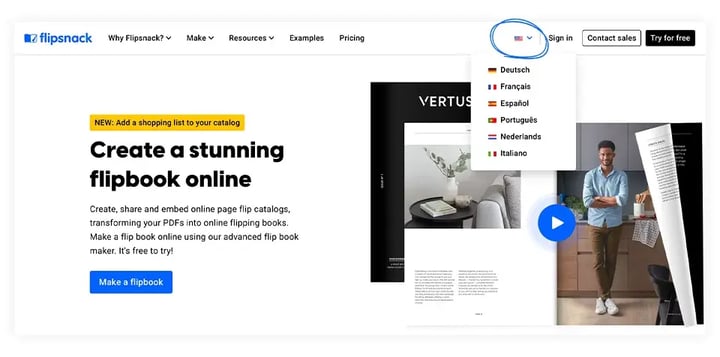
Because our users come from different parts of the world, we wanted to make our website more accessible to everyone. That's why Flipsnack is translated into 6 languages and easily displays our website in your preferred language. Besides this, you can also change your flipbook player's language.
Let's take them one by one and see how to do it.
How to change the language of the website
The default language of the website is English. To change its language, go to Flipsnack and hover over the flag icon next to the Flipsnack logo in the navigation bar. A drop-down menu will reveal the available languages: German, French, Spanish, Portuguese, Dutch, and Italian. Simply click on one of the languages to change it.
How to change your flipbook's language
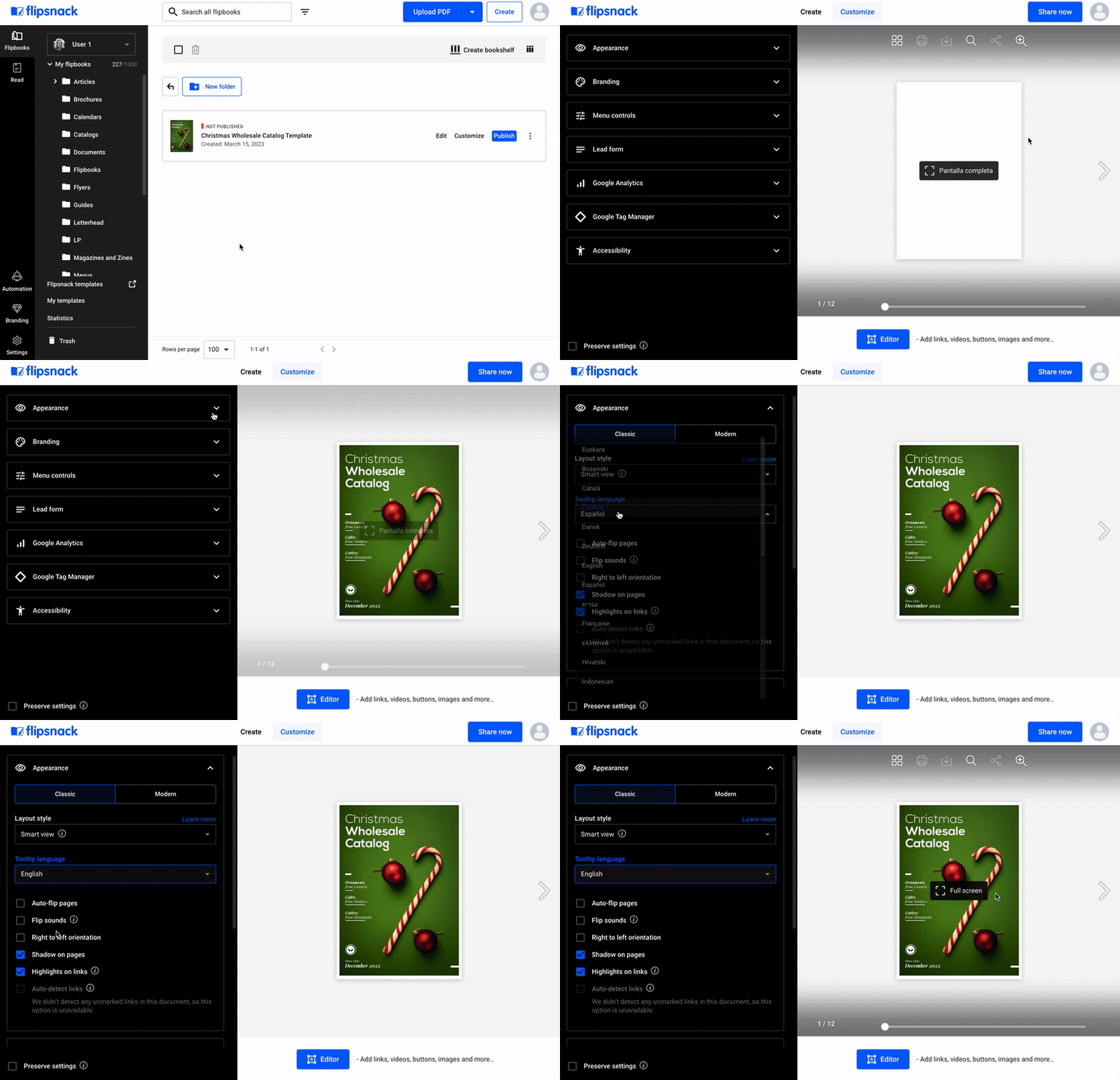
You can also change the language of your flipbook's player. All you have to do is go to the Content page, click on your desired flipbook’s Customize button, then on Appearance. Next, click on the Tooltip language and select the preferred language. You can also make these changes while editing a flipbook by clicking on the Customize icon in the upper bar of the screen.
Important: You cannot change the language settings in our Design Studio.
If you have any difficulties, please contact our support team via live chat.
Next steps
- How to change the language of Flipsnack's tooltip button
- How to change Flipsnack's tooltip and website language?
Need expert support?
Our team is here to help. Connect with our team experts or message us via the live chat for personalized assistance.