
Overview
When you upload a PDF, Flipsnack AI reads the document and gives the new flipbook a clear title. A file named apexcat_FINAL_v3 (2) copy.pdf becomes a flipbook named Apex Motors Car Catalog. You do not have to rename each upload by hand, and your flipbook list stays easy to search.
The AI PDF name cleanup is on for all Flipsnack plans. There is no setting to turn on.
How the AI names your flipbook
- Go to Content > Flipbooks and upload a PDF. You can drop the file on the list.
- Flipsnack converts the PDF. While it converts, the new title already shows at the top of the page, next to Flipbooks.
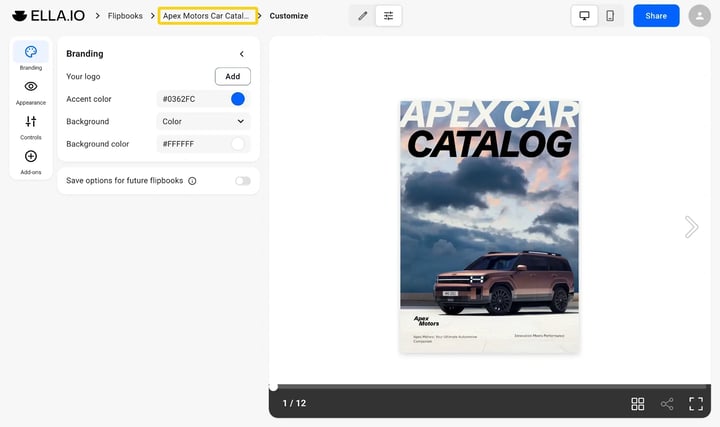
- The flipbook shows with the same title in your flipbook list.
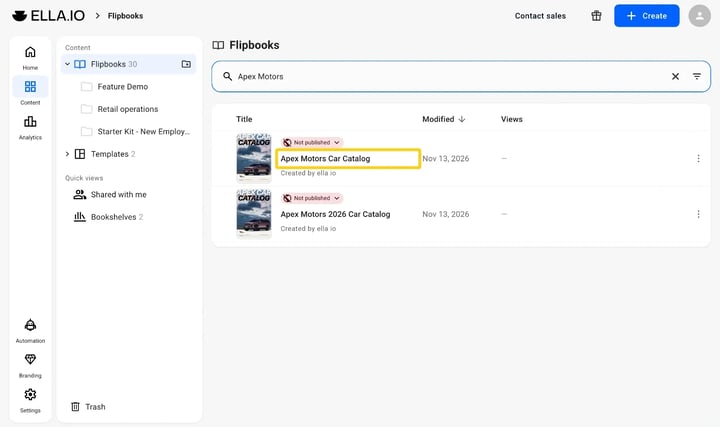
The AI takes the title from the text in the document, for example the cover. The same file can get a slightly different title if you upload it again.
Change the title
If you want a different title, rename the flipbook:
- In Content > Flipbooks, click the three-dot menu of the flipbook.
- Click More options, then Rename.
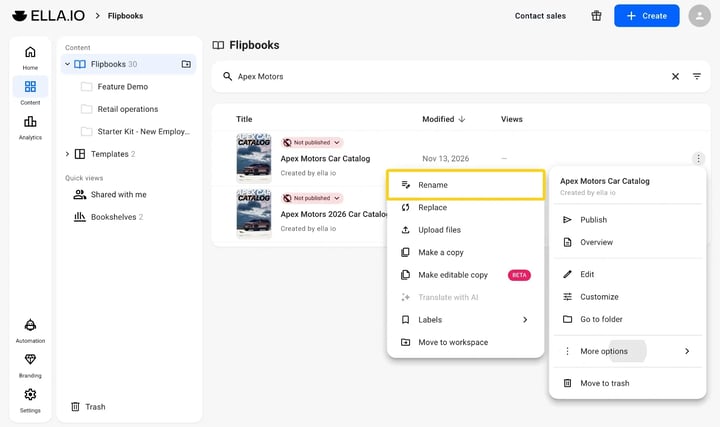
- Type the new title and save it.