
Overview
Learn why the "Created with Flipsnack" watermark badge appears on your downloaded PDF documents and how to remove it to deliver a clean, fully branded experience to your audience.
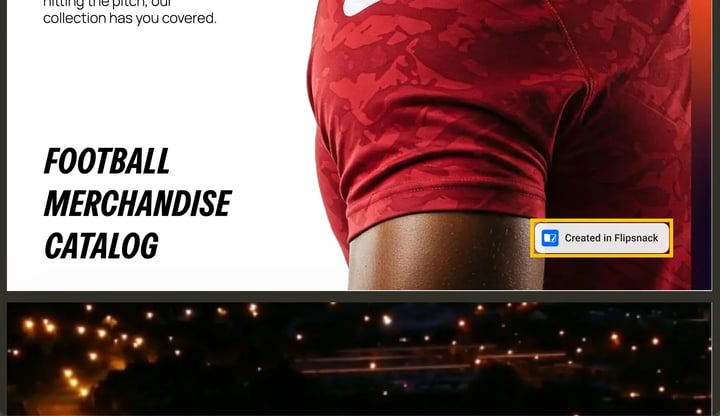
Understanding the watermark badge
Flipsnack allows users on Free accounts to download PDF versions of their publications. This feature lets you quickly save, preview, or share your work offline.
Because these files are exported from a free or trial tier, the system automatically embeds a default logo badge into the bottom-right corner of your pages.
How to remove the badge
If you are presenting your documents to clients or stakeholders, you can remove the watermark badge by purchasing any of our paid plans. You can view our available options on the Flipsnack pricing page.
Once you upgrade to a premium subscription, your downloaded PDFs will automatically be exported clean and completely free of any Flipsnack watermarks or branding.
Tip: Use the Preserve settings checkbox on your Customize page to apply your visual and branding options automatically to all future flipbooks.
Step-by-step watermark removal flow
To remove the watermark badge during your download process, follow these three simple steps:
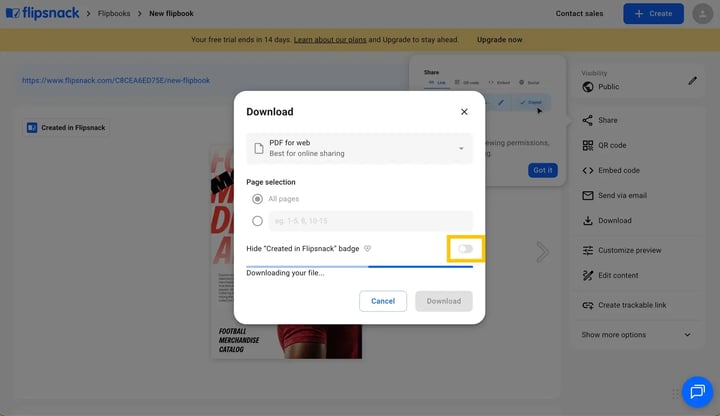
- Open the download menu: Locate your flipbook in your dashboard or inside the Design Studio, and click on the Download button.
- Toggle the badge settings: In the Download pop-up, turn the Hide "Created in Flipsnack" badge toggle on.
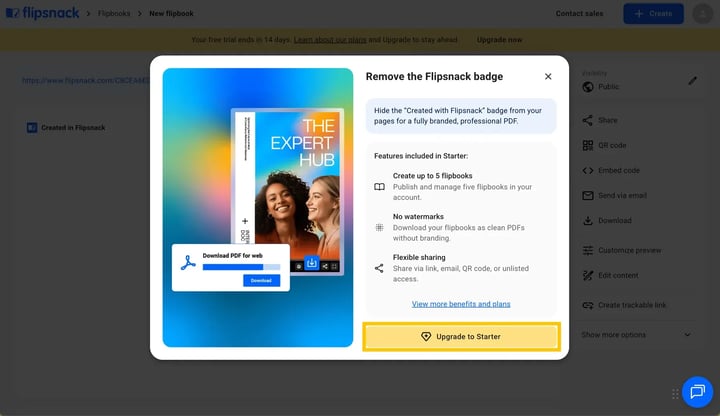
- Complete the upgrade: If you are using a free account, click the Upgrade to Starter button (or choose a higher plan) in the upgrade window to save your fully unbranded, professional PDF.
If you are on the proper account and still see the watermark, please contact our support team for help.
Next steps
- How to download your flipbook as a PDF — Learn more about optimizing exports for high-quality web or print use.
- Flipsnack premium pricing plans explained — Compare the exact page capacities, file sizing limits, and premium features of our paid options.
- Removing the Flipsnack player watermark — See how to remove all branding indicators from your embedded flipbook viewer widgets.
Need expert support?
Our team is here to help. Connect with our team experts or message us via the live chat for personalized assistance.