
Overview
Webhooks allow you to automatically send data from your flipbook to other applications. When someone fills out a contact form in your flipbook, their submission can be instantly sent to a tool of your choice.
💡 Benefits of using webhooks for contact forms
- Real-time data transfer: Send contact form submissions instantly to other tools
- Better lead management: Centralize all leads in your CRM or database
- Automation-ready: Trigger workflows without manual exports
- Improved response time: Act on new inquiries as soon as they happen
This is useful when you want to centralize leads, trigger workflows, or notify your team without manually exporting data. Instead of checking submissions inside Flipsnack, you can connect your contact form to platforms like CRMs, automation tools, or internal systems.
With webhooks, every new submission triggers a real-time data transfer. This means your team can act faster and keep everything in sync across tools.
Important: Webhooks work only with the Contact Form interactive element added in Design Studio. They do not work with the Lead form set up in the Customize page.
Requirements
- Plan: Enterprise: contact sales
How to enable webhooks for contact forms
Step 1: Open the Integrations page
- Go to Settings from Content.
- Access the Integrations page: https://app.flipsnack.com/settings/integrations/
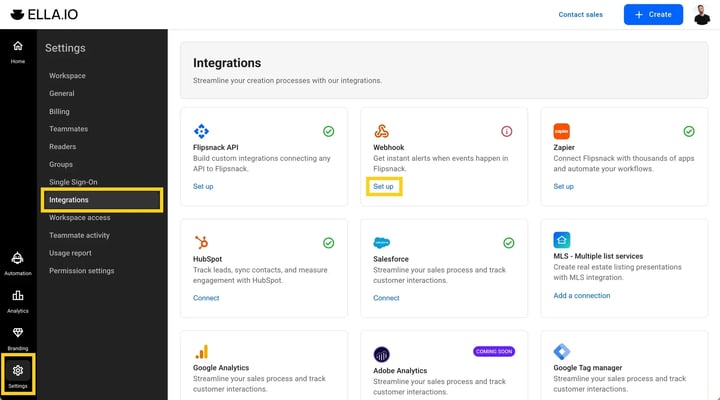
Step 2: Enable webhooks for contact forms
- Locate the Webhooks section.
- Enable webhooks for the Contact form.
Step 3: Add your endpoint URL
- In the Endpoint URL field, paste the webhook URL provided by your external tool (e.g., Zapier, Make, CRM).
- Save your changes.
.png?width=720&height=400&name=Screenshot%202026-03-20%20at%2014.04.46-mh%20(1).png)
Step 4: Add a contact form in Design Studio
- Open your flipbook in Design Studio.
- Go to the Interactions panel from the left sidebar.
- Add the Contact form interactive element to your page.
- Configure the fields (e.g., email, name, message) and save.
.png?width=720&height=400&name=Screenshot%202026-03-20%20at%2014.04.46-mh%20(2).png)
Where to find your webhook URL field
The webhook (endpoint) URL field is located in the Integrations page → Webhooks section.
Once added, Flipsnack will send the form data to this URL every time a user submits the contact form.
What happens after you connect a webhook
After setting up the webhook:
- Every contact form submission is automatically sent to your webhook URL
- The receiving tool processes the data based on your setup
- You can store, notify, or trigger actions using that data
For example, if you connect a webhook via Zapier:
- A new submission can create a contact in your CRM
- Your team can receive a notification
- Data can be added to a spreadsheet or database
Common use-cases
- CRM integration: Automatically send leads to tools like HubSpot or Salesforce
- Email notifications: Notify your team when a new contact form is submitted
- Lead tracking: Store submissions in Google Sheets or a database
- Marketing automation: Trigger follow-up emails or campaigns
Troubleshooting
Webhook is not receiving data
- Webhook URL incorrect: Make sure the webhook URL is correct
- Contact form disabled: Check that the contact form is enabled
- External tool not listening: Verify that your external tool is active and listening for data
No submissions are triggered
- Flipbook not published: Ensure the flipbook is published
- Test the form manually: Test the form manually to confirm it works
Data is incomplete or missing
- Form fields configuration: Check your contact form fields configuration
- Data mapping: Verify how your external tool maps incoming data
Additional tips / FAQs
- Does this work with the Lead form in Customize? No. Webhooks only send data from the Contact Form interactive element added in Design Studio. The Lead form in the Customize page is not supported for webhooks.
- Do I need coding knowledge to use webhooks? No. If you use tools like Zapier or Make, they provide ready-made webhook URLs and visual workflows.
- What data is sent through the webhook? All fields completed in the contact form, such as name, email, and message.
- Can I test the webhook? Yes. Submit a test entry in your flipbook and check if it appears in your connected tool.
Next steps
- Using webhooks to collect product orders
- Using a lead form
- Integrate Flipsnack with other tools and apps
Need expert support?
Our team is here to help. Connect with our team experts or message us via the live chat for personalized assistance.